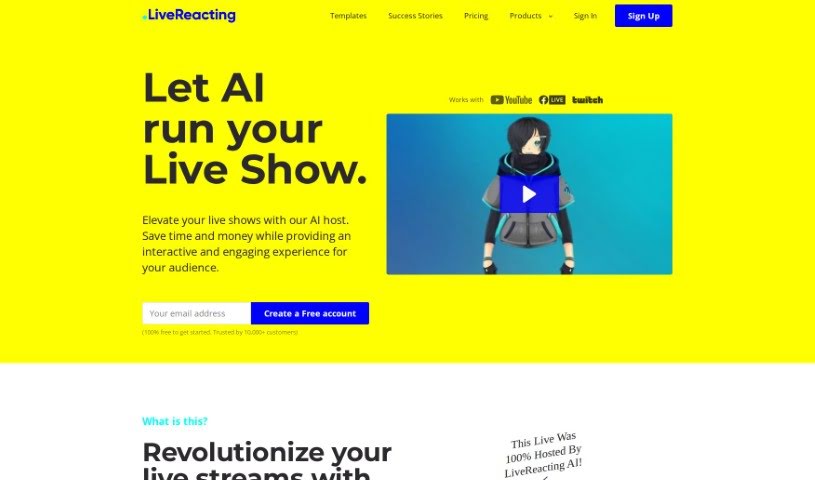
Screenshot of LiveReacting AI Host for live Streaming

LiveReacting AI Host for live Streaming

Discover what LiveReacting's AI Host for live streaming is and how to use it effectively in 2025. We'll cover its features and how it stacks up against other video creation tools.

Screenshot

What is LiveReacting AI Host for Live Streaming?

An AI host for live streaming, like the one LiveReacting offers, is a way to really boost how much your viewers get into your live shows. It uses AI to understand what’s happening in your live stream, and then it can jump in to do things like start quizzes, read out viewer questions, chat with people, and announce winners – all as it happens. It’s pretty versatile, too. Whether you’re running an educational session, promoting a product, or hosting a fun quiz, this AI host can handle it. It’s designed to work for all sorts of industries and purposes. What makes it stand out is its ability to grasp the context of your show, deliver content that’s both educational and entertaining, and basically run the whole thing on its own without you needing to be glued to the screen. It really offers a smooth, modern experience for everyone involved.

Who created LiveReacting AI Host for Live Streaming?

LiveReacting is the company behind this AI Host for live streaming. They’re using AI technology to change how live streams work, offering an interactive experience that doesn’t need a human host. People across different fields – from schools and universities to individual influencers and small business owners – can find this platform really useful. It helps make their live shows more engaging and feel up-to-date.

How to use LiveReacting AI Host for Live Streaming?

Here’s a straightforward guide to getting started with the AI Host for your live streams:

  1. Sign up for LiveReacting: First, you’ll need to create an account with LiveReacting to get access to the AI Host feature.
  2. Find the AI Host: Once you’re logged in, just head over to the AI Host section within the platform.
  3. Set up your stream: Get your live stream ready by choosing what kind of show you want to host. This could be a quiz, an educational talk, or even a product launch.
  4. Turn on the AI Host: Activate the AI Host. This lets it understand what your show is about and interact smoothly with your audience.
  5. Add extra touches: Make your live stream even better by adding your own camera feed, setting up polls, including games, using countdown timers, and other interactive elements.
  6. Give it specific directions (if you want): You can give the AI host specific instructions if you need to, like mentioning your sponsors or announcing prizes for the winners.
  7. Broadcast everywhere: Use the multistreaming feature to send your live show out to as many as 20 different places at the same time.
  8. No need to hover: One of the best parts is that the AI host can manage the entire live show by itself, from beginning to end, so you don’t have to constantly supervise.
  9. Keep everyone involved: The AI host is great at interacting with participants in real-time. It can call out correct answers and keep your audience entertained throughout the whole stream.
  10. Get help if you need it: If you get stuck or need a hand, you can check out the LiveReacting knowledge base or reach out for help through their chat support.

By following these steps, you can really make the most of the AI Host feature for your live streams on LiveReacting.

Related AI Tools

Discover more tools in similar categories that might interest you

Stay Updated with AI Tools

Get weekly updates on the latest AI tools, trends, and insights delivered to your inbox

Join 25,000+ AI enthusiasts. No spam, unsubscribe anytime.