What is GitBrain?
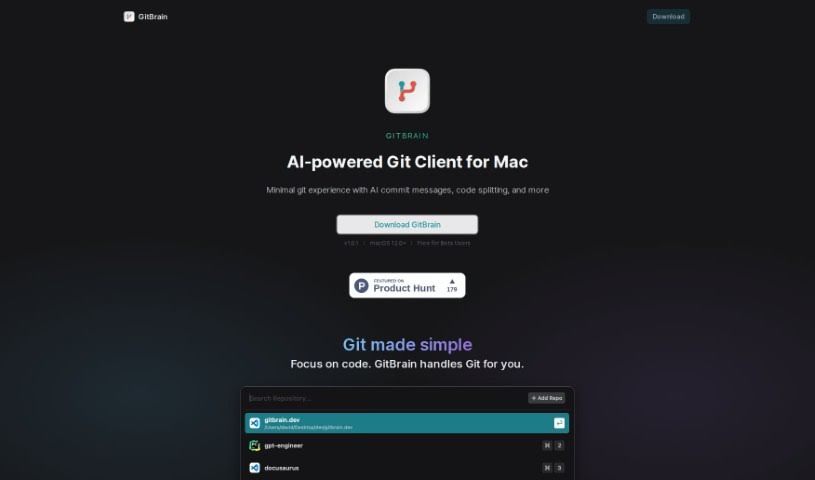
GitBrain is a smart Git client built just for Mac users, powered by AI. Its main goal is to make managing Git much simpler and faster, so you can spend more time actually coding and less time wrestling with Git. What makes it stand out? Well, it can split your code changes into several commits that the AI helps create. It also writes automatic summaries for what you’ve changed. Plus, it’s designed with your keyboard in mind, offering shortcuts for pretty much everything. You can switch between light and dark modes, just like on your Mac, and it even figures out which project you’re working on from your favorite IDEs. Basically, GitBrain makes coding more efficient by simplifying Git tasks and giving you tools to review your own code before you commit it.
Who created GitBrain?
GitBrain was developed by a company founded by a team of experienced developers. They officially launched GitBrain, their AI-powered Git client for Mac, on December 16, 2023. The whole idea behind the tool is to automate and simplify Git management, freeing up developers to concentrate on their coding. GitBrain offers some neat features, like managing commits interactively, creating automatic summaries for code changes, and detecting your current project from your IDEs. It’s a native Mac app, featuring a keyboard-friendly design and support for both light and dark themes. It works with macOS 12.0 and newer, ensuring it runs smoothly for Mac users.
What is GitBrain used for?
- Interactive commit management: You can easily manage your commits.
- Reorder and consolidate commits: Tidy up your commit history.
- Automatic code change summaries: Get quick overviews of your modifications.
- Self-review facilitation: Helps you check your own work.
- Prevents accidental changes submission: Keeps your commits clean.
- Automatic project detection: It knows what project you’re working on.
- Supports various IDEs: Works with your preferred development environments.
- Smooth Git handling: Makes Git operations feel natural.
- Keyboard-friendly design with shortcuts: Control everything with your keyboard.
- Streamlined Git workflow: Simplifies how you use Git.
- Self code review: Review your changes before committing.
- Summary for your code changes: Get automatic summaries.
- Auto-detect your project from your favorite IDEs: Seamlessly integrates with your workflow.
- Keyboard-friendly design with shortcuts for everything: Full control at your fingertips.
- Made for Mac with optimized performance & native UI: A smooth, native Mac experience.
- Commit customization: Tailor your commits precisely.
- Focus on coding: Lets you concentrate on writing code.
- Automatically generating summaries for code changes: Saves you time.
- Efficiently reviewing code changes before committing: Ensures quality.
- Splitting code modifications into multiple AI-generated commits: Organize changes logically.
- Interactively editing, selecting, and merging commits: Fine-tune your commit history.
- Detecting and loading the project a user is currently working on from preferred IDEs: Starts you off right away.
- Customizing and managing commits interactively: Gives you control over your history.
- Enhancing coding efficiency by automating Git management: Frees you up to code.
- Offering commit management features: All your Git needs in one place.
- Providing a familiar Mac user interface with keyboard shortcuts: Easy to learn and use.
- Supporting light and dark mode themes on Mac: Personalize your view.
- Keyboard-friendly design: Designed for speed and efficiency.
Who is GitBrain for?
- Software developers
- Programmers
- DevOps Engineers
- Web Developers
- IT professionals
- Computer Programmers
- Developers
- Coding professionals
- Software engineers
- Coders
How to use GitBrain?
To get the most out of GitBrain, just follow these simple steps:
- Install GitBrain: First, download and install the GitBrain AI-powered Git client, which is made specifically for Mac users.
- Open GitBrain Panel: Once installed, open the GitBrain panel. You’ll see your current project right at the top, automatically detected from your favorite IDE.
- Review Code Changes: GitBrain automatically creates summaries for your code changes. Take a moment to review them to make sure everything looks right before you commit.
- Customize Commits: You can adjust the commits that GitBrain generates. Feel free to select, reorder, and merge them interactively until they’re just how you want them.
- Enhance Coding Efficiency: Use GitBrain to automate your Git management. This way, you can focus more on writing code while GitBrain handles the version control tasks for you.
- Utilize Keyboard Shortcuts: Make sure to take advantage of the keyboard-friendly design. There are shortcuts for all the functions, helping you navigate and use GitBrain super efficiently.
- Choose Dark or Light Mode: GitBrain supports both light and dark mode themes, so you can pick whichever suits your eyes best on your Mac.
- Benefit from Mac Optimization: GitBrain is specially optimized for Mac. It offers a native application experience that really fits well with how Macs work.
- Detect Project Automatically: GitBrain can automatically detect and load the project you’re currently working on from your preferred IDE, making Git management feel seamless.
- Ensure Compatibility: GitBrain works with macOS 12.0 and later versions. This means Mac users have a reliable and efficient tool for managing their Git projects.
By following these steps, you can really make GitBrain work for you, streamlining your Git management process on your Mac.