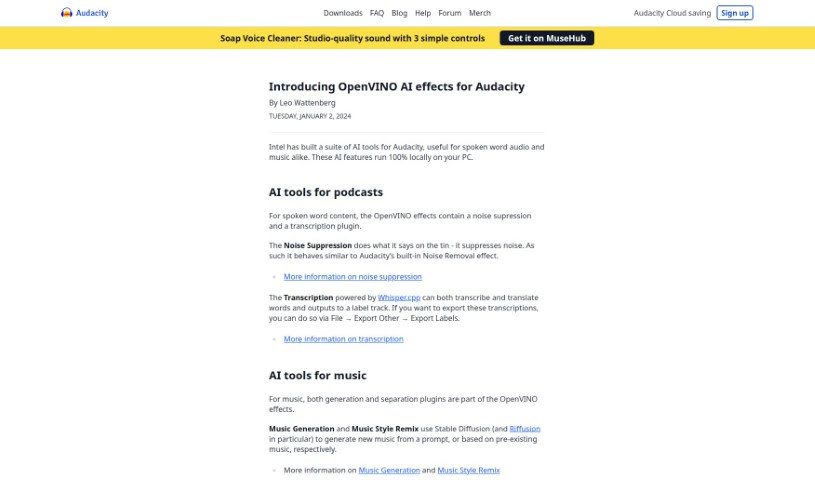
Screenshot of Audacity OpenVINO

Audacity OpenVINO

Discover what Audacity OpenVINO is and how to effectively use it in 2025. We'll explore its features and see how it stacks up against other Software Development Tools.

Screenshot

What is Audacity OpenVINO?

OpenVINO, which is short for Open Visual Inference and Neural network Optimization, is a toolkit that Intel created. Its main purpose is to help developers build really high-performance applications for computer vision and deep learning inference. It is a comprehensive set of tools, libraries, and pre-optimized kernels that make it easier for developers to get their applications running smoothly on all sorts of Intel platforms – whether that’s their CPUs, GPUs, FPGAs, or VPUs. With OpenVINO, developers can speed up deep learning inference right at the edge, fine-tune how neural networks perform, and integrate computer vision functions into their applications without a lot of hassle. Essentially, this toolkit simplifies the deployment process, allowing users to create applications that are specifically optimized for Intel architecture, which means faster inference and less time spent on development.

Who created Audacity OpenVINO?

Intel Corporation is the company behind OpenVINO. Intel, an American multinational corporation, was founded back in 1968 by Robert Noyce and Gordon Moore. They’re really well-known for designing and manufacturing microprocessors that go into a huge variety of devices. OpenVINO, or Open Visual Inference and Neural network Optimization as it’s fully known, is just one of the many innovative technologies Intel has developed. Their goal with OpenVINO is to optimize deep learning tasks across all of Intel’s hardware platforms.

How to use Audacity OpenVINO?

If you want to use OpenVINO for AI effects in Audacity, here’s a straightforward guide:

  1. Grab the Plugins: Head over to the OpenVINO plugins’ download page here to get the plugins specifically for Windows.
  2. Install Them: Once you’ve downloaded the plugins, go ahead and install them on your system. Just a heads-up, right now, the download is only for Windows. However, if you’re on Linux or macOS, you can still compile the project yourself.
  3. Put the AI Tools to Work:
    • For Spoken Word: OpenVINO offers plugins that can help with noise suppression and transcription, which are great for spoken word audio. The Noise Suppression plugin works to cut down on background noise, and the Transcription plugin can actually write down and even translate what’s being said.
    • For Music:
      • Making Music: Plugins like Music Generation and Music Style Remix use Stable Diffusion. They can create new music based on prompts you give them or even remix existing music.
      • Separating Music: This feature is pretty neat – it can split a song into its core components: vocals, instrumental tracks, drums, bass, and then a general ‘everything else’ category. It’s perfect if you’re looking to do covers or practice along with backing tracks.
  4. Saving Your Work: If you need to export transcriptions, just navigate to File → Export Other → Export Labels within Audacity.
  5. Need More Help?: If you have any questions or want to share your thoughts, you can always check out the plugin’s issue tracker.

By following these steps, you can really make the most of OpenVINO’s AI capabilities inside Audacity, improving both spoken word and music audio tracks effectively.

Related AI Tools

Discover more tools in similar categories that might interest you

Stay Updated with AI Tools

Get weekly updates on the latest AI tools, trends, and insights delivered to your inbox

Join 25,000+ AI enthusiasts. No spam, unsubscribe anytime.