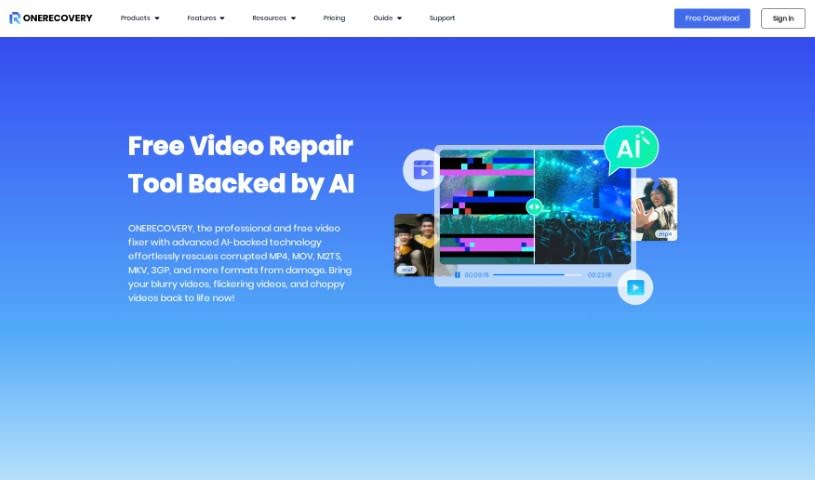
Screenshot of Video Repair By Onerecovery

Video Repair By Onerecovery

Discover what Video Repair by ONERECOVERY is and how to use it effectively in 2025. We'll explore its features and see how it stacks up against other video editing tools.

Screenshot

What is Video Repair By Onerecovery?

“Video Repair By Onerecovery” is a smart tool that uses AI to fix and improve videos that are damaged, corrupted, or blurry. You know, the kind of problems that happen from things like bad file transfers, recording mistakes, computer crashes, or even viruses. It’s pretty versatile, handling lots of video formats like MP4, MOV, M2TS, and MKV. Plus, it works with videos from all sorts of devices – cameras, drones, phones, computers, you name it.

What’s really neat is how it uses advanced AI algorithms. It dives deep into your video frames, pixels, and data points to figure out what went wrong and fix it, all without changing the actual content. You just upload your video, and the software gets to work, using techniques like interpolation, noise reduction, and rebuilding frames to bring your video back to life. It’s available for both Windows and Mac, and you can even repair multiple files at once, which is a real time-saver.

Who created Video Repair By Onerecovery?

The video repair tool, “ONERECOVERY,” first came out on December 24, 2023. While the specific founder isn’t mentioned in the details I have, ONERECOVERY itself is known for being a professional data recovery solution for Windows. They handle over 1,000 different data loss scenarios – think accidental deletions, formatting errors, virus damage, and more. This particular tool leverages AI to tackle various video issues. It can fix different types of damage, sharpen blurry videos, smooth out shaky footage, and even recover audio that might be missing. It’s designed to be compatible with a wide array of devices and camera brands.

What is Video Repair By Onerecovery used for?

This tool is incredibly useful for a variety of video problems:

  • It can restore clarity to blurry videos, making them sharp and watchable again.
  • Fixes jittery motions, so your footage looks smooth instead of shaky.
  • Recovers missing audio, ensuring you don’t miss any sound.
  • It’s designed to work with footage from diverse camera brands.
  • You can preview your repaired videos before you save them, which is great for checking the quality.
  • It uses an adaptive repair technique that can handle all sorts of issues.
  • It boasts a high success rate in fixing corrupted videos.
  • The batch repair capability means you can fix multiple videos at once, saving you a lot of time.
  • It handles videos from various devices and storage media.
  • You’ll also see color and clarity enhancements in the repaired videos.

More specifically, it’s great for:

  • Restoring clarity to blurry footage.
  • Smoothing out choppy or stuck playback.
  • Fixing videos with stuttering playback.
  • Handling slow video playback.
  • Repairing flickering videos.
  • Fixing videos that just won’t open.
  • Restoring audio and subtitles that might be missing.
  • Perfectly repairing corrupted videos from all sorts of devices.
  • Repairing corrupted game captures.
  • Bringing old home movies back to life.

Who is Video Repair By Onerecovery for?

This tool is a fantastic resource for anyone who works with video and encounters issues:

  • Filmmakers who need pristine footage.
  • Content creators relying on high-quality video for their platforms.
  • Photographers who also shoot video.
  • Videographers capturing events and projects.
  • Drone operators whose footage can sometimes be prone to corruption.
  • Mobile phone users who want to salvage precious video memories.
  • Cinematographers who demand the best quality.
  • Video editors who need clean source material.
  • It’s also great for filmmakers and photographers who might be the same people as the above, but it emphasizes the breadth of users.

How to use Video Repair By Onerecovery?

Using Video Repair By Onerecovery is pretty straightforward. Here’s a simple step-by-step guide:

  1. First, you’ll need to download and install ONERECOVERY onto your computer, whether you’re using Windows or Mac.
  2. Once it’s installed, upload the corrupted video files you want to fix into the software.
  3. The tool’s AI technology then gets to work. It analyzes the video frames and pixels to pinpoint exactly what’s causing the damage or corruption.
  4. Based on this analysis, the AI intelligently applies the right techniques. This could include interpolation, noise reduction, or frame reconstruction to repair the videos.
  5. If you have a file that’s severely corrupted, the software suggests adding a Sample File. This should be a video created from the same device and in the same format as your corrupted file, which helps the AI understand the original structure better.
  6. Before you commit to saving, you can preview the repaired videos. This is a crucial step to make sure the restoration quality is exactly what you’re looking for.
  7. Remember, ONERECOVERY supports a wide variety of video formats, including MP4, M4V, MOV, MKV, and many others. It also works with videos from drones, smartphones, and all sorts of other devices.
  8. And for those times when you have multiple files to fix, the batch video repair feature is a lifesaver. You can process many files at once, and it maintains the original quality throughout.
  9. Finally, once the repair process is complete and you’re happy with the results, you can download and save your restored videos to wherever you like.

Related AI Tools

Discover more tools in similar categories that might interest you

Stay Updated with AI Tools

Get weekly updates on the latest AI tools, trends, and insights delivered to your inbox

Join 25,000+ AI enthusiasts. No spam, unsubscribe anytime.