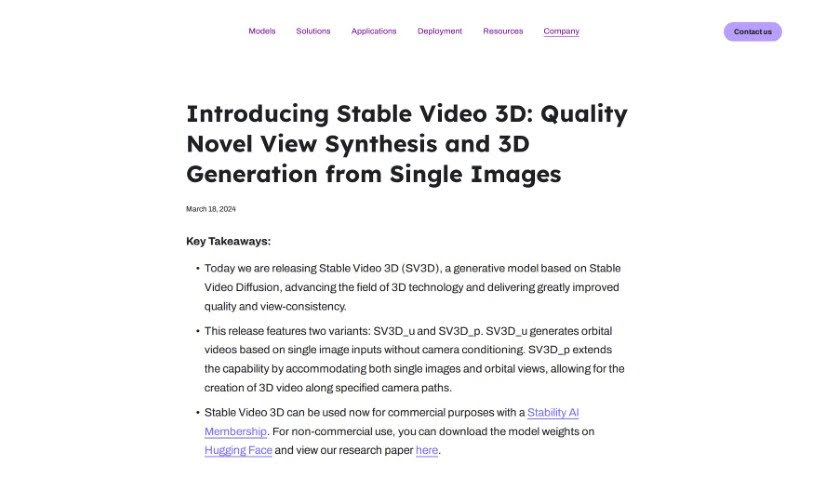
Screenshot of Stability AI Stable Video 3D

Stability AI Stable Video 3D

Learn what Stability AI Stable Video 3D is and how to use it effectively in (2025). Explore its features and how it compares with other Video Creation Tools.

What is Stability AI Stable Video 3D?

Stability AI Stable Video 3D is a really impressive new model that’s pushing the boundaries of 3D technology. What it does is generate high-quality videos showing an object or scene from multiple viewpoints. It’s actually outperforming other models in this space, like Stable Zero123 and Zero123-XL, which is pretty significant.

The model comes in two main flavors. First, there’s SV3D_u. This version is great because it can create these orbital videos – think of it like a camera smoothly moving around an object – just from a single image you provide. You don’t even need to tell it anything about the camera’s path. Then, you have SV3D_p. This one gives you a bit more control; it can generate 3D videos following specific camera paths that you define, again, starting from a single image and using those orbital views we just talked about.

If you’re looking to use this for commercial projects, you can do so by getting a Stability AI Membership. For those who just want to experiment or use it for non-commercial purposes, you can download the model weights directly.

So, how does it achieve such good results? Well, Stable Video 3D cleverly uses Stable Video Diffusion. It’s designed to optimize 3D Neural Radiance Fields and mesh representations. Essentially, this means it gets better at creating 3D meshes directly from new viewpoints, especially in areas that might not be perfectly visible in the initial predicted views. It really enhances the overall 3D quality.

Who created Stability AI Stable Video 3D?

The team behind Stability AI is the one that brought Stable Video 3D into existence. Stability AI is a company that really focuses on developing cutting-edge technology, and they’ve made a particular mark in the area of 3D generation. They’ve introduced this new model, Stable Video 3D, which is a generative model that really moves 3D technology forward. They’ve managed to enhance both the quality of the generated 3D content and how consistent the views are. They achieve this through some pretty innovative techniques, including something called masked score distillation sampling loss and a disentangled illumination model, which helps make the lighting look more realistic and varied.

How to use Stability AI Stable Video 3D?

Using Stability AI Stable Video 3D is pretty straightforward, and they’ve laid out a clear process to follow. Here’s a breakdown of the steps:

  1. Upload Video: First things first, you’ll need to upload the video clip you’re interested in. Whether you want to stabilize it or convert it into a 3D format, you start by getting your video onto the Stable Video 3D platform.
  2. Select Stabilization Options: Once your video is uploaded, you get to choose how you want it stabilized. You can pick things like the smoothing level – how much you want to smooth out shaky movements. You can also adjust the correction strength, which controls how aggressively the software corrects for motion, and even select the stabilization method itself, depending on what works best for your specific video and the quality you’re aiming for.
  3. Adjust 3D Conversion Settings: If your goal is to convert the video into a 3D format, this is where you configure those specific settings. You can adjust parameters like the depth map intensity, which controls how pronounced the 3D effect is, and the 3D offset, which can fine-tune the positioning of elements in the 3D space. There might be other relevant parameters too, depending on the complexity of the conversion.
  4. Preview the Changes: Before you commit to the full process, it’s always a good idea to preview what you’ve done. This lets you see how the adjustments you’ve made to stabilization and 3D conversion are affecting the video, ensuring everything looks just right and meets your expectations.
  5. Initiate Stabilization: When you’re happy with the settings and the preview looks good, you can then initiate the stabilization process. This is when the software really gets to work, applying all the chosen stabilization and 3D conversion algorithms to your video file.
  6. Download or Save: Once the stabilization and any 3D conversion are successfully completed, you’ll have your final output. You can then download the stabilized video in whatever format you prefer, or you can save it directly onto your device for immediate use.
  7. Review the Output: The final step is to give the stabilized or 3D-converted video a good review. You’ll want to make sure it meets all your requirements and looks exactly how you envisioned it. If something isn’t quite perfect, you can always go back and make additional adjustments.

By following these steps, you can really make the most of Stable Video 3D, whether you’re just looking to smooth out shaky footage or dive into creating immersive 3D experiences from your videos.

Related AI Tools

Discover more tools in similar categories that might interest you

Stay Updated with AI Tools

Get weekly updates on the latest AI tools, trends, and insights delivered to your inbox

Join 25,000+ AI enthusiasts. No spam, unsubscribe anytime.