What is Qik Meeting?
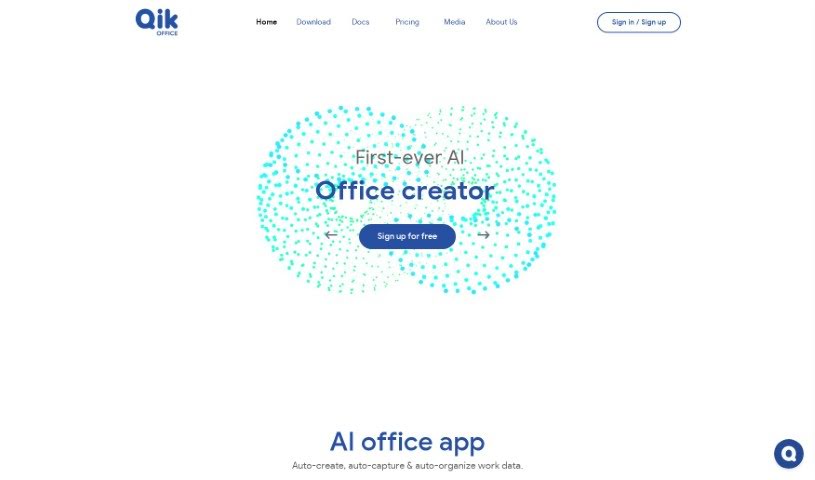
Qik Meeting is a smart, AI-powered tool designed to make business communication and collaboration much smoother and more organized. It is your go-to for boosting productivity. A standout feature? It automatically generates meeting minutes for you. This means no more scribbling notes frantically, and you can be sure all the important details are captured accurately. The platform also keeps all your work data in one place, making it super easy to find and access whenever you need it. Qik Meeting offers different kinds of meeting rooms, whether you’re meeting online or in person. These rooms come with handy features like video conferencing, scheduling tools, document sharing, and the ability to assign tasks. Plus, there are private one-on-one rooms for those focused conversations between just two people. Because it’s packed with AI, Qik Meeting really helps streamline things like scheduling, assigning action items, and even creating agendas. This frees you up to concentrate on what really matters – your actual work.
Who created Qik Meeting?
Qik Meeting was brought to life by a really enthusiastic team of innovators who are passionate about changing how we communicate and collaborate. They launched the app on January 23, 2023, aiming to completely transform work processes with over 30 new ideas. The brilliant minds behind Qik include forward-thinking developers and clever engineers. They’re constantly using AI and new tech developments to keep pushing the platform forward.
What is Qik Meeting used for?
- Helps you get more done
- Lets you assign tasks to people
- Boosts your productivity
- Enables real-time collaboration
- Makes sharing documents easy
- Automatically creates meeting minutes
- Keeps all your work data in one spot
- Offers rooms for online and in-person meetings
- Provides private rooms for one-on-one chats
- Includes an advanced scheduler for businesses
- Gives you a single dashboard to see everything
- Works on different devices
- Supports global teams and offices
- Features video conferencing
- Centralizes your work data
- Is helpful for teams in global offices
- Offers video conferencing capabilities
- Makes online meetings and in-person collaboration easier
- Provides private rooms for one-on-one conversations
- Offers an advanced scheduler designed for enterprises
- Features a unified dashboard for an overview of everything
- Includes enhanced security measures to keep your data safe
Who is Qik Meeting for?
- Project Managers
- Team Leaders
- Software Developers
- Consultants
- Sales Representatives
- Executive Assistants
- Marketing Managers
- Human Resources Professionals
- Researchers
- Customer Service Managers
- Event Coordinators
- Content Creators
How to use Qik Meeting?
Ready to dive in? Here’s a simple, step-by-step guide to using Qik Meeting:
- Sign Up: First things first, create your account on the Qik Meeting platform. You’ll just need to provide your email address and set up a password.
- Schedule a Meeting: Once you’re logged in, head over to your dashboard. Look for the “Schedule Meeting” button, click it, and then fill in the details for your meeting – like the title, date, time, and how long it will run.
- Invite Participants: After you’ve scheduled it, you can invite everyone who needs to be there. You can share the meeting link directly or send email invitations right from the platform.
- Join a Meeting: When it’s time for the meeting to start, just click on the meeting link you received in the invitation. You might need to enter a meeting ID or password if that’s set up.
- Set Up Audio and Video: As soon as you’re in the meeting, take a moment to adjust your audio and video settings. Make sure to select the correct microphone and camera.
- Interact During the Meeting: Now’s the time to connect! Use the video, audio, and chat features to talk with other participants. Feel free to share your screen, documents, or presentations to help with discussions.
- Manage Participants: If you’re hosting, you have control. You can mute or unmute people, remove them if needed, or even make them co-hosts.
- Record the Meeting (if needed): If you think you’ll need to refer back to the meeting later, you can start recording. Just remember to let everyone know you’re recording before you begin.
- End the Meeting: When the discussion wraps up, click the “End Meeting” button. You can also choose to share any post-meeting notes or recordings with the attendees.
- Follow Up: After the meeting is over, it’s a good idea to send out follow-up emails. Include the meeting notes, any action items that were decided, or any other important information that came up during the session.
By following these straightforward steps, you’ll be able to use Qik Meeting like a pro for smooth virtual collaboration and communication with your team or clients.