10LevelUp
Video Generation Video Editing
Learn more
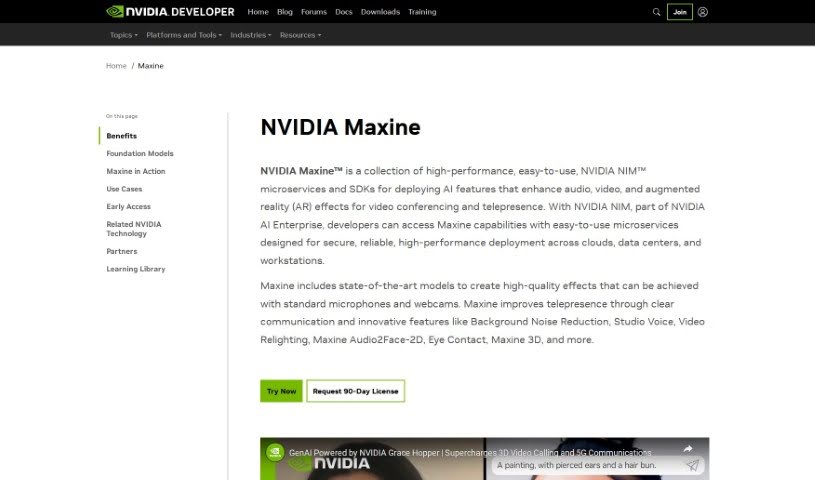
Discover what Nvidia Maxine is and how its AI features improve video calls and streaming with noise removal, virtual backgrounds, and video enhancement.
Nvidia Maxine is an AI platform designed for video conferencing and streaming. It improves video calls by removing background noise, enhancing video quality, and enabling virtual backgrounds without a green screen. It also includes face alignment, gaze correction to simulate looking directly at the camera, and super-resolution to sharpen the image. The goal is to make video communication more engaging and efficient, bringing advanced AI capabilities to both everyday users and businesses.
Nvidia Maxine was developed by NVIDIA Corporation, a company founded in 1993 by Jensen Huang, Chris Malachowsky, and Curtis Priem. Jensen Huang remains CEO. NVIDIA is a major technology company known for its graphics processing units (GPUs) and its contributions to artificial intelligence and deep learning.
To get started, visit the official Nvidia website and find the Maxine platform. Sign up or log in with your Nvidia account to access the Maxine dashboard, where the tools and features are located. From there, you can explore the video conferencing enhancements, such as noise cancellation, face alignment, and virtual backgrounds, and get familiar with how the AI improves video quality and reduces bandwidth usage.
More advanced features include gaze correction and resolution enhancement, both of which can be adjusted to match your needs. Nvidia regularly adds new improvements to the platform.
To use Maxine in an actual call, pick a compatible video conferencing app, enable the Nvidia Maxine integration within that app, and adjust the settings for best performance. During the call, you can use options like background noise reduction, virtual backgrounds, and facial enhancements. AI features such as real-time translation and transcription can further boost productivity. Experimenting with the different settings is the best way to find what works for your situation.
Related
Discover more tools in similar categories
Weekly picks of the best AI tools we've researched and added — no spam, unsubscribe anytime.
Join 25,000+ AI enthusiasts. No spam, unsubscribe anytime.