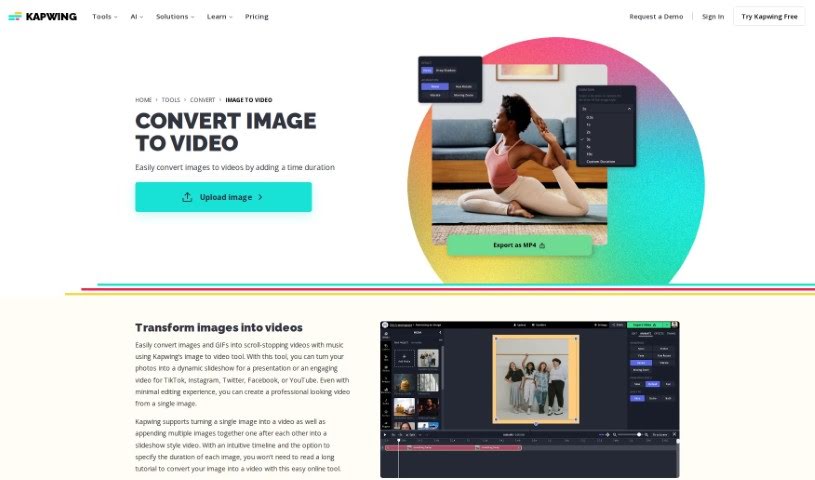
Screenshot of Kapwing AI Image to Video

Kapwing AI Image to Video

Curious about Kapwing's AI Image to Video tool? We'll walk you through exactly what it is, how to use it effectively in 2025, its key features, and how it stacks up against other image-to-video tools.

Screenshot

What is Kapwing AI Image to Video?

Kapwing offers a neat tool that lets you turn your still images into dynamic videos. It’s perfect for anyone looking to create engaging video content, especially for social media where video really shines. You can upload common image formats like JPG, PNG, or even GIFs. The platform supports a range of ways to work with images and video, from simply converting a single photo into a video clip to more involved tasks like creating freeze frames or editing existing video segments.

What’s great is how much you can customize. You can tweak the aspect ratio, set how long each image appears, and even add music. Plus, you can do all the usual editing tricks: crop, add backgrounds, animate shapes, or apply filters. Once you’re happy with your creation, you can download it as an MP4 file or share it straight to platforms like Facebook, Instagram, or Twitter. It’s a really user-friendly way to make eye-catching videos from your pictures.

Who created Kapwing AI Image to Video?

Julia Enthoven is the creative mind behind Kapwing’s AI Image to Video tool. She’s one of the co-founders of Kapwing, a company that started back in 2017. Kapwing provides a whole suite of tools designed for today’s creators. Julia is really passionate about giving people the power to express themselves through different kinds of multimedia content. Kapwing’s platform makes it super easy for users to edit videos, images, and GIFs without any fuss. Their main focus is on keeping things simple and accessible, so anyone, no matter their experience level, can create great-looking visual content for their projects or social media.

Who is Kapwing AI Image to Video for?

This tool is a great fit for a variety of creative professionals and businesses:

  • Social Media Managers
  • Digital Marketers
  • Content Creators
  • Graphic Designers
  • Educators
  • Videographers
  • Small Business Owners
  • Artists
  • Bloggers
  • Photographers

How to use Kapwing AI Image to Video?

Ready to give it a try? Here’s a simple step-by-step guide to using Kapwing’s AI Image to Video tool:

  1. Head over to the Kapwing website and find the AI Image to Video tool.
  2. Click on it to open up the editing interface.
  3. Upload the images you want to use in your video.
  4. Arrange these images in the order you’d like them to appear in the final video.
  5. Decide how long each image should be visible on screen.
  6. Add some smooth transitions between your images to make the video flow nicely.
  7. If you want, you can add text overlays or captions to your video.
  8. Pick some background music from Kapwing’s library or upload your own track.
  9. Take a moment to preview your video. This is your chance to check that everything looks just right.
  10. When you’re happy with it, hit the “Create” or “Export” button to generate your video.
  11. Finally, download the video to your computer or share it directly to your favorite social media platforms.

Following these steps should make it really straightforward for you to create engaging videos using Kapwing’s AI Image to Video tool.

Related AI Tools

Discover more tools in similar categories that might interest you

Stay Updated with AI Tools

Get weekly updates on the latest AI tools, trends, and insights delivered to your inbox

Join 25,000+ AI enthusiasts. No spam, unsubscribe anytime.