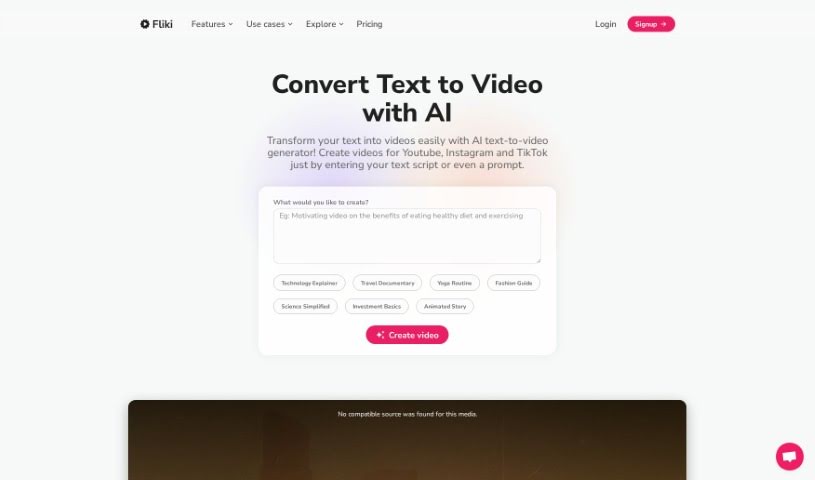
Screenshot of FlikiText to Video

FlikiText to Video

Discover what Fliki Text to Video is and how to use it effectively in 2025. We'll explore its features and see how it stacks up against other Video Content Creator Tools.

Screenshot

What is Fliki Text to Video?

Fliki Text to Video is a really neat AI tool that makes it super easy for anyone to create videos straight from text. You just pop your script into Fliki’s platform, pick the settings you like, and voilà – an AI video is born. How does it work? Well, this text-to-video AI analyzes what you’ve written and uses smart machine learning to put together a video that matches your content. Fliki Text to Video can handle up to 15,000 characters for text conversion, and you can export your videos as MP4 or MOV files. Plus, with templates you can tweak, ready-to-use voiceovers, and features that are just plain intuitive, Fliki truly lets you turn your ideas into professional-looking videos without needing to be a video editing whiz.

Who created Fliki Text to Video?

Nicolai Grut is the person behind Fliki Text to Video. He’s a Digital Product Manager, and he actually gave Fliki a thumbs-up, praising its clean interface and how quickly it processes things. The company, Fliki, offers this user-friendly text-to-video AI tool, and people seem to love it – it’s got a rating of 4.8 stars based on over 5,775 reviews, which speaks volumes about its high-quality output.

How to use Fliki Text to Video?

Ready to make some videos? Here’s a simple breakdown of how to use Fliki Text to Video:

  1. Get to the Tool: First off, open your web browser and head over to the Fliki Text to Video website.
  2. Sign Up or Log In: If you don’t have an account yet, create one. Otherwise, just sign in to get access to all the cool features.
  3. Add Your Text: You’ll see a spot to type or paste the text you want to turn into a video. Just put it right there.
  4. Pick a Voice: Choose the voice style or accent you prefer for the narration. This really helps customize the audio part of your video.
  5. Select Background Music: Adding some background music can make a big difference! Pick a track that fits your video and helps keep your audience hooked.
  6. Tweak the Visuals: Now for the fun part – customizing how your video looks. You can play with text animations, fonts, colors, and even background images.
  7. Take a Peek: Before you commit, it’s always a good idea to preview your video. This way, you can make sure everything looks and sounds just right.
  8. Create Your Video: Once you’re happy with all your settings, hit the button to start creating your video.
  9. Download or Share: When your video is ready, you can download it to your computer or share it straight to your social media.
  10. Polish It Up: Need to make a few tweaks? You can use the tool’s editing features to trim clips, add transitions, or pop in extra visuals to make your video even better.
  11. Save and Export: Don’t forget to save your project so you can come back to it later. Then, export your video in whatever format works best for sharing or publishing.

By following these steps, you’ll be able to easily use Fliki Text to Video to transform your text content into videos that are both engaging and look really professional.

Related AI Tools

Discover more tools in similar categories that might interest you

Stay Updated with AI Tools

Get weekly updates on the latest AI tools, trends, and insights delivered to your inbox

Join 25,000+ AI enthusiasts. No spam, unsubscribe anytime.