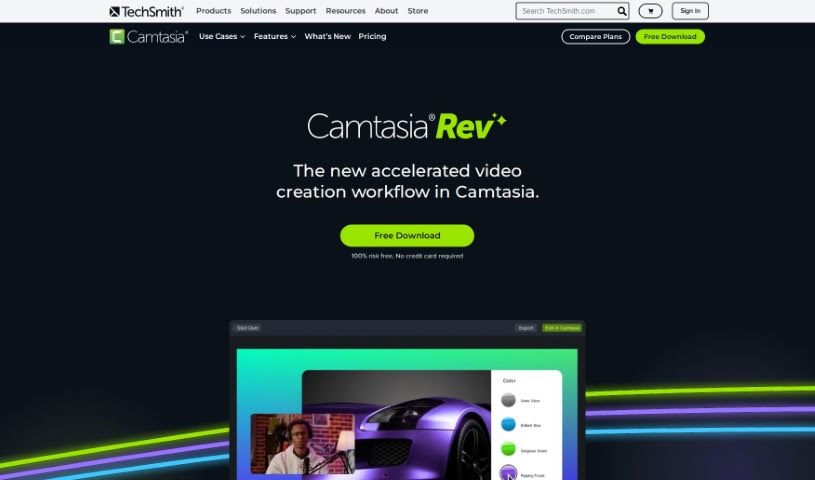
Screenshot of Camtasia Rev

Camtasia Rev

Discover what Camtasia Rev is and how to use it effectively in 2025. We'll explore its features and see how it stacks up against other video creation tools.

Screenshot

What is Camtasia Rev?

Camtasia Rev is a smart tool that helps speed up video creation within Camtasia. It uses AI to make the whole process smoother, so you can get a more polished video done faster. It is a helpful assistant that offers a bunch of cool features. For instance, it can help you create content that looks great on different screen sizes, adjust layouts perfectly for whatever you need, and add professional touches like background effects and filter templates with just a click. It also makes adding annotations and transitions super easy, and it even works with Audiate for editing your audio, almost like editing text. Basically, Camtasia Rev is all about helping you create videos that look good and grab attention, all while keeping your brand looking consistent and professional.

Who created Camtasia Rev?

TechSmith Corporation is the company behind Camtasia Rev. They launched it on October 19, 2023. This tool is designed to make video creation in Camtasia much better by using an AI-powered workflow. It really streamlines the whole process, helping you produce high-quality videos more easily. With Camtasia Rev, you can whip up custom content for various screen sizes, apply cool background effects and filter templates, and then either export your video straight away or send it over to Camtasia for any extra editing you might want. It also connects with Audiate, which lets you edit audio in a way that feels like editing text. Ultimately, Camtasia Rev gives creators the power to make videos that are not only visually appealing and engaging but also produced efficiently.

What is Camtasia Rev used for?

  • Speeding up video creation: It helps you get your videos made much faster.
  • Custom content for different screens: Easily create videos that fit perfectly on various screen sizes.
  • Formatting for different platforms: Make sure your videos look just right for wherever you plan to share them.
  • Optimizing layouts: Get the best arrangement of your content, so you can use the same recording for different needs.
  • Unique feel for each platform: Ensure that even when using the same recording, each platform’s version feels distinct.
  • Adding background effects and filters: Apply professional-looking backgrounds and filters with a single click.
  • Easy export and editing: You can export your videos directly or send them to Camtasia for more detailed editing.
  • Drag-and-drop annotations: Add text or graphics easily with a simple drag and drop.
  • Smooth transitions: Connect your video clips or images seamlessly.
  • Audio editing with Audiate: Edit your audio as if it were text, making adjustments straightforward.

Who is Camtasia Rev for?

  • Video editors
  • Content creators
  • Anyone looking to get into video editing
  • Marketing professionals
  • People who make videos
  • Editors of all kinds
  • Businesses that produce video content

How to use Camtasia Rev?

Camtasia Rev is an AI-powered tool designed to make creating videos in Camtasia much smoother and improve the final result. Here’s how you can get the most out of it:

  1. Turn Rev On or Off: You can find the Rev option right in the Camtasia recorder – just toggle it on or off. If you’re using Camtasia 2024, you can also import any video into Rev to speed up the creation process.
  2. Create Content for Any Screen: Make sure your videos look great on different screen sizes. This means formatting them correctly for various platforms so you can reach as many people as possible.
  3. Adjust Layouts for Your Needs: Experiment with different layouts to find what works best for your content. This lets you use the same recording for various formats, giving each one a unique feel.
  4. Add Backgrounds, Effects, and Filters: Give your videos a professional, on-trend look instantly. You can add backgrounds, effects, and filter templates with just one click.
  5. Edit with Ease: You have two options: export your video straight from Rev, or send it over to Camtasia for any further editing or enhancements you might want.
  6. Use Annotations and Transitions: Make your videos more visually interesting by using custom annotations that you can drag and drop, and add smooth transitions between clips or images.
  • Edit Audio Like Text with Audiate: Take advantage of the Audiate integration to edit your audio. It works much like editing text, giving you precise control over the sound in your videos.

By following these steps and using the features Camtasia Rev offers, you can really improve how you create videos, produce polished content efficiently, and keep your brand looking consistent no matter which platform you’re using.

Related AI Tools

Discover more tools in similar categories that might interest you

Stay Updated with AI Tools

Get weekly updates on the latest AI tools, trends, and insights delivered to your inbox

Join 25,000+ AI enthusiasts. No spam, unsubscribe anytime.