20Paths
Productivity Documentation
Learn more
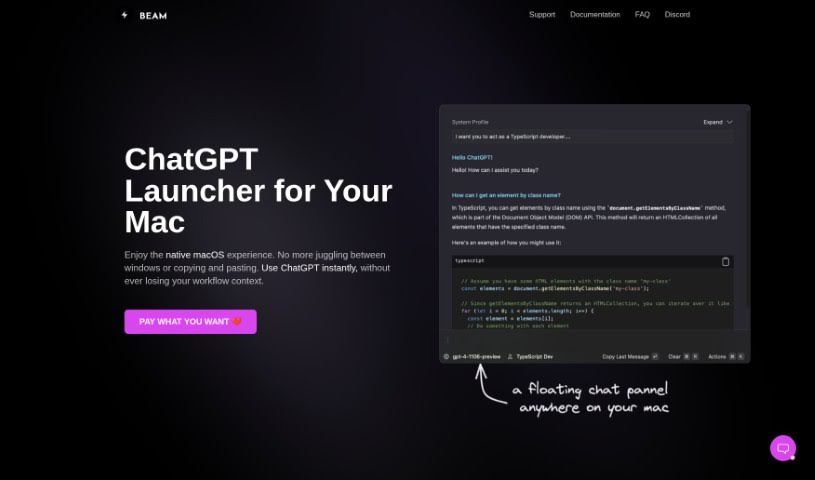
Beam is a native macOS ChatGPT interface with keyboard-shortcut access, custom AI profiles, macros, and PDF interaction, offered as a one-time lifetime
Beam is a ChatGPT interface for macOS that puts the AI one keyboard shortcut away, in any application. Instead of switching apps or copying and pasting text back and forth, you press a shortcut and a floating chat window opens over whatever you’re working on — another app, a website, or a document. The app is lightweight and follows the interface conventions Mac users expect.
Beam was created by David Ryan and targets Mac users who want faster, less disruptive access to ChatGPT throughout the workday, with an emphasis on productivity features such as macros and direct PDF interaction.
Beam is a one-time purchase of $39 or $79. Both tiers include lifetime access, free future updates, and a license that can be moved to another device if needed. A 7-day money-back guarantee covers the purchase, and support is available if you need help.
Related
Discover more tools in similar categories
Weekly picks of the best AI tools we've researched and added — no spam, unsubscribe anytime.
Join 25,000+ AI enthusiasts. No spam, unsubscribe anytime.