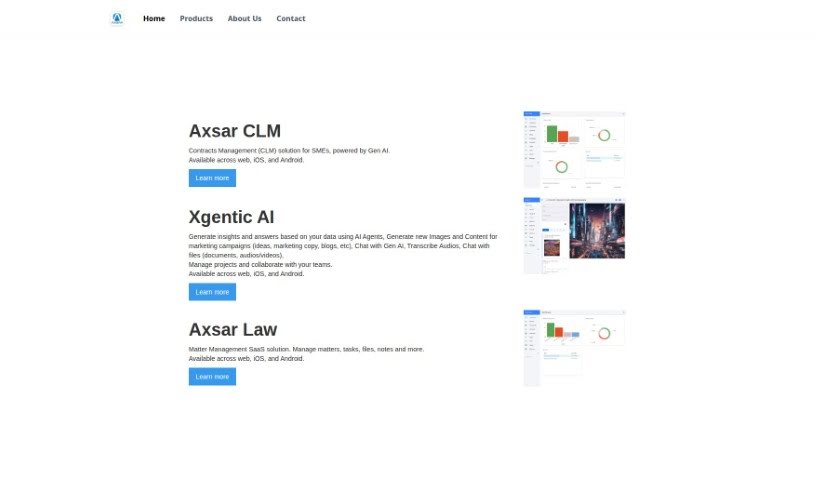
Screenshot of Axsar

Axsar

Discover what Axsar is and how to use it effectively in 2025. We'll explore its features and see how it stacks up against other documentation tools.

Screenshot

What is Axsar?

Axsar is a really handy tool for managing and working with documents, especially PDFs. It is your go-to for editing, making notes, and even chatting with your documents. What’s cool is that it uses advanced Gen AI to help you out – it can summarize long texts, ask important questions about the content, and pull out key information super fast. Plus, it has built-in online proofing, so you and your team can easily comment, review, and approve files together. This makes it a great choice for anyone who works with PDFs and needs to collaborate on them. Axsar can really boost your productivity by simplifying document tasks, making it easier to interact with PDFs, helping teams work together smoothly, and even letting you track your documents on Kanban boards. It’s also available on mobile, so you can use it wherever you are.

When you’re talking about Axsar, it’s worth mentioning how it helps you get more done. It makes working with documents, especially PDFs, much more efficient. It’s also great for team collaboration and keeping track of everything on Kanban boards, plus it’s accessible on your phone. We want this description to feel like it’s coming from a person, not a robot, so we’ll steer clear of those generic AI phrases.

Who created Axsar?

Axsar PDF was actually launched by Axsar Ltd. They’re a UK-based company that’s been around since 2015, focusing on creating simple SaaS solutions for small businesses.

What is Axsar used for?

Axsar is pretty versatile! Here’s a breakdown of what you can do with it:

  • Team collaboration features: Work together seamlessly with your colleagues.
  • Document editing and annotation: Make changes to your PDFs and add your own notes.
  • Online proofing software: Get feedback and approvals right within the tool.
  • Track documents on Kanban boards: Visualize your workflow and keep projects moving.
  • Create projects and assign team members: Organize your work and delegate tasks.
  • Add custom checklists to PDFs: Keep track of specific steps or requirements.
  • Shareable subscription with team members: Make collaboration easy for everyone on your team.
  • Asset sharing, review, and approval: Streamline how you share and get sign-off on files.
  • Extract necessary information quickly from documents: Save time by pulling out key details.
  • Summarize content and ask critical questions from documents: Understand information faster with AI assistance.
  • Critical question asking in PDFs: Dive deeper into your documents by asking specific questions.
  • Team member assignment for review: Clearly assign who needs to look at what.
  • Customized status tracking: Keep tabs on where each document stands.
  • Visual representation of workflow: See your entire process at a glance.
  • Study materials annotation: Perfect for students to mark up textbooks and notes.
  • PDFs as personal study buddies: Make learning more interactive.
  • Easy extraction of critical info: Get to the important stuff without the fuss.
  • Easy sharing of academic findings: Share your research and notes with others.
  • Legal contracts and reports chat: Discuss and get answers about important legal documents.
  • Personalized fields addition: Customize documents with your own specific information.
  • Online subscriptions handling: Manage your subscriptions easily.
  • Sign-up and invite users: Get your team set up quickly.
  • Centralized feedback for collaboration: Keep all comments and feedback in one place.
  • Review and approve assets online: A smooth process for getting files signed off.
  • Signing and filling forms support: Handle forms directly within Axsar.
  • Proofreading and correction features: Polish your documents before sharing.
  • Intelligent insights extraction from PDFs: Uncover hidden information with AI.
  • Collaborative assets review and approval: Work with your team to approve files.
  • Assets release ‘to-do’ lists: Manage the final steps before releasing assets.

Who is Axsar for?

Axsar is a great tool for:

  • Marketing professionals: To manage campaigns, reports, and creative assets.
  • Researchers: For annotating papers, extracting data, and collaborating on findings.
  • Students: To study materials, take notes, and share academic work.

How to use Axsar?

To get the most out of Axsar PDF, here’s a simple guide:

  1. Edit and Annotate Your Documents: You can use the editing tools to change text and layouts, and the annotation features to highlight, underline, or add your own notes directly onto your PDF files.
  2. Collaborate with Online Proofing: Make teamwork easier by sharing files and assets with your colleagues. They can use the online proofing tool to review and give their approval.
  3. Organize with Custom Fields: Keep your assets well-organized by using custom fields. This helps with categorizing everything and managing your tasks more effectively.
  4. Summarize and Ask Questions with AI: Take advantage of the Gen AI technology. You can use it to get quick summaries of content or ask specific, critical questions right from your documents. It really helps in understanding information and retrieving data fast.
  5. Review and Approve Files Together: Use the built-in review and approval feature. You can comment on, review, and collectively approve files or PDF assets, which makes the whole collaboration process much smoother.
  6. Track Documents Visually: Keep your workflow efficient by tracking documents on visual Kanban boards. It’s a great way to see what’s happening and manage updates.
  7. Use it on Mobile: Axsar PDF is available on both Android and iOS platforms, so you can handle your documents conveniently on your phone or tablet.
  8. Boost Team Collaboration: Encourage better teamwork by assigning members to projects, sharing projects easily, and using the online proofing software for sharing and reviewing assets efficiently.
  9. Share Your Subscription: You can share your subscription with your team members. This allows everyone to collaborate on PDFs and get assets approved together.
  10. Chat with Your PDFs: Make interacting with your documents more intuitive using the AI chat feature. You can have conversations, get answers to questions, and extract information easily.

By following these steps, you’ll be able to use Axsar PDF to its full potential for managing your documents and improving your team’s collaborative workflows.

Related AI Tools

Discover more tools in similar categories that might interest you

Stay Updated with AI Tools

Get weekly updates on the latest AI tools, trends, and insights delivered to your inbox

Join 25,000+ AI enthusiasts. No spam, unsubscribe anytime.