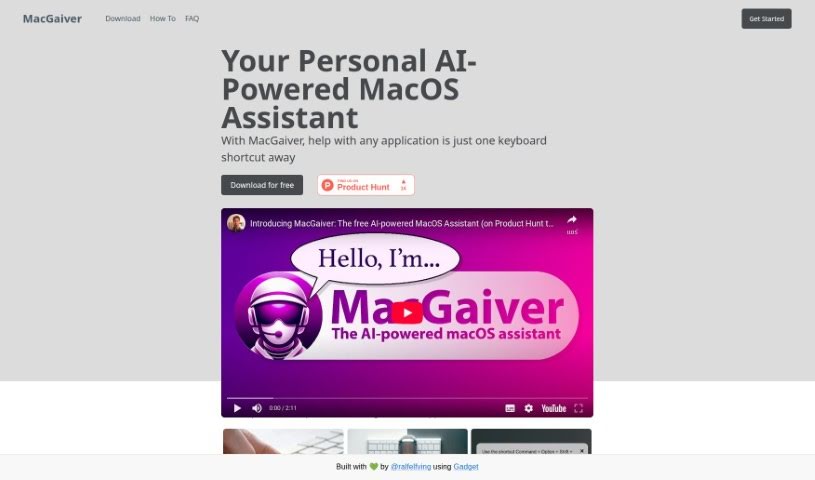
Screenshot of Macgaiver

Macgaiver

Discover MacGaiver, an AI-powered MacOS assistant for 2025. Learn how to use its in-app assistance features and compare it with other Meeting Assistants.

Screenshot

What is MacGaiver?

MacGaiver is a smart AI assistant built specifically for macOS. It is your in-app helper, ready to jump in whenever you need it, all triggered by a simple keyboard shortcut. It’s powered by OpenAI’s GPT-V and Vision API. This means you can ask questions or get help right within the app you’re currently using, without ever having to switch windows. How does it work? MacGaiver takes a screenshot of your active screen and records your question. It then sends this information to OpenAI’s Vision API, which uses it to give you contextually relevant answers, delivered right to you in audio format. It’s designed to be super easy to use, offering that in-app help, speech-to-text for your questions, and quick audio feedback. Ultimately, it’s all about making your workflow smoother and your overall experience better.

Who created MacGaiver?

MacGaiver was developed by @ralfelfving and first launched on January 6, 2024. It’s an AI-powered assistant for macOS, designed to give you help directly inside the apps you’re using, activated with just a keyboard shortcut. This assistant uses OpenAI’s GPT-V and Vision API. It’s built to provide answers that are relevant to your current context, delivered in audio format, all without you needing to switch away from the application you’re working in.

What is MacGaiver used for?

MacGaiver is designed to help you in several key ways:

  • In-App Assistance: Get help directly within any application using a quick keyboard shortcut.
  • Ask Anywhere: Activate it in any app to ask questions or get assistance.
  • Contextual Help: It captures screenshots of your active window and records your questions to provide the most relevant help.
  • AI Integration: It works with OpenAI’s GPT-V and Vision API to process your queries.
  • Audio Answers: Receive accurate, contextually relevant answers in audio format.
  • Smoother Workflow: Improve your workflow by getting help right where you need it.
  • Flexible Input: You can either type or speak your questions, giving you options.
  • Boost Productivity: Minimize interruptions and enjoy a seamless user experience.
  • Better App Interaction: It transforms how you interact with apps by offering immediate, in-context help.
  • Quick Feedback: Enjoy fast and accessible feedback through audio responses.
  • Streamlined Process: It provides in-app assistance via a keyboard shortcut, making it easy to access.
  • Efficient Querying: It interacts with OpenAI’s GPT-V and Vision API for processing your queries efficiently.
  • Accessible Delivery: Answers are delivered in audio format, which is great for accessibility and quick feedback.
  • Reduced Interruptions: It improves your workflow by minimizing interruptions and offering assistance right in context.
  • Easy Question Input: You can use speech-to-text functionality to ask your questions.
  • Visual Context: It captures screenshots of the active window to give the AI the necessary context.
  • Instant In-App Help: It enhances your interaction with apps by offering contextual, instant help directly within them.
  • Time Savings: It transforms your workflow by reducing the time you might spend switching apps or searching for answers elsewhere.
  • User Choice: It empowers you to speak or type your questions, offering flexibility.
  • Enhanced Efficiency: It boosts productivity and efficiency by providing answers that are relevant to your specific situation.

Who is MacGaiver for?

MacGaiver is a great tool for anyone who uses macOS applications, no matter your profession.

How to use MacGaiver?

Using MacGaiver, your AI-powered MacOS Assistant, is pretty straightforward. Here’s a quick rundown:

  1. Activate It: Just press the keyboard shortcut while you’re in any application. This will bring MacGaiver to life.
  2. Ask Away: Once prompted, you can either speak or type your question. MacGaiver will then capture a screenshot of whatever is on your screen and record your question.
  3. AI Does the Work: MacGaiver sends that screenshot and your question over to OpenAI’s GPT-V and Vision API for processing.
  4. Get Your Answer: You’ll receive the response in audio format, making it quick and easy to get the information you need.
  5. Help Wherever You Are: MacGaiver works across all your macOS applications. It offers help right in the context of what you’re doing, so you don’t need to switch apps.
  6. Easy to Use Features: You can activate MacGaiver with a keyboard shortcut, choose to speak or type your questions, and get your answers via audio.
  7. Boost Your Workflow: MacGaiver really helps improve your workflow by giving you assistance right when and where you need it, cutting down on interruptions and making your work feel more seamless.
  8. Talk or Type: MacGaiver supports speech-to-text, so asking questions is convenient whether you prefer to speak or type.

Just remember, the main goal of MacGaiver is to give you real-time, contextually relevant help directly inside the app you’re using. It’s all about making you more productive and improving your overall experience.

Related AI Tools

Discover more tools in similar categories that might interest you

Stay Updated with AI Tools

Get weekly updates on the latest AI tools, trends, and insights delivered to your inbox

Join 25,000+ AI enthusiasts. No spam, unsubscribe anytime.