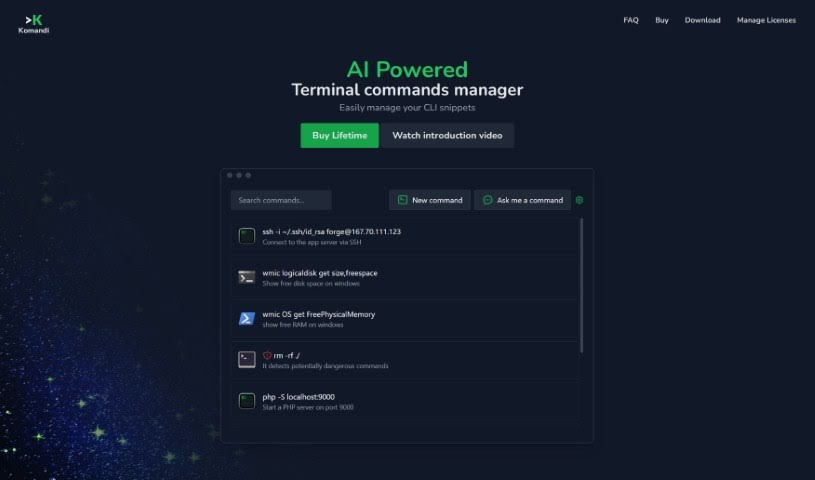
Screenshot of Komandi

Komandi

Discover what Komandi is and how to use it effectively in 2025. We'll explore its features and see how it stacks up against other documentation tools.

Screenshot

What is Komandi?

Komandi is a smart command line interface (CLI) manager that uses AI to help developers and system administrators get more done. It is your personal assistant for the terminal. It makes managing your most-used CLI commands much simpler by giving you a secure place to store, organize, and quickly grab any command you need. What’s really neat is that Komandi can even create terminal commands for you just by you describing what you want in plain English, thanks to its AI. This means you can speed up your work and easily handle both commands you create yourself and those the AI generates. Plus, it’s designed with safety in mind, flagging any commands that look potentially risky so you don’t accidentally run something you shouldn’t. Komandi works across macOS, Windows, and Linux, and it’s also getting features to keep your commands synced up, with import/export options on the way.

With Komandi, you can easily add, mark as favorites, copy, and run commands. It’s also great at spotting and warning you about commands that might be dangerous, helping you avoid mistakes. You can also copy commands, run them in specific folders, and find them quickly using shortcuts. Since it’s available for macOS, Windows, and Linux, you can use it no matter what terminal environment you’re working in. You can grab a lifetime license for just $19. This includes 10,000 AI tokens for generating commands, all future updates for free, and you can insert and run as many commands as you like. They also offer a 7-day money-back guarantee, so you can try it out with confidence.

Who created Komandi?

Komandi was developed by a team focused on creating an innovative AI-powered command line interface (CLI) manager. The main goal was to simplify how people manage their frequently used CLI commands. It’s designed to generate terminal commands from simple, natural language requests. This tool was built to boost productivity for developers and system administrators by offering features like organizing commands into categories, built-in safety checks for potentially dangerous commands, and compatibility across different operating systems like macOS, Windows, and Linux. The people behind Komandi really care about safety and making things efficient, which is why they offer a lifetime license at a good price, along with a 7-day money-back guarantee for your peace of mind.

What is Komandi used for?

  • It helps you manage the CLI commands you use all the time.
  • It can spot commands that might be dangerous.
  • You can use it to create new commands just by describing what you need in plain English.

Who is Komandi for?

  • Developers
  • System Administrators

How to use Komandi?

Here’s how to get the most out of Komandi:

  1. Download and Install: First, head over to the official Komandi website. You can download the tool for macOS, Windows, or Linux there. Once downloaded, just install the application on your computer.
  2. Quick Usage Guide:
    • You can easily insert, mark as favorites, copy, and run commands. This works for both commands you generate with AI and ones you type yourself.
    • It’s also good at spotting commands that might be risky, helping you avoid running them by accident.
  3. Key Features:
    • Command Generation: This is where the AI shines! You can type in what you want to do in plain English, and Komandi will turn it into a CLI command for you.
    • Cross-Platform Support: No matter if you’re on macOS, Windows, or Linux, Komandi works with your system and terminal.
    • Extra Tools: You can also search for commands, run them in specific folders, and there are import/export features coming soon to help you manage your command library.
  4. Licensing Options:
    • Trial: You can try Komandi for free for 7 days. During the trial, there are some limits on how many AI commands you can generate.
    • License: If you like it, you can buy a license for permanent use on one device. This license includes AI tokens for generating commands, and you’ll get all future updates for free.
  5. Refund Policy: If you’re not happy with your purchase, there’s a 7-day money-back guarantee. Just reach out via the contact email provided to request a refund.
  6. FAQs:
    • Got questions? The FAQ section covers everything from how to use Komandi, licensing details, managing your account, understanding AI Tokens, and much more.
  7. Management Tips:
    • You can manage your commands and licenses efficiently. If you need to switch devices, you can deactivate your license. You can also access your license codes through the Licenses Manager.

By following these steps, you’ll be able to use Komandi effectively to organize your CLI commands and really boost your productivity.

Related AI Tools

Discover more tools in similar categories that might interest you

Stay Updated with AI Tools

Get weekly updates on the latest AI tools, trends, and insights delivered to your inbox

Join 25,000+ AI enthusiasts. No spam, unsubscribe anytime.