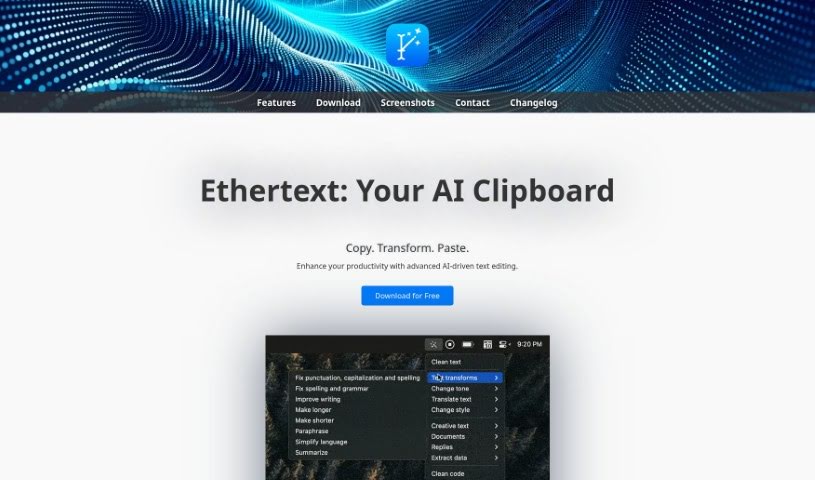
What is Ethertext?
Ethertext is a pretty advanced AI tool designed to make editing text a breeze. It’s packed with features to really boost your productivity. You can copy text, then with just one click, transform it into something completely different. Need to change the tone or style? Ethertext can do that too. It’s also got some neat tricks for anything code-related – think explaining, debugging, or translating code snippets. Plus, it’s great at remembering text and bringing it back when you need it. The tool offers handy keyboard shortcuts for quick actions, like cleaning up selected text, saving text or entire webpages for later, dictating and transcribing your voice, capturing what’s on your screen, and recalling past text with AI’s help. You can even set up local AI models, like Ollama, to work with Ethertext. It’s all wrapped up in a user-friendly interface that makes transforming and improving your text with AI technologies super straightforward.
Who created Ethertext?
Paul Thrasher is the founder behind Ethertext. You can reach him at [email protected]. Ethertext itself is an AI-powered text editor, offering a range of capabilities from changing text and explaining code to remembering and transcribing your words. Over time, the application has seen several updates, bringing in new models and features.
What is Ethertext used for?
Here’s a rundown of what you can do with Ethertext:
- Make your text go from good to great with a single click.
- Easily adjust the tone and style of your writing to match your needs.
- Get accurate explanations, debugging help, or translations for your code snippets.
- Save text you want to remember for later use.
- Record your voice and transcribe it so you can recall it whenever you need.
- Capture text directly from your screen and save it.
- Quickly clean up any selected text in one go.
- Apply specific prompts to enhance and improve your writing.
- Make your coding tasks more efficient with smart transformations.
- Translate code into Javascript with ease.
- Record your voice and get a text transcription.
- Boost your text quality using embedding models.
- Improve your text’s grammar.
- Clean up selected text using keyboard shortcuts.
- Memorize and recall text or even entire webpages.
- Dictate your thoughts and have them transcribed.
- Take screenshots and get the text from them.
- Use AI prompts to customize your text.
- Work with local AI models like llama2, Falcon, and Mixtral.
- Precisely translate or explain code snippets.
- Record your voice and get it transcribed.
- Refine your text with grammar transformations.
- Benefit from shortcut menu hints that boost efficiency.
- Utilize local AI models for text transformations.
- Memorize and recall text whenever you need it.
- Engage in Q&A editing using prompts.
- Switch between different AI models depending on the task.
- Explain, debug, or translate code snippets with accuracy.
- Customize the tone and style of your text.
- Enhance your writing with AI-driven editing features.
- Transform text to fit various styles and tones.
- Debug or translate code snippets effectively.
- Record voice messages and get them transcribed.
- Easily switch between different AI models.
- Edit your input for prompts in Q&A sessions.
- Use local AI models like Ollama.
- Apply prompts to personalize your text.
Who is Ethertext for?
Ethertext is a great tool for:
- Programmers
- Writers
- Researchers
- Students
- Professionals in various fields
- Developers
- Business professionals
- Anyone working with large amounts of text or translation tasks
- Professionals who need AI-powered text editing assistance
How to use Ethertext?
Using Ethertext is pretty straightforward. Just follow these simple steps:
- Copy: First, select the text you want to improve and copy it. The usual shortcut is ⌘C.
- Transform: Next, click on the Ethertext dropdown menu. From there, pick the transformation option that best fits your text.
- Paste: Once Ethertext has done its magic, paste the enhanced text back into your document using ⌘V.
- Clean Text: Need to quickly tidy up selected text? Just use ⌘⇧T.
- Memorize: If you want to save some text for later, press ⌘⇧M to memorize it.
- Dictate: You can record your voice and have it transcribed for later recall by using ⌘⇧D.
- Capture Screen: Want to grab text from your screen? Use ⌘⇧S to take a screenshot and memorize the text.
- Recall: Whenever you need to retrieve text you’ve saved, just use ⌘⇧R.
And if you want to add local AI capabilities, you can install Ollama and then enable Ollama support in the Ethertext settings.
This guide makes text editing tasks much simpler. You get customization options and advanced features designed to efficiently boost your productivity. Don’t forget to check out the different models and updates Ethertext offers – they can really help elevate your text transformation experience.