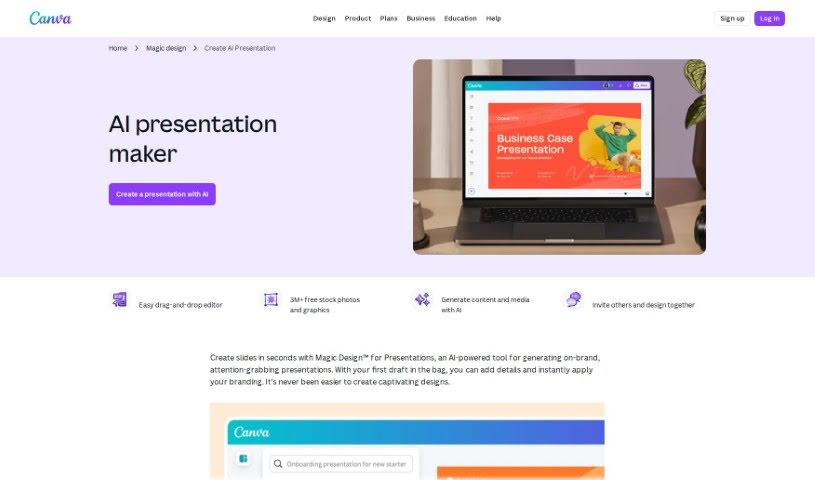
Screenshot of Canva AI Presentation Maker

Canva AI Presentation Maker

Curious about Canva AI Presentation Maker? This 2025 guide explains what it is, how to use its AI features for better presentations, and how it stacks up against other tools.

Screenshot

What is Canva AI Presentation Maker?

Canva AI Presentation Maker is a really helpful tool that uses artificial intelligence to make creating presentations much easier. It is your AI design assistant! It helps you out by suggesting designs, different layouts, and even ideas for your content. You can find this feature right within the familiar Canva platform. It’s also great for working with your team, letting you all collaborate to build presentations that look good and keep people interested, all while saving you time. The main goal here is to boost both your productivity and your creativity by offering smart, easy-to-use design help that’s tailored to what you need.

Who created Canva AI Presentation Maker?

Melanie Perkins, Cliff Obrecht, and Cameron Adams are the brilliant minds behind Canva AI Presentation Maker. Melanie Perkins, who also co-founded and leads Canva as its CEO, is well-known for her fresh take on design and technology. Canva itself got its start back in 2012 in Sydney, Australia. Since then, it’s grown into a go-to design tool for people all over the world, offering a whole range of design products, from presentations and social media graphics to so much more.

Who is Canva AI Presentation Maker for?

This tool is a fantastic resource for a wide variety of professionals and creatives:

  • Marketing professionals looking to create impactful campaign visuals.
  • Educators who need to develop engaging lesson materials.
  • Sales Representatives aiming to craft persuasive pitches.
  • Graphic designers seeking quick design inspiration or assistance.
  • Business analysts needing to present data clearly.
  • Project managers wanting to outline project plans effectively.
  • Content creators developing visual narratives.
  • Entrepreneurs building their brand and business plans.
  • Training and development specialists designing learning modules.
  • Corporate Trainers preparing materials for employee development.

How to use Canva AI Presentation Maker?

Using Canva AI Presentation Maker is pretty straightforward. Just follow these simple steps:

  1. Get Started with Canva AI: Head over to the Canva website. Log in if you already have an account, or sign up for a free one if you’re new. It’s super easy to get started.
  2. Begin a New Presentation: On the Canva homepage, you’ll see a “Create a design” button. Click that, and then simply choose “Presentation” from the options.
  3. Pick a Template: You can either browse through the many presentation templates Canva offers or start fresh with a blank canvas if you have a specific vision.
  4. Add Your Content: Now, it’s time to customize! Add your text, images, icons, and any other design elements you like. Don’t forget, you can also use the AI tools here for design suggestions to make things even better.
  5. Make the Most of Canva AI Features: Canva’s AI will offer design suggestions for elements, layouts, and color schemes based on what you’re putting into your presentation. Definitely take advantage of these; they’re designed to really boost your presentation’s look and feel.
  6. Tweak Your Design: Feel free to adjust fonts, colors, backgrounds, and layouts until they perfectly match your presentation’s style and message.
  7. Work Together and Share: Need to collaborate? You can easily invite others to work on the presentation with you by sharing a link. Everyone can contribute and see changes in real-time.
  8. Download or Present Online: Once you’re happy with how everything looks, you have options. You can download your presentation in various file formats, or you can present it directly from Canva.
  9. Get Feedback and Make Changes: Use Canva’s commenting feature to easily ask colleagues or clients for their thoughts. This makes it simple to gather feedback and make any necessary revisions.
  10. Finalize and Wow Them: Give your presentation a final review, make any last-minute tweaks, and then you’re ready to present it with confidence!

By following these steps, you’ll be able to use Canva AI Presentation Maker effectively to create presentations that are not only engaging but also look really professional, no matter the occasion.

Related AI Tools

Discover more tools in similar categories that might interest you

Stay Updated with AI Tools

Get weekly updates on the latest AI tools, trends, and insights delivered to your inbox

Join 25,000+ AI enthusiasts. No spam, unsubscribe anytime.