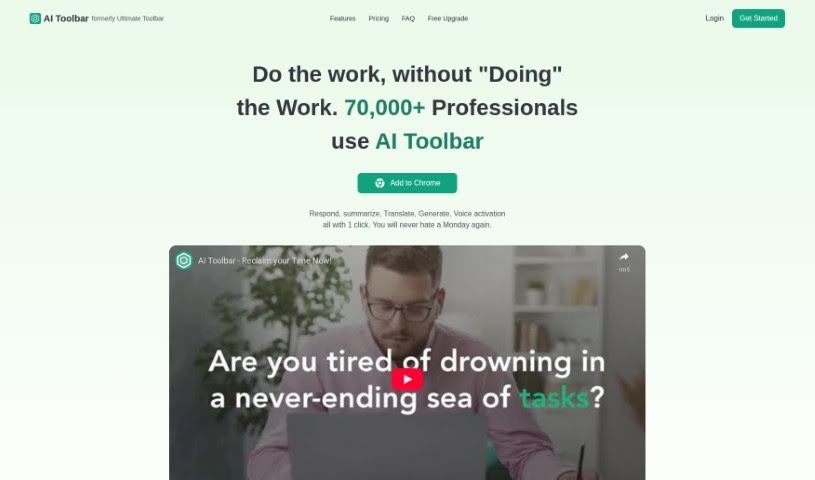
Screenshot of AI Toolbar

AI Toolbar

Discover what the AI Toolbar is and how to use it effectively in 2025. We'll explore its features and see how it stacks up against other Email Writing Tools.

Screenshot

What is AI Toolbar?

The AI Toolbar acts like a virtual assistant right in your web browser. Its main goal is to help you get more done and make tasks simpler by offering a bunch of AI-powered features. Think of things like drafting emails, translating text, or just chatting with an AI. The Copilot feature, for instance, is a real time-saver for emails; it uses AI to figure out what you need and helps you write messages with just a little input. You can even talk to your personal assistant using your voice on your PC. Just tell the toolbar what you need, whether it’s summarizing a long article, pulling out specific data, translating something into another language, or having a conversation with a chatbot. If you opt for the premium version, you get extra perks like custom prompts, unlimited use, and integration with ChatGPT. The free version, however, still gives you access to all the basic features everyone can use.

Essentially, AI Toolbar wants to make AI accessible to everyone, not just tech experts. It really helps boost your productivity by making tasks like writing emails, translating, summarizing, and chatting with an AI much smoother. To get started, you just install the AI Toolbar as an extension on your web browser. And if you want to save your chatbot conversations, you can download them as Word or PDF files. What are ‘Custom Prompts’ in this context? They’re basically user-defined instructions that you create to personalize your experience and guide how the AI responds. These are only available if you have the premium version. You can also use the AI Toolbar for data extraction – just select the text you’re interested in and tell the toolbar to pull out the data. It really improves your workflow by bringing AI capabilities right into your browser, making tasks like drafting emails much more efficient.

Who created AI Toolbar?

AI Toolbar was developed by the company AI Toolbar and first launched on December 30, 2023. This virtual assistant tool is designed to work seamlessly within web browsers, offering a range of AI-powered features. Its purpose is to boost productivity, streamline various tasks, and provide a helpful ‘copilot’ for drafting emails. It’s built to understand context for better email composition, offers voice activation for hands-free use, aids in data extraction, handles translations, and much more. The core mission behind AI Toolbar is to democratize AI, making its advanced capabilities available to a much wider audience.

What is AI Toolbar used for?

  • Translations: Easily translate text between languages.
  • ChatGPT Integration: Connects with ChatGPT for enhanced AI interactions.
  • Data extraction: Pull specific information from text.
  • Text Summarization: Condense long articles or documents.
  • Boosts productivity: Helps you get more done faster.
  • Web browser integration: Works directly within your browser.
  • Streamlines tasks: Makes everyday digital tasks simpler.
  • Copilot feature for drafting emails: Assists in writing emails quickly.
  • Contextual understanding for drafting emails: Helps create relevant email content.
  • Downloadable responses: Save chatbot interactions as files.
  • Voice activation: Control the toolbar with your voice.
  • Text summarizations: Get quick summaries of content.
  • Copilot feature: Your AI assistant for writing.
  • Paraphrasing text: Rephrase content in different ways.
  • Drafting emails with minimal user input using the Copilot feature: Write emails efficiently with AI help.
  • Interacting with a Chatbot and downloading responses in Word or PDF formats: Chat and save your conversations easily.
  • Communicating with a personal assistant through Voice Activation: Use voice commands for tasks.
  • Summarizing content, translating text, paraphrasing, and extracting specific data from selected text: A versatile tool for various text-based tasks.
  • Seamless integration with ChatGPT: Works smoothly with ChatGPT.
  • Accessing AI functionality on any page with the premium version: Use AI tools everywhere.
  • Exporting data to PDF or Word: Save extracted information conveniently.
  • Using Custom Prompts for tailored responses: Get AI results specific to your needs (premium feature).
  • Boosting productivity by enhancing workflow efficiency: Make your work processes better.
  • Handling routine tasks in a streamlined and efficient manner: Automate repetitive jobs.
  • Responding to Emails with Copilot Feature: Get help writing email replies.
  • Voice Activation for PC: Control your computer with your voice.
  • Web Page Translation: Translate entire web pages instantly.
  • Boosting Productivity with AI: Use artificial intelligence to work smarter.
  • Free Version Availability: Access basic features without cost.
  • Premium Version Features: Unlock advanced capabilities with a paid subscription.

Who is AI Toolbar for?

AI Toolbar is designed for a wide range of professionals and individuals who work with text and want to improve their efficiency:

  • Web Developers
  • Writers
  • Researchers
  • Translators
  • Data Analysts
  • Doctors
  • Lawyers
  • Business professionals
  • Students
  • Journalists
  • Content creators
  • Customer service representatives
  • Educators
  • Sales professionals
  • Web browser developers
  • Content writers
  • Email Marketers
  • Professionals in various fields: This includes marketing, customer service, research, writing, and any other profession that can benefit from tasks like email drafting, text translation, summarization, paraphrasing, and data extraction.
  • Administrative Assistants
  • Professionals in various fields: Broadly applicable across many industries.

How to use AI Toolbar?

To get the most out of the AI Toolbar, here’s a simple guide:

  1. Installation: First, you’ll need to add the AI Toolbar as an extension to your web browser. You can usually find the link for this on the AI Toolbar website, and it works with browsers like Chrome.
  2. Explore Features: Once installed, take some time to check out all the AI-powered tools it offers. There’s the Copilot feature for drafting emails using context, a Chatbot for conversations, Voice Activation for hands-free commands, Text Translation, and Summarization tools.
  3. Integration: For even more powerful AI interactions, you can connect the toolbar with ChatGPT. It integrates really smoothly.
  4. Consider Premium: If you find yourself using the basic features a lot, you might want to upgrade to the premium version. It unlocks extra benefits like Custom Prompts, Unlimited Usage, and other advanced capabilities.
  5. Using Tools: You can select text directly on any webpage to use features like data extraction, translation, summarization, or paraphrasing.
  6. Boost Productivity: Make sure to use the AI Toolbar to streamline your tasks, boost your overall productivity, and handle those routine activities more efficiently.
  7. Enhance Workflow: Integrate these AI capabilities directly into your browser to manage tasks like drafting emails and extracting data quickly and effectively.
  8. Free Trial: Keep an eye out for special offers! Users who sign up through a referral link often get a one-week free upgrade. After the trial, you can choose to subscribe to the premium version if you like it.

By following these steps, you’ll be able to fully utilize the AI Toolbar’s features to improve your productivity and simplify your daily tasks.

Related AI Tools

Discover more tools in similar categories that might interest you

Stay Updated with AI Tools

Get weekly updates on the latest AI tools, trends, and insights delivered to your inbox

Join 25,000+ AI enthusiasts. No spam, unsubscribe anytime.