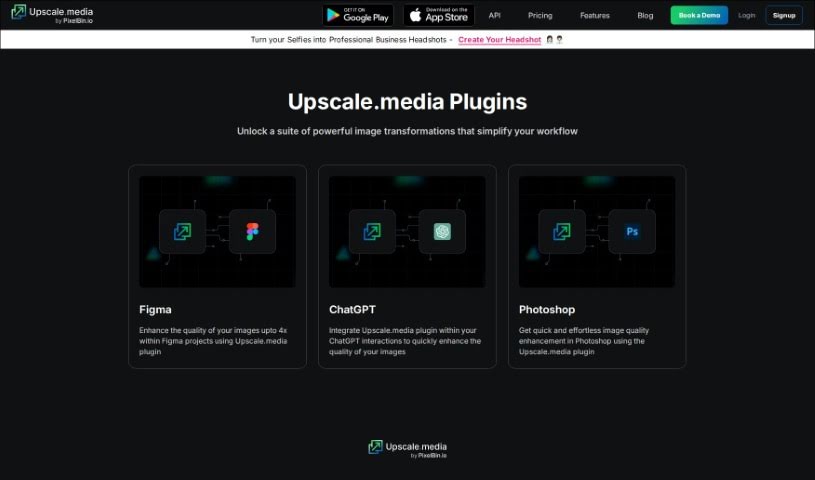
Screenshot of Upscale.media Plugins

Upscale.media Plugins

Discover what Upscale.media Plugins are and how to use them effectively in 2025. We'll explore their features and see how they stack up against other Image Enhancer & Upscaler tools.

Screenshot

What Exactly Are Upscale.media Plugins?

plugins is little add-ons that give your existing software extra powers. For Upscale.media, these plugins, like the Image Upscale for ChatGPT and Image Upscale for Photoshop, are designed to help you boost the quality of your images really quickly and without much fuss, right within those programs. They use some pretty advanced AI tech to make your images look better with just a few clicks. This means you get improved results and save a good chunk of time. By adding plugins like these, you can easily make your images bigger and better, taking advantage of the smart capabilities Upscale.media offers.

Who’s Behind Upscale.media Plugins?

The specific founder of Upscale.media Plugins isn’t something we have details on right now. However, the company that actually makes these plugins is called PixelBin. They’re known for creating a variety of media plugins that help improve image quality across different platforms, including popular ones like ChatGPT and Figma. PixelBin itself was developed by Shopsense Retail Technologies Limited. If you’re looking for more in-depth information about the founder, you might need to do a bit more digging.

How Do I Use Upscale.media Plugins?

Using these plugins is pretty straightforward if you follow these steps:

  1. Pick Your Plugin: First, figure out which specific plugin you need. Are you looking for the Upscale.media plugin for ChatGPT, Photoshop, or maybe Figma?
  2. Head to the Source: Go to the official Upscale.media website. Once you’re there, find the section dedicated to their plugins.
  3. Choose Wisely: Select the plugin that best fits what you’re trying to do – whether it’s for ChatGPT, Photoshop, or Figma.
  4. Get the Link: Click on the link provided to go directly to that plugin’s page.
  5. Read Up: Take a moment to read through the information about the plugin’s features and what benefits it offers.
  6. Integrate It: Follow the instructions carefully for connecting the plugin to the platform you’ve chosen.
  7. Check Permissions: Make sure you have the right access and permissions to install and use the plugin.
  8. Install: Go ahead and install the plugin, following the guidelines on its page.
  9. Set It Up: Once it’s installed, you might need to do a quick setup. Configure the plugin’s settings to match what you need.
  10. Start Enhancing: Now you’re ready! Use the plugin within your chosen platform to effectively improve your image quality.

By taking these steps, you can easily add and use plugins like Upscale.media’s for different platforms, making your image enhancement tasks much simpler.

Related AI Tools

Discover more tools in similar categories that might interest you

123RF AI Image Generator

Creative Image Generation
Learn More

Stay Updated with AI Tools

Get weekly updates on the latest AI tools, trends, and insights delivered to your inbox

Join 25,000+ AI enthusiasts. No spam, unsubscribe anytime.