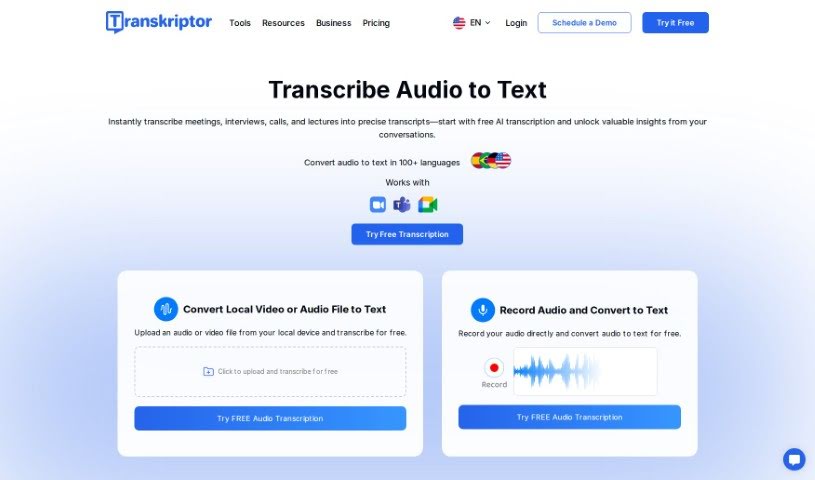
Screenshot of Transkriptor

Transkriptor

Discover what Transkriptor is and how to use it effectively in 2025. We'll explore its features and see how it stacks up against other transcription tools.

Screenshot

What is Transkriptor?

Transkriptor is an AI-powered tool that automatically turns audio and video content into text. It is a super-fast way to get written versions of anything spoken, whether it’s meetings, interviews, or lectures. It’s pretty neat because it handles over 40 languages, and its interface is really straightforward, making it easy to get around. Plus, it has an AI assistant that can even generate meeting notes for you, so you don’t have to worry about scribbling things down yourself during a call. People seem to really like Transkriptor; they often mention its audio-to-text and video-to-text capabilities, how it automates meeting notes, and the ability to edit transcripts simultaneously and work with others remotely. You can also translate documents automatically, edit text in a rich text editor, and there are plenty of client testimonials to check out. What’s great about Transkriptor is that it supports many languages, is quite accurate, doesn’t cost a fortune, and lets you export your transcripts in various formats. You can access it from any device, and it even integrates with Zoom, Teams, and Google Meet. It also keeps your conversation data safe. While it doesn’t support every single file format out there and you do need an internet connection, most users have a really positive experience, and it’s clear they have a large customer base that’s generally very happy.

Who created Transkriptor?

Transkriptor was developed by a company that also goes by the name “Transkriptor.” They launched it on September 25, 2021. Essentially, it’s a tool that uses Artificial Intelligence (AI) to automatically transcribe spoken words from audio and video into written text. It’s designed to work with over 40 different languages, so you can transcribe content no matter the language. The platform itself is built to be user-friendly, meaning it’s pretty easy to navigate and use all its features without much fuss. The AI assistant is particularly helpful for automating meeting notes. This lets you concentrate on the discussion itself, as the tool takes care of recording and transcribing everything.

What is Transkriptor used for?

Transkriptor is incredibly versatile. You can use it for:

  • Transcribing lectures
  • Transcribing interviews
  • Transcribing podcasts
  • Transcribing meetings
  • Multilingual Transcription
  • Transcribing online classes
  • Transcribing conferences
  • Transcribing seminars
  • Transcribing webinars
  • Helping out with interview transcriptions
  • Helping out with lecture transcriptions
  • Helping out with video transcriptions
  • Automating meeting note generation
  • Interview transcription
  • Lecture transcription
  • Video transcription
  • Meeting transcription
  • Webinars
  • Business meetings
  • Transcribing business meetings
  • Transcribing academic lectures
  • Podcasts transcription
  • Converting audio to text
  • Converting video to text
  • Transcribing various business meetings
  • Getting meeting transcriptions
  • Automated meeting note generation
  • Interview transcriptions
  • Lecture transcriptions
  • Transcribing verbal conversations
  • Podcasts transcriptions
  • Online classes transcriptions
  • Conferences transcriptions
  • Seminars transcriptions
  • Videos transcriptions
  • Webinars transcriptions
  • Academic lectures
  • Online classes
  • Conferences
  • Seminars
  • Transcribing all sorts of online content
  • Automating meeting transcripts
  • Cutting down on manual note-taking

Who is Transkriptor for?

Transkriptor is a helpful tool for a wide range of people and organizations, including:

  • State officials
  • Municipalities
  • Law professionals
  • Medical practitioners
  • Doctoral students
  • Marketing specialists
  • Professionals across many different industries
  • People working in various sectors

How to use Transkriptor?

Using Transkriptor is pretty straightforward. Here’s a quick rundown:

  1. First, head over to the Transkriptor website and click either “Login” or “Try It Free” to set up your account. You can use your email or sign in with your Google account.
  2. Once you’re logged in, you’ll see a dashboard. Look for the “Upload” button to bring your audio or video file into the system for transcription.
  3. You have a few options here: you can drag and drop your file directly, paste a web link to the file, or even start recording audio right there on the platform.
  4. Transkriptor’s smart AI will then get to work transcribing your content into text. It’s usually quite fast, often taking about half the length of the original audio file.
  5. After the transcription is done, you can use Transkriptor’s built-in rich text editor to make any tweaks or corrections you might need.
  6. When you’re happy with how the transcript looks, you can download it. They offer several formats, like SRT, TXT, PDF, or Word.
  7. Transkriptor supports a lot of different audio and video file types, and the accuracy of the transcription really depends on how clear the original audio is.
  8. On top of that, you can also collaborate with your team members, use the AI chat assistant to get summaries of your transcriptions, and take advantage of features like automatic note generation during meetings.

Overall, this tool makes the whole transcription process much simpler, giving you quick and accurate results for all sorts of spoken content.

Related AI Tools

Discover more tools in similar categories that might interest you

Stay Updated with AI Tools

Get weekly updates on the latest AI tools, trends, and insights delivered to your inbox

Join 25,000+ AI enthusiasts. No spam, unsubscribe anytime.