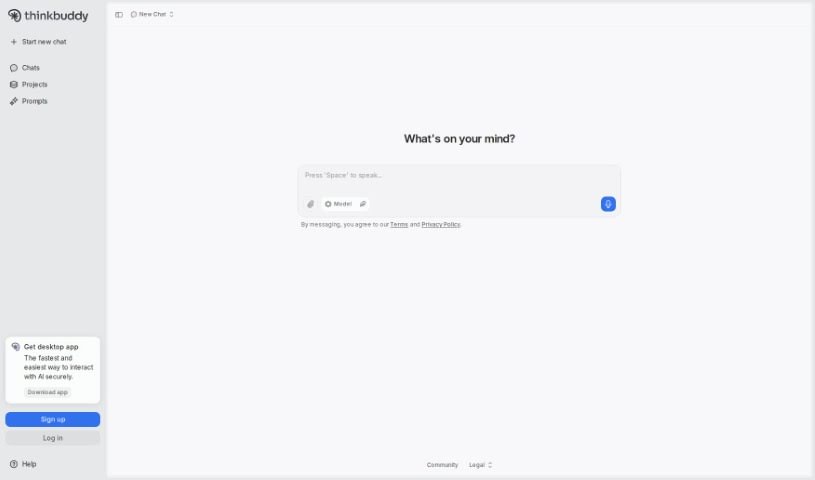
Screenshot of Thinkbuddy AI

Thinkbuddy AI

Discover Thinkbuddy AI in 2025! Learn what it is, how to use its features like voice commands and AI chatbots on your Mac, and how it stacks up against other AI tools.

Screenshot

What is Thinkbuddy AI?

Thinkbuddy AI is a handy tool designed to make using your MacOS much smoother. It lets you talk to AI using your voice, type out questions, select text, or use custom shortcuts. You can pick the AI model that best suits what you need to do on your Mac, making your experience more efficient. Plus, it comes with cool features like AI Generative Art and AI Chatbots, all built to work seamlessly on your Mac.

Who created Thinkbuddy AI?

Thinkbuddy AI was brought to life by a dedicated team, including Yigit Konur and Sezer Ufuk Yavuz, who’ve been key to its development and success. This product really stands out by offering a special mix of features specifically for Mac users who want a more interactive and productive way to use AI. It cleverly combines voice-first AI with the power of GPT-4 technology.

What is Thinkbuddy AI used for?

Thinkbuddy AI helps you in many ways:

  • Better User Experience: It makes interacting with your Mac more enjoyable, especially with voice commands.
  • Ask Questions with Screenshots: You can even use screenshots to ask the AI for help or information.
  • Custom Prompts: Create and save your own prompts to get exactly the results you want.
  • Text Selection Commands: Easily execute commands by simply selecting text on your screen.
  • Whisper Dictation: Use the Whisper feature to dictate text, making it super easy to write emails or messages.
  • Seamless Mac Integration: It fits right into your MacOS workflow without any fuss.
  • Efficient AI Interaction: Get things done quickly and conveniently with AI.
  • Productive Mac Experience: It’s packed with features tailored for Mac users who want to be more productive.
  • Quick Access to Advanced AI: Get fast access to powerful models like GPT-4.
  • Personalized Shortcuts: Set up your own shortcuts to use features even faster.
  • Transform Your Mac: Use your voice or screenshots to ask AI anything and transform how you use your Mac.
  • Save Your Prompts: Create and save custom prompts so you don’t have to type them repeatedly.
  • Choose Your AI Model: Select the AI model that works best for a smooth MacOS experience.
  • All-in-One Interaction: It enhances your experience through voice commands, screenshots, custom prompts, text commands, and Whisper dictation.
  • Smooth MacOS Integration: It’s designed to integrate seamlessly into your Mac’s environment.
  • Convenient AI Use: Enjoy efficient and convenient ways to interact with AI.
  • Tailored for Mac Productivity: Features are specifically designed for Mac users looking for a more interactive and productive AI experience.
  • Voice Command Ease: It improves user experience by letting you use voice commands.
  • Text Command Execution: You can easily execute commands using text.
  • Whisper for Dictation: Dictate text effortlessly with the Whisper feature.
  • Mac User Focused: Features are tailored specifically for Mac users.
  • Quick Translations & Summaries: Get instant translations and text summaries.
  • Personalized Prompts & Shortcuts: Create your own prompts and customize shortcuts for quick use.
  • Ask AI with Voice/Screenshots: Use your voice or screenshots to ask AI questions.
  • Execute Text Commands: Commands can be executed by selecting text.
  • Create/Save Custom Prompts: You can create and save your own prompts.
  • Customize Shortcuts: Tailor shortcuts for quick access.
  • Dictate with Whisper: Use Whisper for easy dictation.
  • Text Selection & Command Execution: Select text, use shortcuts to open AI, and watch it execute commands.
  • Shortcut-Based Summaries/Translations: Summarize or translate text easily using shortcut keys.
  • Natural AI Conversations: Start natural conversations with AI.
  • Lifetime Access: Get lifetime access to Thinkbuddy with unlimited AI models.
  • Boost Productivity: Improve your productivity and efficiency with AI features.
  • Natural Interaction: Interact with AI naturally by starting a conversation with Thinkbuddy using voice or screenshots.
  • Watch the Magic: Execute commands by selecting text and see Thinkbuddy work its magic.
  • Save Custom Prompts: Create and save custom prompts for quick access to AI features.
  • Personalize with Shortcuts: Customize shortcuts for instant use and personalization.
  • Easy Dictation: Dictate easily and efficiently with the Whisper feature.
  • Execute Commands with Shortcuts: Select text, open AI with a shortcut, and watch it execute your command.
  • Simple Shortcut Text Actions: Summarize or translate text by highlighting and using simple shortcut keys.
  • Access Top AI Models: Get access to advanced AI models like GPT-4o, Claude 3, Groq, and Gemini, and switch between them smoothly.
  • Unlimited AI Access: Enhance productivity with lifetime access to Thinkbuddy and unlimited GPT-4o and Claude 3.
  • Streamline Your Workflow: Integrate Thinkbuddy into your workflow to speed up tasks, make work routines easier, and save time.
  • Whisper Dictation: Dictate with the Whisper feature.
  • Choose Your AI Model: Select an AI model for a seamless MacOS experience.
  • All-Inclusive Package: Unlock all AI models with the all-inclusive package.
  • Switch AI Models: Switch between AI models right at the prompt level.
  • Quick Summaries/Translations: Summarize or translate text with simple shortcuts.
  • Initiate Conversations: Start a natural conversation with Thinkbuddy by tapping the mic icon.

Who is Thinkbuddy AI for?

Thinkbuddy AI is a great tool for:

  • Project Managers
  • Product Designers
  • Customer Service Professionals
  • Front-end Developers
  • Framer Experts

How to use Thinkbuddy AI?

Using Thinkbuddy AI is straightforward. Just follow these simple steps:

  1. Access Thinkbuddy AI: You can easily get to it using shortcuts, voice commands, or by asking questions through screenshots.
  2. Dictate in Any Language: Easily dictate your questions in various languages.
  3. Use Screenshots for Help: Capture your screen to ask the AI for assistance.
  4. Execute Commands: Open AI with shortcuts, select text, and watch it carry out your commands.
  5. Create & Save Prompts: Make and save your own personalized prompts for later use.
  6. Customize Shortcuts: Set up your own shortcuts for instant access and personalization.
  7. Intelligent Clipboard: Experience clutter-free interactions with the intelligent clipboard paste feature.
  8. Whisper Dictation: Use Whisper-powered dictation for your emails and messages.
  9. Choose Your AI Model: Select your preferred AI model for an optimized Mac experience, right at the prompt level.
  10. Natural AI Interaction: Interact with AI naturally by starting conversations using voice commands or screenshots.
  11. Lifetime Access: Benefit from lifetime access to Thinkbuddy AI, which includes unlimited GPT-4o and Claude 3.
  12. Quick Text Actions: Enjoy features like summarizing and translating text with simple shortcut keys.

By following these steps, you can effectively use Thinkbuddy AI to boost your productivity and efficiency on MacOS.

Related AI Tools

Discover more tools in similar categories that might interest you

Stay Updated with AI Tools

Get weekly updates on the latest AI tools, trends, and insights delivered to your inbox

Join 25,000+ AI enthusiasts. No spam, unsubscribe anytime.