100DaysOfAI Challenge
Education Students
Learn More
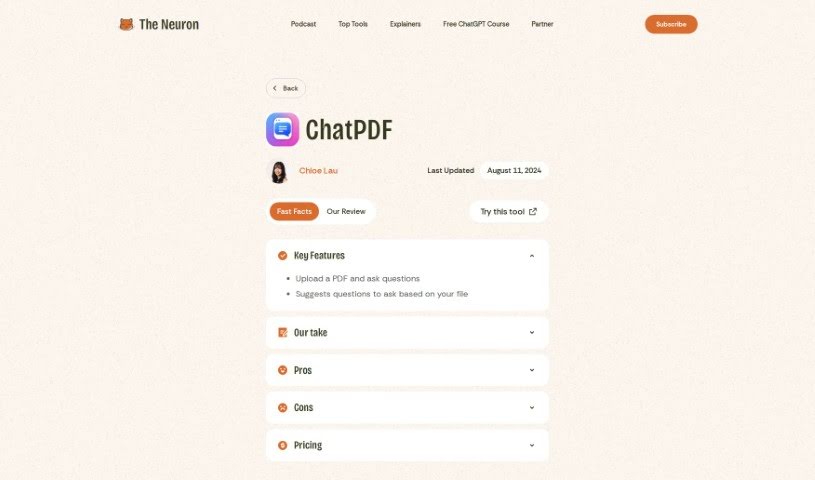
Discover what The Neuron AI ChatPDF is all about and how you can make the most of it in 2025. We'll dive into its features and see how it stacks up against other PDF chat tools.
ChatPDF is a clever way to work with longer documents using ChatGPT. It lets you upload a PDF and then ask it questions about the content. It’s great for summarizing documents or getting specific answers directly from the text. It’s important to know that it doesn’t read the entire document word-for-word all the time; instead, it smartly pulls out the most relevant paragraphs to answer your questions. ChatPDF is really built for asking and answering questions, not for creating new text or editing what’s already there. You can actually use it for free with PDFs up to 120 pages, and if you need more, there’s a paid plan for just $5 a month. All in all, ChatPDF offers a straightforward and user-friendly way to interact with your PDF files effectively.
Chloe Lau is the creator of ChatPDF. This handy tool lets users upload PDFs and ask questions, which is a really useful workaround for dealing with documents. It’s free for PDFs up to 120 pages, and it’s known for being simple and easy to use.
Getting started with ChatPDF is pretty simple. You can head over to the ChatPDF website or open up the application on your device. Once you’re there, just follow these steps:
By following these steps, you can really make the most of ChatPDF to convert, edit, and manage your PDF documents exactly how you need to.
Discover more tools in similar categories that might interest you
Get weekly updates on the latest AI tools, trends, and insights delivered to your inbox
Join 25,000+ AI enthusiasts. No spam, unsubscribe anytime.