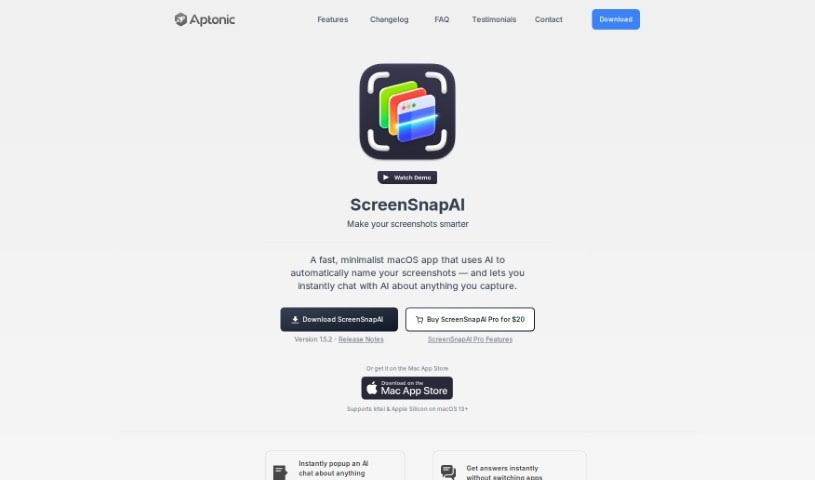
What is ScreenSnapAI?
ScreenSnapAI is a really neat tool for Mac users that uses Artificial Intelligence to manage your screenshots. It is your AI-powered assistant for anything you capture on your screen. It lets you do things like quickly summarize text, translate languages, or even draft email replies, all directly from the content you’ve selected. It’s designed to save you time by using the latest AI tech, and it’s pretty smart about how it organizes everything. ScreenSnapAI automatically labels and categorizes your screenshots, making them super easy to find later with its Smart Folders feature. Basically, it turns your collection of screenshots into an organized, searchable library, making your workflow much smoother and more efficient.
Who created ScreenSnapAI?
A company called Aptonic LLC is behind ScreenSnapAI, as you can see on their website. They first launched it on April 9, 2024, and then made some updates on May 8, 2024. Aptonic LLC is the team that develops and keeps ScreenSnapAI running. It’s built as an AI-powered assistant specifically for Mac users, aiming to really change how efficiently people can work.
What is ScreenSnapAI used for?
ScreenSnapAI helps you out in a bunch of ways:
- Organizes your screenshots automatically: It uses AI to give them smart names, descriptions, and keywords.
- Uses ‘Smart Folders’: This feature automatically sorts and filters your screenshots.
- Easy to find things: You can do a full-text search to quickly locate any screenshot.
- More organization with Pro: The pro version lets you create many Smart Folders for even better organization.
- Boosts workflow efficiency: It automates file management, making your whole process smoother.
- Imports outside images: You can bring in images from other places to use with the app.
- AI processing credits: You get credits to use the AI features for processing screenshots.
- Automated tagging: It automatically adds tags to your screenshots, simplifying file management.
- Advanced AI tagging: It uses smart AI techniques to generate tags for your captured screenshots.
- Fast file management: It filters and organizes your files quickly.
- Effortless capturing: Taking screenshots is a breeze.
- Smart names and descriptions: Get helpful names and descriptions automatically.
- Automated keywording: It handles the keywords for you.
- Streamlined file management: Makes managing your files much simpler.
- Automated filtering: It sorts your screenshots automatically.
- Fast full-text search: Find what you need in a flash.
- Quick organization: Get your screenshots sorted out fast.
- Smart Folders for chats too: You can automatically filter screenshots and chats using Smart Folders.
- Chat with your screenshots: Talk to the AI about what’s in your screenshots.
- Automatic naming and tagging: It names and tags your screenshots and AI chats automatically.
- GPT-4 powered organization: It uses GPT-4 for organizing your content.
- Smart Folders feature: A key part of how it organizes.
- Captures beyond the app: It can grab screenshots from places outside the main app window.
Who is ScreenSnapAI for?
This tool is great for:
- Scientists
- Digital artists
- Web designers
- Developers
- Web Developers
- Community managers
How to use ScreenSnapAI?
Here’s a simple guide to get you started with ScreenSnapAI:
- Download and Install:
- First, grab ScreenSnapAI from the Mac App Store.
- Then, install it on your Mac if you’re running macOS 13 or a newer version.
- Capture Screenshots:
- You can open ScreenSnapAI and take screenshots right from within the app itself.
- Utilize Smart Folders:
- To keep your screenshots organized, create Smart Folders. The free version lets you set up one Smart Folder, but if you upgrade to the pro version, you can create multiple ones for even better sorting.
- AI Processing Credits:
- Just so you know, each screenshot you process using the AI features will use up one AI credit. The pro version comes with 50 AI processing credits, and you can always buy more if you need them.
- Additional Features in Pro Version:
- With the pro version, you can also import images from other places into ScreenSnapAI. Plus, you get those extra features like having multiple Smart Folders for superior organization.
- Full-Text Search:
- Make sure to use the full-text search feature; it’s really helpful for finding specific screenshots in a hurry.
- Upgrade to Pro Version:
- If you’re currently using the free version and find yourself wanting more, think about upgrading to the pro version directly within the app.
- Future Availability:
- Keep an eye out for any future plans to make ScreenSnapAI available on other platforms besides macOS.
By following these steps, you’ll be able to use ScreenSnapAI effectively to capture, organize, and manage all your screenshots with the power of AI.