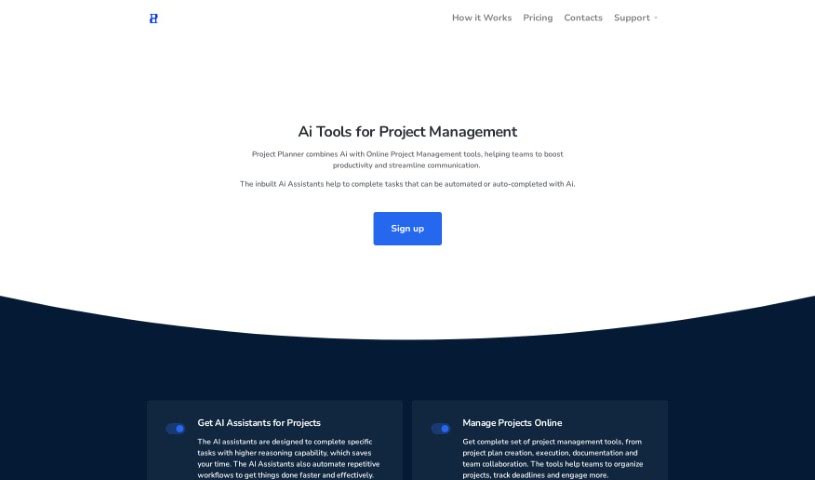
Screenshot of Project Planner

Project Planner

Discover what Project Planner is and how to use it effectively in 2025. We'll explore its features and see how it stacks up against other project management tools.

Screenshot

What is Project Planner?

Project Planner is a project management software designed to help businesses with scheduling, managing costs, reporting on work performance, and communicating in real-time online. It’s a cloud-based platform that works for projects of any size. You get features like a free trial, AI assistants to help automate tasks, contract management, ways to boost employee productivity, project management tools, automated invoicing, work reports, timesheets, financial reports, instant communication, and staff performance reports, among others. Essentially, Project Planner aims to make managing projects easier by offering a customizable and user-friendly solution for teams to collaborate and manage tasks efficiently.

Who created Project Planner?

Project Planner was actually built by a team who really understands the ins and outs of project management from their own experiences. They created the software because they’d personally struggled with planning and communicating on projects, so they wanted to build something better. This team includes engineers, support staff, and project managers who are all committed to delivering great products on time and without going over budget. Project Planner first launched on March 22, 2023. Their main focus from the start was on project scheduling, cost management, reporting on how work is going, and making sure communication is smooth and instant. The platform itself is cloud-based, pretty lightweight, and offers features you can customize to fit businesses of all sizes. Plus, they offer a free plan for the first month, which is a nice way to get started.

What is Project Planner used for?

  • Collaboration: Work together with your team seamlessly.
  • Invoice Automation: Streamline your billing process.
  • Contracts Management: Keep all your contracts organized.
  • Boost Employee Productivity: Help your team get more done.
  • Manage Projects Online: Handle all your projects from one place.
  • Automate Work Reports and Timesheets: Save time on administrative tasks.
  • Assign Tasks to Your Team: Clearly delegate responsibilities.
  • Use Project AI Assistant: Get help automating tasks and improving efficiency.
  • Work Reports: Track progress and hours worked.
  • Project Financial Reports: Monitor project finances effectively.

Who is Project Planner for?

  • Project managers
  • Engineers
  • Support Managers

How to use Project Planner?

To really get the most out of Project Planner, here’s a simple step-by-step guide:

  1. Set Up Your Company Account: You can get your company account up and running in about 5 minutes. It’s a quick start.
  2. Create Projects: You can create as many projects as you need. Just set up the budgets, timelines, and decide who will manage each project.
  3. Assign Tasks: Once projects are set, assign specific tasks to your team members. Team members can also pick up tasks themselves when they log in, which is pretty handy.
  4. Collaborate Effectively: Encourage your team to work together. This helps ensure tasks get done on time and keeps your workflows running smoothly.
  5. Get AI Assistance: Make sure to use the Project AI Assistant. It’s there to help boost everyone’s productivity and save valuable time for the whole team.
  6. Track Work Reports: Team members should report their hours, any expenses, and how far along they are on tasks. This keeps everything transparent for everyone involved.
  7. Review Financial Reports: As a manager, you’ll get detailed financial reports. These include things like labor costs, profit and loss statements, and other key financial data.
  8. Communicate Instantly: Make it easy for team members to send notes and requests. The system sends instant notifications via SMS and Email, so no one misses important updates.
  9. See Staff Performance Reports: You can access automated reports that show your team’s performance. This helps you monitor progress and find ways to optimize how everyone works.
  10. Explore More Tools: Check out other project management tools the platform offers, like labor costing, team scheduling, and more features designed to support your business as it grows.
  11. Choose Your Plan: You can try out the trial version or pick from subscription plans like Silver and Gold. These are designed to fit different project needs and team sizes.

Overall, Project Planner provides a really complete system for managing projects. It brings together AI assistants, task delegation, collaboration features, financial tracking, and communication tools all in one place. By following these steps, you can use Project Planner effectively to manage your projects and help your team be more productive.

Related AI Tools

Discover more tools in similar categories that might interest you

Stay Updated with AI Tools

Get weekly updates on the latest AI tools, trends, and insights delivered to your inbox

Join 25,000+ AI enthusiasts. No spam, unsubscribe anytime.