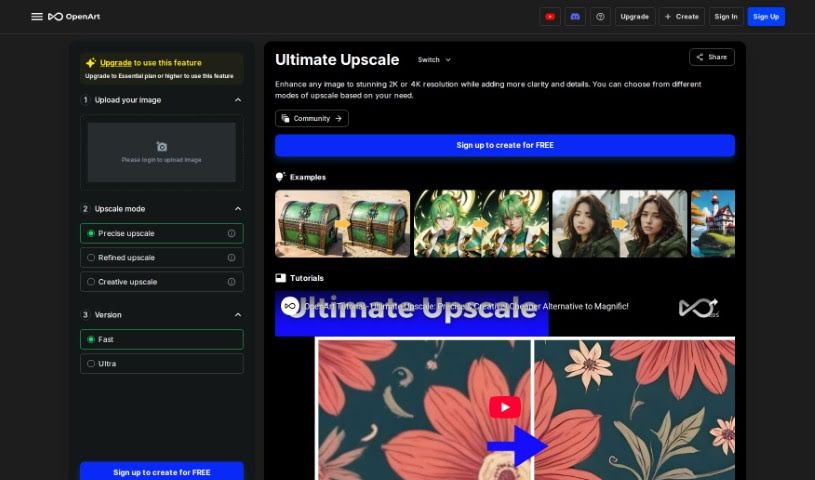
Screenshot of Openart Creative Upscale

Openart Creative Upscale

Discover what Openart Creative Upscale is and learn how to use it effectively in 2025. We'll explore its features and see how it stacks up against other Image Enhancer & Upscaler tools.

Screenshot

What is Openart Creative Upscale?

Creative Upscale is a fantastic tool designed to boost your images, bringing them to life in stunning 2K or 4K resolution. It works by adding extra clarity and finer details, really making your pictures pop. You get to pick from different upscaling modes, depending on exactly what you need. Plus, the tool offers helpful tutorials, making it super easy to learn how to use it effectively. It’s a great, more affordable option compared to many other upscaling methods out there. You can even choose between different upscale levels, like a precise upscale for accuracy or a creative upscale for artistic flair, letting you get just the results you’re aiming for without a fuss.

Who created Openart Creative Upscale?

Nitin Khanna is the creative mind behind Creative Upscale. His company offers a whole suite of AI tools, including things like Sketch to Image, Creative Variations, Anime Character generation, a Stock Image Transformer, Custom People Stock Photos, AI QR Code creation, and the Magic Brush. Nitin Khanna’s vision and leadership are really what drive the company forward, pushing them to develop innovative AI solutions that cater to all sorts of creative needs.

How to use Openart Creative Upscale?

Here’s a straightforward, step-by-step guide to using Creative Upscale:

  1. Head over to the Creative Upscale tool: You can find it at the link provided.
  2. Upload your image: Just click where it says to upload, or if it’s easier, drag and drop your image right into the upload area.
  3. Pick your Upscaling Mode: Once your image is uploaded, you’ll need to choose the upscale mode that best fits what you’re trying to achieve. Remember, the tool offers various modes to enhance your images to crisp 2K or 4K resolution, adding that extra layer of clarity and detail.
  4. Start the Upscaling: After you’ve chosen your mode and uploaded your image, just follow the on-screen prompts to kick off the upscaling process.
  5. Check out the Enhanced Image: Once the upscaling is done, take a good look at the enhanced image. Make sure it looks just right in terms of resolution, clarity, and all those important details.
  6. Save or Download: If you’re happy with how it turned out, you can easily save or download the enhanced image to your device. It’s ready for whatever you need it for, whether it’s for work or sharing.
  7. Need more help? Check the Tutorials (Optional): If you want to get even better at using Creative Upscale, definitely check out the tutorials. They offer deeper insights and helpful tips to really get the most out of the tool’s capabilities.

By following these simple steps, you’ll be able to effectively use Creative Upscale to make your images look their absolute best, with higher resolutions and noticeably better clarity and detail.

Related AI Tools

Discover more tools in similar categories that might interest you

123RF AI Image Generator

Creative Image Generation
Learn More

Stay Updated with AI Tools

Get weekly updates on the latest AI tools, trends, and insights delivered to your inbox

Join 25,000+ AI enthusiasts. No spam, unsubscribe anytime.