123RF AI Image Generator
Creative Image Generation
Learn More
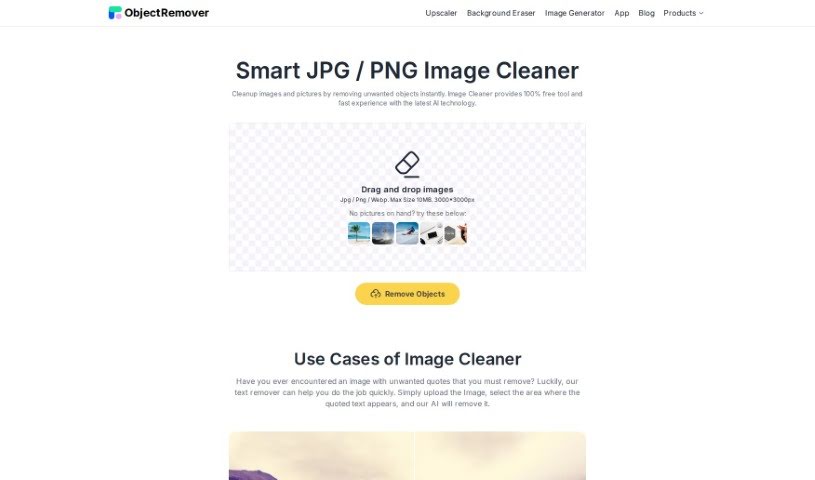
Discover what the Object Remover Image Cleaner is and how to use it to make your JPG and PNG images look great in 2025. We'll cover its features and how it stacks up against other photo editing tools.
Image Cleaner is a really smart tool that helps you make your JPG and PNG images look better, and it does it without any fuss. You can easily clean up your pictures by getting rid of anything you don’t want in them, just like that! It’s a fast, free tool that uses the latest AI technology, so it’s super easy to use. Whether you’re trying to remove pesky quotes or promotional text from an image, Image Cleaner offers a simple and effective way to improve your visuals and get rid of those unwanted elements.
This handy Image Cleaner tool comes from a company called ObjectRemover. While they haven’t shared specific details about the founder, ObjectRemover focuses on creating tools like this one. Image Cleaner is their smart solution for improving JPG and PNG images, making the process smooth and easy with its advanced AI technology.
Using Image Cleaner is pretty straightforward. Just follow these simple steps to get your images looking just right:
By following these steps, you can easily clean up your images and remove anything you don’t want, all thanks to Image Cleaner’s user-friendly design and powerful AI.
Discover more tools in similar categories that might interest you
Get weekly updates on the latest AI tools, trends, and insights delivered to your inbox
Join 25,000+ AI enthusiasts. No spam, unsubscribe anytime.