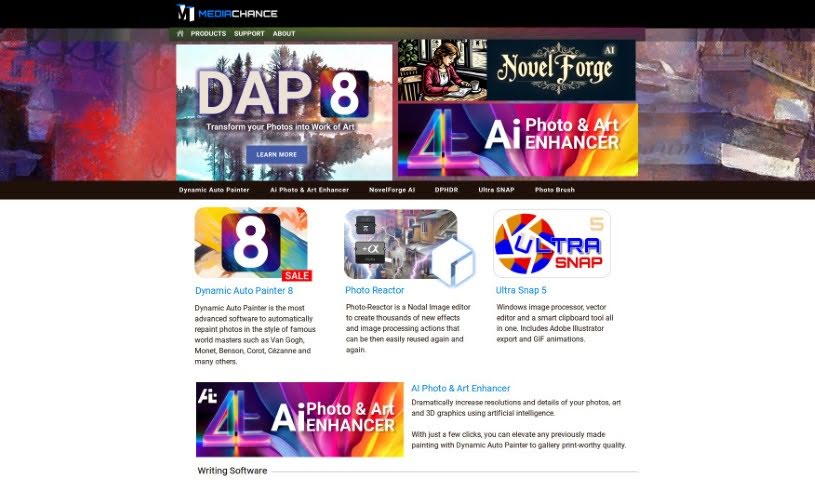
Screenshot of Mediachance

Mediachance

Discover what Mediachance is and how to use its AI Photo & Art Enhancer effectively in 2025. We'll explore its features, compare it to other photo editors, and show you how to get the best results.

Screenshot

What is Mediachance?

The AI Photo & Art Enhancer from Mediachance is a really impressive tool. It uses artificial intelligence to make your photos, digital paintings, vector art, and even 3D graphics look much better. You can actually upscale your photos by up to 16 times, creating incredibly detailed images that look like they were taken with a much better camera, perfect for printing. It’s also fantastic for digital paintings; it can really bring out the brush strokes and textures, adding amazing micro-details without losing the original artistic feel. Plus, it’s great at reducing noise in photos and 3D graphics, turning drawings into something like vector art without any jagged edges, and it can even speed up your 3D rendering by cleaning up noise in images that aren’t quite finished. And if you have a lot of images to work on, the batch processing feature lets you enhance them all at once, which is a huge time-saver. To really get the most out of this software, having a Windows computer with a good graphics card (GPU) is key, as it lets the AI do its best work.

Who created Mediachance?

Mediachance is the company behind the AI Photo & Art Enhancer. Andrej Hribernik is the founder. Mediachance offers a range of advanced tools for editing and improving images, using the latest artificial intelligence to turn photos, digital paintings, vector art, and 3D graphics into masterpieces that look great for gallery prints. They focus on boosting image resolution, adding detail, cutting down on noise, and making batch processing easy. Essentially, their AI Photo & Art Enhancer is designed to completely change how people work with digital images.

What is Mediachance used for?

  • High-Resolution Upscaling: Make your photos much bigger and more detailed, up to 16 times their original size, so they’re perfect for printing.
  • Artistic Enhancement: Give your digital paintings more life by improving their detail and color, all while keeping that original artistic touch.
  • Advanced Noise Reduction: Use modern techniques to clean up grainy or noisy photos and 3D graphics, making them look much clearer.
  • Vector-Like Image Transformation: Turn your drawings and pixel art into graphics that look like vectors – smooth and sharp, with no pixelation.
  • Time-Saving Rendering: Speed up your CG and 3D art projects by reducing noise in images that are still being rendered, so you get cleaner results faster.

Who is Mediachance for?

  • Photographers
  • Digital artists
  • Graphic designers
  • 3D Artists
  • CG renderers

How to use Mediachance?

Here’s a simple guide to using the AI Photo & Art Enhancer from Mediachance:

  1. Installation: First, install the software on your Windows computer. Make sure you have a capable GPU – it really helps the AI process things smoothly.
  2. Opening the Program: Once installed, just launch the AI Photo & Art Enhancer application.
  3. Importing Images: Next, you’ll want to bring in the images you plan to enhance. You can do this by uploading them directly into the software.
  4. Choose Your Enhancements: Now for the fun part! You have several options:
    • Want to make a photo bigger and clearer for printing? Use the High-Resolution Upscaling feature to boost its resolution up to 16 times.
    • If you’re working on a digital painting, the Artistic Enhancement tool can improve its detail and color, making sure the original artistic feel stays intact.
    • Got noisy photos or 3D graphics? The Advanced Noise Reduction feature will clean them up nicely.
    • Want to turn a drawing or pixel art into something that looks like a vector graphic, without any pixelation? Try the Vector-Like Image Transformation option.
    • For 3D artists, the Time-Saving Rendering feature can really help by cleaning up noise in images that are only partially rendered, speeding up your workflow.
  5. Batch Processing: If you have many images to enhance, don’t do them one by one! Use the batch processing feature to apply your chosen enhancements to multiple images at the same time. This ensures everything looks consistent and saves you a ton of time.
  6. System Requirements: Just a quick reminder, the software works best on Windows 8, 10, or 11, and you’ll need a recent video card that can handle demanding AI processing.
  7. Saving Output: Once you’re happy with the enhancements, simply save your improved images. Choose the format and location that works best for you on your computer.

By following these steps, you can easily use Mediachance’s AI Photo & Art Enhancer to make your photos and artwork look significantly better, all while working efficiently.

Related AI Tools

Discover more tools in similar categories that might interest you

123RF AI Image Generator

Creative Image Generation
Learn More

Stay Updated with AI Tools

Get weekly updates on the latest AI tools, trends, and insights delivered to your inbox

Join 25,000+ AI enthusiasts. No spam, unsubscribe anytime.