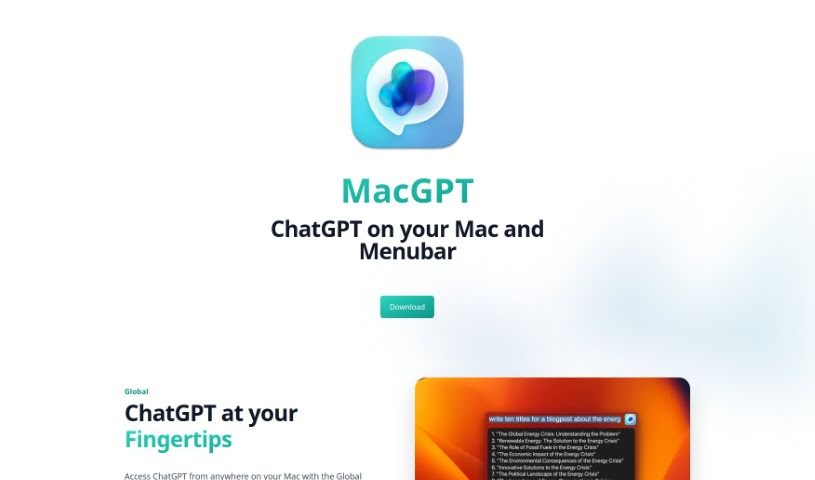
Screenshot of MacGPT - ChatGPT in your menubar

MacGPT - ChatGPT in your menubar

Discover MacGPT, the app that brings ChatGPT right to your Mac's menu bar. Learn what it is, who it's for, and how to use it effectively in 2025. We'll also touch on its features and how it stacks up against other chatbots.

Screenshot

What is MacGPT - ChatGPT in your menubar?

MacGPT lets you access ChatGPT super easily, right from your Mac’s menu bar. It is having ChatGPT always within reach, without needing to open a separate browser tab or app window. You can chat with it either through the familiar website interface or by using the API directly. This integration means you don’t have to go to the main website every single time you want to ask a question or get something done. It really makes using ChatGPT much more convenient and efficient, especially if you find yourself using it a lot for different tasks. It’s a user-friendly way to jump into conversations and get things done quickly.

Who created MacGPT - ChatGPT in your menubar?

Daniel Guagnin is the creative mind behind MacGPT. The software itself is offered by a company called “Artificial Solutions and Ideas.” Their whole goal is to bring the full power of ChatGPT to Mac users, giving them a simple way to chat with it directly from their menu bar.

What is MacGPT - ChatGPT in your menubar used for?

MacGPT is a handy tool for all sorts of tasks, including:

  • Crafting blog posts
  • Writing marketing copy
  • Generating code snippets
  • Answering customer support questions

Who is MacGPT - ChatGPT in your menubar for?

This app is a great fit for a wide range of professionals:

  • Writers
  • Teachers
  • Software developers
  • Marketers
  • Researchers
  • Journalists
  • Customer Support Representatives
  • Data Analysts
  • Project managers
  • Sales professionals

How to use MacGPT - ChatGPT in your menubar?

Getting MacGPT set up and running is pretty straightforward:

  1. First, you’ll need to install the MacGPT - ChatGPT application on your Mac.
  2. Once it’s installed, open the application and head over to the settings menu.
  3. Look for the option to enable the menubar feature and simply switch it on.
  4. After you’ve enabled it, you’ll see the ChatGPT Bar pop up in your menu bar.
  5. Just click on that ChatGPT Bar icon in your menu bar to bring up the ChatGPT interface.
  6. Now, you can type your trigger phrase and your prompt into the text box provided.
  7. ChatGPT will then generate a response based on what you’ve typed and show it to you right there.
  8. You can easily access and chat with ChatGPT from your menu bar whenever you need it.

Following these steps should help you get the most out of using MacGPT - ChatGPT right from your Mac’s menu bar.

Related AI Tools

Discover more tools in similar categories that might interest you

Stay Updated with AI Tools

Get weekly updates on the latest AI tools, trends, and insights delivered to your inbox

Join 25,000+ AI enthusiasts. No spam, unsubscribe anytime.