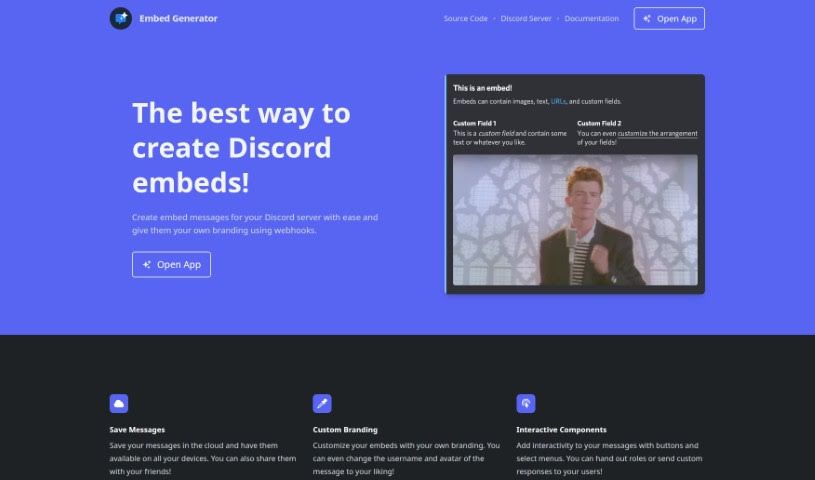
Screenshot of Embed Generator

Embed Generator

Discover what the Embed Generator is and how to use it effectively in 2025. We'll explore its features and see how it stacks up against other Automation Tools.

Screenshot

What is Embed Generator?

The Embed Generator is a really handy tool that lets you easily create custom, interactive messages for your Discord servers. You can add cool things like buttons and select menus to your embeds, personalize them with your own branding, and even set up custom commands with special logic and responses for your server members. Plus, there’s an AI assistant built-in to help you draft new messages faster and spark your creativity. Just a heads-up, this tool isn’t officially connected to or endorsed by Discord Inc., but it offers a user-friendly and efficient way to make your messaging stand out.

Who created Embed Generator?

Merlin Fuchs is the creator behind the Embed Generator. He launched it on October 27, 2023. It’s important to know that this tool isn’t affiliated with or endorsed by Discord Inc. It lets users customize their embed messages with features like interactive components, white labeling, custom commands, and an AI assistant that helps with drafting messages.

What is Embed Generator used for?

  • Add interactivity to messages with buttons and select menus.
  • Integrate a bot to change usernames and avatars in responses.
  • Create custom commands with unique logic and responses.
  • Use an AI assistant for quickly drafting new messages.
  • Save messages in the cloud so you can access them on any device.
  • Customize embeds with your personal branding.
  • Hand out roles or send custom responses to users.
  • Enhance your messaging experience with an AI assistant.
  • Access comprehensive documentation and tutorials.
  • Share saved messages with others.
  • Integrate your own bot to modify avatars and usernames in responses.
  • Create custom commands with personalized logic and responses.
  • Use the AI assistant to draft new messages quickly.
  • Boost creativity when drafting messages.
  • Customize embeds with branding options.
  • Share embeds with others.
  • Offer interactive components like buttons and select menus for more engagement.
  • Create a tailored experience for server members with personalized commands.
  • Add custom commands with logic and responses specifically for your server members.
  • Use the AI assistant to draft new messages and boost creativity.
  • Share messages with friends.
  • Hand out roles or send custom responses to users using interactive components.
  • Find comprehensive documentation and tutorials for effective use.
  • Please remember, it’s not affiliated with or endorsed by Discord Inc.

Who is Embed Generator for?

  • Content creators
  • Marketers
  • Developers
  • Community Managers
  • Community Moderators
  • Server Administrators
  • Social Managers
  • Social media managers
  • Game developers
  • Discord Server Owners
  • Educational institutions
  • Bot developers
  • Server members

How to use Embed Generator?

Here’s how you can use the Embed Generator tool effectively:

  1. Access the Tool: First, open up the Embed Generator tool. You can do this on your preferred platform or directly in your web browser.
  2. Custom Branding: Make your embeds your own by adding your branding elements. You can personalize the username and avatar for the messages just how you like them.
  3. Interactive Components: Make your messages more engaging by adding interactivity with buttons and select menus. This is great for handing out roles or sending custom responses to users.
  4. White Label Feature: You can integrate your own bot with Embed Generator. This lets you change the username and avatar that appear in responses to buttons and select menus.
  5. Custom Commands: Set up custom commands that have unique logic and responses, all tailored for your server members.
  6. AI Assistant: Take advantage of the powerful AI assistant that comes with the tool. It’s there to help you draft new messages quickly and boost your creativity.
  7. Save Messages: Make sure your messages are saved in the cloud. This way, you can access them from any of your devices. You can also easily share them with friends or collaborators.
  8. Documentation and Tutorial: Don’t forget to check out the comprehensive documentation and tutorial that comes with the tool. It’ll help you understand all its features better and get the most out of it.
  9. Disclaimer: Just a reminder, the Embed Generator tool is not affiliated with or endorsed by Discord Inc.

By following these steps and using the features the Embed Generator offers, you can create really appealing and interactive embed messages for your Discord servers.

Related AI Tools

Discover more tools in similar categories that might interest you

Stay Updated with AI Tools

Get weekly updates on the latest AI tools, trends, and insights delivered to your inbox

Join 25,000+ AI enthusiasts. No spam, unsubscribe anytime.