What Exactly is Deckassistant?
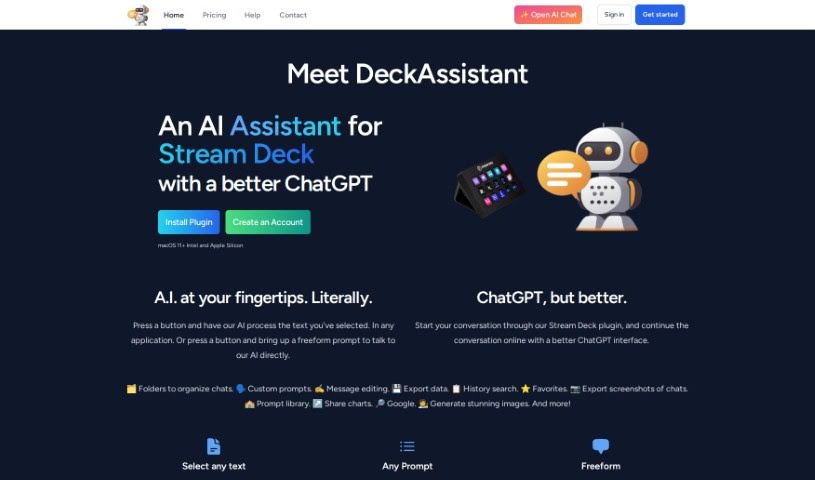
DeckAssistant is a really neat plugin for your Stream Deck that connects you to an AI assistant. It is a way to use your Stream Deck to chat with AI. You can select text in pretty much any app you’re using, hit a button on your Stream Deck, and the AI will process it for you. Plus, there’s a handy freeform prompt feature that lets you ask the AI questions directly. Martijn Smit is the creative mind behind DeckAssistant, and it works on macOS 11 and newer, whether you have an Intel or Apple Silicon Mac. It leverages ChatGPT to handle text processing and answer your questions. You’ll find it offers useful features like organizing your chats into folders, creating your own custom prompts, editing messages, searching through your conversation history, and even exporting your data.
Setting it up is pretty straightforward: you’ll need to create an account, grab your API token, install the Stream Deck plugin, add a new button, and then paste that token in. Easy peasy.
Who’s Behind Deckassistant?
Martijn Smit created Deckassistant. This AI plugin first came out on April 10, 2023, giving people a cool new way to interact with AI right from their Stream Deck. You can subscribe for about US$9.00 a month. What do you get for that? Well, you get that seamless Stream Deck integration, the ability to use freeform prompts, direct interaction with ChatGPT, handy folder organization for your chats, custom prompt options, message editing, a history search function, and data export capabilities. The company behind it makes sure payments are secure and even offers a 30-day refund policy, plus they’re there to help if you have questions. Just a heads-up, Deckassistant is currently only compatible with macOS 11 and later, and you’ll need that API token to get it authenticated.
What Can You Do with Deckassistant?
- Chat with an AI assistant using your Stream Deck.
- Process any text you select in any application with just a button press.
- Ask the AI questions directly using a freeform prompt feature.
- It’s compatible with macOS 11+ on both Intel and Apple Silicon Macs.
- It uses ChatGPT AI to process text and answer your questions.
- You get extra features like organizing chats into folders, creating custom prompts, editing messages, searching your history, and exporting data.
- You can sign up on the website to get updates or follow Martijn Smit on Twitter to stay in the loop.
- You can set up your prompt buttons with a title, icon, and either custom prompts or examples.
- Process text from any app and export your data.
- Keep your chats tidy by organizing them into folders.
- It’s all about integrating your Stream Deck to use an AI assistant.
- You can process text that you’ve selected in any application.
- Ask the AI questions directly using freeform prompts.
- It uses ChatGPT AI for processing text and answering questions.
- Organize your conversations into folders.
- Customize your prompts and edit your messages.
- Search through your message history.
- Export your data.
- You can also follow the creator on Twitter.
Who Would Find Deckassistant Useful?
- People who create content
- Customer Support Agents
- Researchers
- Students and Educators
- Journalists
- Students (again, it’s that useful!)
- Writers
- Editors
How Do I Use Deckassistant?
Getting DeckAssistant up and running is pretty straightforward. Just follow these steps:
- Get Your Account and API Token Ready:
- First, create an account over at DeckAssistant.io. Once you’re in, head to your dashboard and copy your API Token. This token is super important because it’s how DeckAssistant authenticates you to the AI.
- Install the Stream Deck Plugin:
- Next, install the Stream Deck plugin itself. After that, add a new button to your Stream Deck setup. You’ll then need to paste that API Token you copied earlier into the right spot within the plugin’s settings.
- Start Using the AI:
- Now for the fun part! Select any text you want in any application. Then, just press the button you set up on your Stream Deck, and the AI will process that text for you.
- Try the Freeform Prompt Feature:
- Want to ask the AI something specific? Use the freeform prompt feature. After you press your prompt button, you can just type in your question directly.
- Check Compatibility:
- Just a reminder, DeckAssistant works with macOS 11 and newer, including both Intel and Apple Silicon Macs.
- How it Works with ChatGPT AI:
- DeckAssistant uses the power of ChatGPT AI to process your text and give you answers. It’s really as simple as selecting text in any app and hitting a button.
- Explore the Extra Features:
- You’ll find it really helpful to use features like folder organization for your chats, creating custom prompts, editing messages, searching your history, and exporting data.
- Stay Updated with a Subscription:
- If you want to make sure you always have the latest updates and new features, consider subscribing to DeckAssistant.
- Customize Your Prompts:
- You can really tailor your prompt buttons. Add titles, change the icons, and pick from prompt examples or even create your own custom prompts.
- Need Help? Get Assistance:
- If you run into any questions or issues while using DeckAssistant, you can access their customer support. They’re there to help you out.
By following these steps, you’ll be able to use DeckAssistant smoothly to make text processing easier and interact with the AI through your Stream Deck without a hitch.