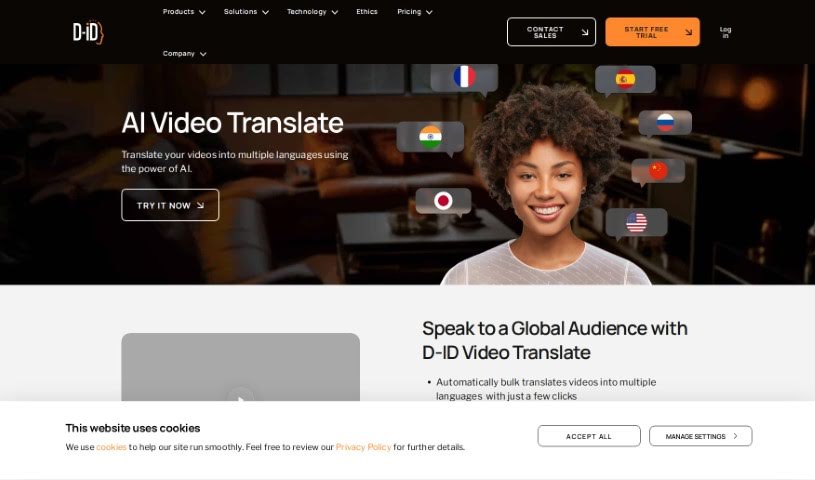
Screenshot of D-ID Video Translate

D-ID Video Translate

Discover what D-ID Video Translate is and learn how to use it effectively in 2025. We'll explore its features and see how it stacks up against other translation tools.

Screenshot

What is D-ID Video Translate?

Video Translate is a smart tool that takes the audio from your videos and turns it into different languages. It’s pretty neat because it lets you enjoy video content in your own language, either by giving you subtitles or by translating the spoken words directly. This is super helpful if you’re reaching an international audience, trying to learn a new language, or just prefer watching videos in a language other than the original. It uses advanced algorithms and speech recognition to make videos more accessible and easier to understand, no matter where you are or what language you speak. Essentially, it’s a key player in breaking down language barriers and helping us connect better through videos.

Who created D-ID Video Translate?

D-ID is the company behind Video Translate. Or Gorodissky, their VP of R&D, is a really talented Generative AI researcher who knows how to build products that make a big impact, even with new technologies. Or actually joined D-ID back in 2018 as an AI researcher and now heads up their entire R&D department. D-ID’s main focus is on transforming how we interact with and create content using generative AI. They’re particularly interested in Natural User Interface (NUI) technologies, aiming to make all sorts of media more engaging and interactive.

How to use D-ID Video Translate?

Using Video Translate is pretty straightforward. Just follow these simple steps:

  1. Upload Your Video: First things first, upload the video you want to translate into the Video Translate tool.
  2. Pick Your Languages: You’ll need to select the original language of the video and then choose the language you want it translated into.
  3. Transcribe the Audio: The tool will then listen to your video and turn the spoken words into text. You can take a moment here to review it and make any edits if needed.
  4. Translate the Text: Once the transcription is ready, just hit the translate option to convert that text into your chosen language.
  5. Review the Translation: It’s a good idea to quickly check the translated text to make sure it’s accurate and fix anything that doesn’t seem quite right.
  6. Create Subtitles: Now, you can generate subtitles in the language you translated into. You can even customize how they look and their style.
  7. Preview and Tweak: Take a look at the translated video with the new subtitles. You can adjust the timing or make final edits to the subtitles here.
  8. Download Your Video: Once you’re happy with how everything looks and sounds, download the final translated video file.
  9. Share or Use It: Now you can share your translated video on whatever platform you like, or use it however you planned.

By going through these steps, you can easily translate your videos into different languages and add accurate subtitles, which really helps reach a much wider audience.

Related AI Tools

Discover more tools in similar categories that might interest you

Stay Updated with AI Tools

Get weekly updates on the latest AI tools, trends, and insights delivered to your inbox

Join 25,000+ AI enthusiasts. No spam, unsubscribe anytime.