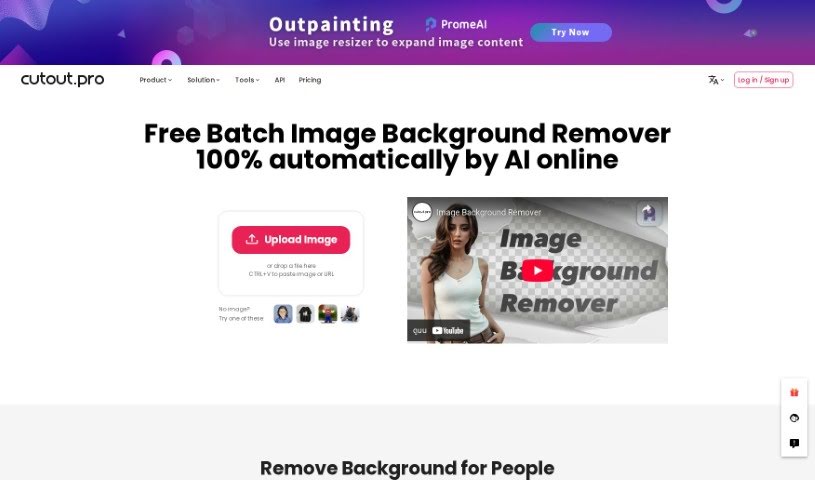
Screenshot of Cutout.Pro Remove Background

Cutout.Pro Remove Background

Discover what Cutout.Pro's Background Remover tool is all about and learn how to use it effectively in 2025. We'll cover its features and how it stacks up against other image editing tools.

Screenshot

What is Cutout.Pro Remove Background?

Basically, ‘Remove Background’ is a way to easily get rid of an image’s background, making it transparent. It uses an AI-powered background eraser tool that’s really quick at creating great-looking visuals. You can remove backgrounds and make them transparent with hardly any effort. This tool also makes it simple to swap out backgrounds, which really helps when you’re trying to get creative with your images. Plus, it’s got this handy bulk processing feature, so you can tackle multiple images at once. It really speeds things up, saves you time, and makes your images look better, fitting them perfectly for all sorts of projects.

Who created Cutout.Pro Remove Background?

This tool, Remove Background, was actually made by someone named Three Stones. Three Stones is a designer who built this tool specifically to help people easily remove backgrounds from their photos and change them up to really let their creativity shine. They designed it to be a step up from other automatic portrait segmentation tools, packing in some really strong features for anyone who edits images.

Who is Cutout.Pro Remove Background for?

  • Graphic Designers
  • Photographers
  • Digital Marketers
  • Web Designers
  • E-commerce Specialists
  • Social Media Managers
  • Content Creators
  • Videographers
  • Illustrators
  • Real Estate Agents

How to use Cutout.Pro Remove Background?

Using the Remove Background tool is pretty straightforward. Just follow these simple steps:

  1. Get Your Image Ready: It helps a lot if you take photos with a plain background, or if you download images from stock photo sites where the main subject really stands out from the background. This makes the tool’s job easier.
  2. Upload Your Image: Once you have your image, upload it to your device (whether you’re on a Mac, Windows, or Linux). You can just drag and drop the file right into the tool, or if it’s online, paste the image URL. The tool then works its magic to remove the background.
  3. Edit and Download: After your image is uploaded and the background is gone, you can fine-tune it. Click on ‘Erase & Restore’ to make any adjustments. The Editor lets you add shadows, change the background color, swap out the background entirely, resize the image, or crop it just the way you want.

By following these easy steps, you can quickly and effectively remove backgrounds from your images with the Remove Background tool. It’s a great way to save time and make your photos look much more polished for any project or marketing material you’re working on.

Related AI Tools

Discover more tools in similar categories that might interest you

123RF AI Image Generator

Creative Image Generation
Learn More

Stay Updated with AI Tools

Get weekly updates on the latest AI tools, trends, and insights delivered to your inbox

Join 25,000+ AI enthusiasts. No spam, unsubscribe anytime.