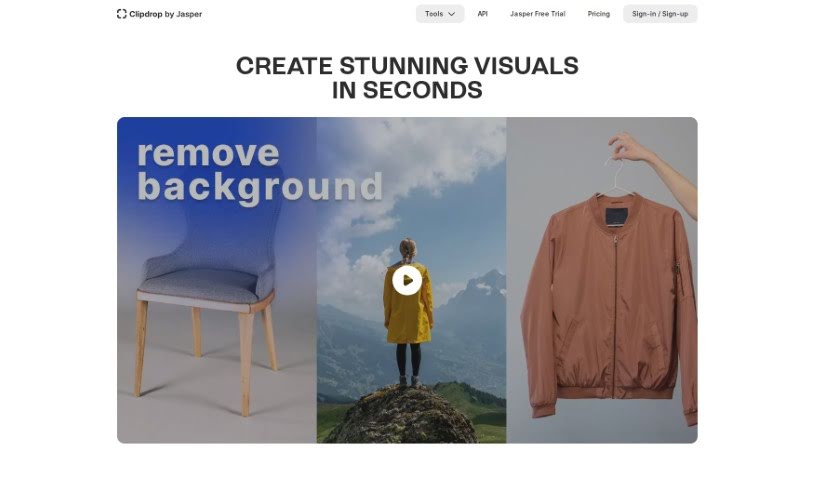
Screenshot of ClipDrop

ClipDrop

Discover ClipDrop, an AI-powered photo editing tool from Stability AI. Learn how to use its features like Uncrop, Upscaler, and Generative Fill in 2025, and see how it stacks up against other photo editors.

Screenshot

What is ClipDrop?

ClipDrop, by Stability AI, is a really neat AI tool that lets you change the size and look of your photos. It can expand the backgrounds of your pictures, letting you adjust the aspect ratio or ‘uncrop’ them to fit any image format you need. It’s pretty clever because it doesn’t just stretch things; it actually generates new parts of the image that blend in naturally with your original photo.

Beyond just expanding photos, ClipDrop packs a whole suite of editing tools. You can upscale images to make them sharper, remove unwanted text or backgrounds, relight your subjects, use Generative Fill to add or change elements, resize images with its Universal Resizer, swap people in photos, or even create images from scratch just by typing a description (that’s the Instant Text-to-Image Generation). It’s all powered by Stability AI’s Stable Diffusion technology, which is known for creating realistic, high-resolution images. Whether you’re just starting out with photo editing or you’re a seasoned pro, ClipDrop’s Uncrop tool is designed to be easy to use, offering ways to clean up noise, bring back details, and generate all sorts of new visuals.

Who created ClipDrop?

ClipDrop’s Uncrop feature, along with its other tools, comes from Stability.ai. They launched it on June 18, 2024. Stability.ai is the company behind this AI tool that helps you edit photo aspect ratios by expanding backgrounds and creating new images that fit whatever size you choose.

What is ClipDrop used for?

ClipDrop is super versatile! Here’s a quick rundown of what you can do with it:

  • Adjust aspect ratios: Easily change the shape of your photos.
  • Image format flexibility: Make your photos fit any format you need.
  • Generate extended backgrounds: Seamlessly expand your photo’s background.
  • Image Upscaler: Make your images sharper and clearer.
  • Text Remover: Get rid of unwanted text.
  • Background Remover: Easily cut out subjects from their backgrounds.
  • Relight tool: Change the lighting in your photos.
  • People swapping: Switch out people in your images.
  • Instant sketch to live image conversion: Turn your drawings into real images.
  • High-resolution image generation: Create detailed, clear images.
  • Text-to-image generation: Make images just by describing them.
  • ‘Generative Fill’ tool: Add or change parts of an image creatively.
  • ‘Universal Resizer’: Resize images perfectly for different platforms.
  • Real-time image generation: See results as you create.
  • Expand image dimensions: Make your photos bigger without losing quality.
  • Numerous upload options: Upload your images in various ways.
  • Generate images from selected ratio: Ensure your output matches your desired dimensions.
  • Social media optimization: Get your images ready for platforms like Instagram or Facebook.
  • Background removal tool: A dedicated tool for removing backgrounds.
  • Image upscaling for quality enhancement: Improve the quality of your existing images.
  • Text removal feature: A specific tool for removing text.
  • Swapping people feature: A dedicated tool for changing people in photos.

Who is ClipDrop for?

ClipDrop is a fantastic tool for a wide range of creative individuals:

  • Professional artists
  • Hobbyists
  • Photographers
  • Graphic designers
  • Content creators

Basically, if you work with images and want to make them look better, fit different formats, or create new visuals, ClipDrop is likely a great fit for you.

How to use ClipDrop?

Using ClipDrop’s Uncrop tool and its other features is pretty straightforward. Here’s a general guide:

  1. Upload Your Images: Start by uploading the photos you want to edit onto the ClipDrop platform.
  2. Choose Your Aspect Ratio: Decide on the new shape or size you want for your image. This could be for social media, a specific print size, or just a different look.
  3. Let Uncrop Work Its Magic: The Uncrop tool will then generate new versions of your image that match the aspect ratio you selected. It intelligently expands and modifies the backgrounds so everything looks natural and cohesive.
  4. Create an Account: To get the most out of Uncrop and all the other tools ClipDrop offers, you’ll need to sign up and create an account on their website.
  5. Explore Other Tools: Remember, ClipDrop isn’t just about Uncrop. Dive into tools like the Image Upscaler to sharpen your images, the Text Remover to clean up unwanted text, or the Background Remover to isolate subjects.
  6. Understand the Tech: ClipDrop uses advanced AI, specifically Stable Diffusion. This technology is what allows it to extend backgrounds and generate new image content based on your chosen aspect ratios.
  7. Boost Image Quality: If you have a slightly blurry or low-resolution image, the Image Upscaler feature can help. It’s designed to reduce noise and bring back lost details, making your photos look much better.
  8. Optimize for Social Media: Need to get an image ready for Instagram or Facebook? The Universal Resizer tool is perfect for making sure your images have the right dimensions for each platform.
  9. Discover More Editing Options: ClipDrop offers a variety of powerful editing capabilities. Features like Generative Fill, Swap People, Instant Text-to-Image Generation, and Reimagine give you a lot of creative freedom.
  10. Turn Sketches into Images: Have a quick sketch you want to bring to life? The Sketch to Image feature lets you convert your drawings into actual images instantly.

Related AI Tools

Discover more tools in similar categories that might interest you

123RF AI Image Generator

Creative Image Generation
Learn More

Stay Updated with AI Tools

Get weekly updates on the latest AI tools, trends, and insights delivered to your inbox

Join 25,000+ AI enthusiasts. No spam, unsubscribe anytime.