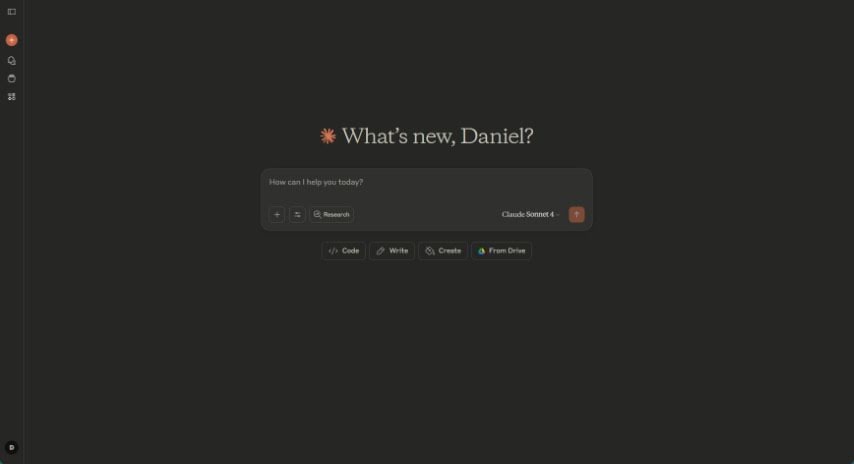
Screenshot of Claude

Claude

Discover what Claude AI is and how to use it effectively in 2025. Explore its features, compare it to other chatbots, and learn how to leverage its capabilities for your tasks.

Screenshot

Claude AI, developed by Anthropic, is really changing the game for how people use artificial intelligence. It’s designed to be simple, smart, and safe, and its popularity is soaring – it saw around 111.90 million website visits in February 2025 alone!

What sets Claude apart from many other AI models out there is its impressive ability to create high-quality visual content. Think infographics, website designs, mockups, and data visualizations – Claude can handle them. Plus, it’s a fantastic tool for anyone involved in coding and programming, helping developers write, debug, and improve their code much more efficiently.

As generative AI technology continues to advance, Claude is proving to be a valuable partner, helping people work smarter, make better decisions, and bring both creative and technical ideas to life.

So, whether you need a design concept, a clear data chart, or some help with coding, Claude makes powerful AI more accessible for a whole range of tasks.

What is Claude AI?

Claude AI is a sophisticated intelligent model created by Anthropic. It’s a generative AI platform that uses large language models (LLMs) to understand your text prompts, tackle complex tasks, and provide intelligent, helpful replies.

The Claude LLM is widely considered one of the most powerful artificial intelligence platforms available today, often compared to ChatGPT in terms of its intelligence.

This capable model comes in several versions, including Claude 3.5 Sonnet, Claude 3 Opus, and Claude 3.5 Haiku. Each version has its own strengths, particularly when it comes to intelligence and speed.

Who Created Claude?

Claude AI was developed by Anthropic, a company focused on AI research that was founded in 2021 by former researchers from OpenAI. Dario Amodei, who serves as CEO, co-founded the company along with Daniela Amodei (President) and other former OpenAI employees.

Anthropic places a strong emphasis on AI safety, interpretability, and developing AI responsibly. They’ve pioneered a concept called Constitutional AI, which is designed to ensure Claude models adhere to ethical principles while generating their responses.

What is Claude Used for?

Claude AI is a really versatile assistant, useful for all sorts of applications. It’s great at understanding natural language, reasoning through problems, and generating content, making it a valuable tool for individuals, businesses, and developers alike.

Here are some of the key ways people use it:

  • Customer support
  • Creating all kinds of content
  • Analyzing data and uncovering insights
  • Automating tasks
  • Summarizing research papers
  • Generating study guides
  • Providing citations and sources
  • Generating code
  • Explaining difficult concepts
  • Debugging code
  • Writing poetry and prose
  • Creating screenplays and dialogue
  • Writing stories, articles, and scripts
  • Reviewing and summarizing contracts
  • Legal research
  • Drafting legal documents
  • Finding information on drugs and treatments
  • Analyzing markets
  • Forecasting financial trends
  • Multilingual support

Who Can Use Claude?

Pretty much anyone can find Claude useful! Here’s a breakdown:

  • Customer support teams can use it to automate responses.
  • Marketing professionals find it helpful for creating content.
  • Business owners can leverage it for better decision-making and automation.
  • HR teams can use it to draft policies and manage inquiries.
  • University students benefit from its ability to summarize research papers.
  • Professors and educators can use it for lesson planning.
  • Data analysts can extract insights from large datasets.
  • Legal researchers can use it for contract analysis and reviewing case law.
  • Software developers get coding assistance and debugging help.
  • AI researchers can test AI-driven applications.
  • Data scientists use it for natural language processing tasks.
  • Cybersecurity experts can analyze vulnerabilities.
  • Bloggers can use it for writing articles and generating ideas.
  • Journalists can summarize news and fact-check information.
  • Authors can use it for brainstorming and developing narratives.
  • Screenwriters find it useful for dialogue generation and scriptwriting.
  • Lawyers can use it for contract analysis and drafting legal documents.
  • Compliance officers can monitor regulatory updates.
  • Paralegals can summarize case studies.
  • Doctors and nurses can use it to summarize patient records.
  • Medical researchers can analyze scientific papers.
  • Pharmacists can get insights on medications.
  • Financial analysts can analyze stock market trends.
  • Accountants can automate tax and compliance tasks.
  • Investment advisors can get market insights.
  • Startup founders can work on AI projects.
  • Chatbot developers can integrate AI into their applications.
  • Public officials can use it for drafting policy documents.
  • Social researchers can analyze trends and public sentiment.
  • Law enforcement can review legal compliance.
  • Job seekers can use it for resume writing and interview preparation.

Different Models of Claude AI

Claude offers a range of models, each with its own balance of capabilities, speed, and cost. Here’s a quick look at the different options:

Claude 3.7 Sonnet

  • Released: February 2025
  • Features: Includes a special “reasoning mode” for more advanced problem-solving.
  • Best for: Complex reasoning tasks and professional applications.

Claude 3.5 Sonnet

  • Released: Late 2024
  • Features: Offers a good balance of performance for text analysis, conversation, and code generation.
  • Best for: Versatile uses that require strong language understanding.

Claude 3.5 Haiku

  • Released: Mid 2024
  • Features: Designed for lower latency, making it ideal for real-time applications.
  • Best for: Applications where speed is the most critical factor.

Claude 3 Opus

  • Released: March 2024
  • Features: Excels at complex writing and reasoning tasks.
  • Best for: Advanced content creation and in-depth analytical work.

Claude 3 Sonnet

  • Released: March 2024
  • Features: Provides strong general-purpose capabilities.
  • Best for: Everyday AI assistant tasks that require good reasoning.

Claude 3 Haiku

  • Released: March 2024
  • Features: Optimized for speed and cost-efficiency.
  • Best for: High-volume applications where quick responses are essential.

Is Claude Free to Use?

Yes, Claude AI does offer a free tier that gives you access to its latest model, Claude 3.5 Sonnet. If you need higher usage limits and priority access, you can upgrade to Claude Pro for $20 per month. For teams, there’s the Claude Team plan at $30 per user per month (with a minimum of 5 users), which includes collaboration tools and increased limits. Enterprise plans are also available with custom pricing.

How is Claude AI Different from ChatGPT?

Here’s a quick comparison to see how Claude AI and ChatGPT stack up:

FeatureClaude AIChatGPT
DeveloperAnthropicOpenAI
AI Safety ApproachUses Constitutional AI for ethical responsesUses Reinforcement Learning from Human Feedback (RLHF)
Context WindowUp to 200,000 tokens for long-form coherenceSmaller context window may struggle with longer texts. Free Tier: 8,000 tokens. ChatGPT Plus and Teams: 32,000 tokens. ChatGPT Enterprise: 128,000 tokens.
Coding PerformanceScores 92% on the HumanEval test, better at generating accurate codeSlightly lower score, still strong in coding tasks
Personality & UXMore personable, friendly, and empatheticMore neutral and formal in tone
Access & PricingFree tier available; Claude Pro at $20/monthFree tier available; ChatGPT Plus at $20/month
Best ForUsers who need long-form memory, ethical AI, and safer responsesUsers who prefer integration flexibility and a professional tone

How to Use Claude on Desktop

Claude AI is a powerful AI chatbot that can help with writing, summarizing, coding, and much more. Here’s a simple guide to using it on your desktop:

1. Open a Web Browser

First, open your preferred web browser – like Google Chrome, Microsoft Edge, Firefox, or Safari. Make sure it’s updated to the latest version for the best experience.

2. Visit Claude AI’s Website

Head over to https://claude.ai, which is Claude AI’s official website. If you’re using Claude through another platform, like Slack or Notion, just go to that platform instead.

3. Sign Up or Log In

If you’re new, click Sign Up and enter your email, Google account, or other login details. If you already have an account, just click Log In and enter your credentials.

Claude introduction

4. Start a Chat with Claude

Once you’re logged in, you’ll see the chat interface. Type your question or request in the text box at the bottom. Feel free to explore the interface!

  • Use Different Models You can choose from various models like Claude 3.7 Sonnet, Claude 3.5 Haiku, Normal, Extended, and Claude 3 Opus.

    Choose Claude Models

  • Choose Style You can also select how Claude should write its responses by clicking Choose style. Options include Normal, Concise, Explanatory, and Formal. You can even create your own custom style by clicking Create & Edit Styles. After picking your style and Claude model, hit the Up arrow button to send your query.

    Choose Styles on Claude

  • Upload Files You can add documents to help your query by clicking the Paperclip icon next to the chat box. Upload files from Google Drive, GitHub, or even take a screenshot from your browser or window.

    Upload files on Claude

  • Copy and Share Once Claude generates a response, you can copy it by clicking the Clipboard icon. To share it, just click the Share button in the top right corner.

    Copy Claude's responses

  • Retry the Prompt If you’re not happy with a response, just click the Retry button. You can choose between With no changes or With extended thinking.

    Retry generating response on Claude

  • Give Feedback Finally, to help Claude get better, remember to like or dislike its responses using the Thumbs up or Thumbs down icons.

    Like or dislike Claude's response

How to Use Claude AI on Mobile Phone

Here’s how you can use Claude AI on your mobile phone:

1. Using Claude AI via Mobile Browser

Open a mobile browser like Chrome, Safari, or Firefox and go to https://claude.ai. Log in or Sign up as needed. The chat interface is mobile-friendly and works much like the desktop version. You might want to bookmark it for quick access.

2. Using Claude AI Mobile App

Claude AI also has a mobile app available on the Google Play Store and Apple App Store.

  • Open the Google Play Store (for Android) or Apple App Store (for iOS).
  • Search for “Claude AI by Anthropic” and pick the official app.
  • Tap Install and wait for it to download.
  • Open the app and log in with your existing details or sign up if you’re new.
  • Start chatting with Claude just like you would on the web.

How to Use Claude’s Different Features

Claude has a variety of features to help you work more efficiently. Here’s a simple guide on how to use them:

How to Upload Files on Claude

  1. Click the Paperclip icon below the chat input box.
  2. Select the file you want to upload from your device.
  3. Confirm the upload to share it with Claude.
  4. Claude supports formats like PDF, DOCX, EPUB, HTML, JS, and PY files.

How to Capture Screenshot on Claude

  1. Click the Camera icon to take a screenshot.
  2. You can capture the Entire screen, a specific Window, or Browser tabs.
  3. Select Share to upload the screenshot to Claude’s interface.
  4. Type your question in the chat box and hit the Up arrow button to send it.

Capture screenshot on Claude

How to Use GitHub on Claude

  1. Click the GitHub icon in Claude’s interface.
  2. Log in to your GitHub account through the portal.
  3. Import repositories, files, or code snippets into Claude.
  4. Ask Claude questions, request modifications, debugging help, or explanations to improve your workflow.

Use GitHub on Claude

How to Start a Project on Claude

  1. Hover over your Profile picture in the left-side panel.
  2. Select Projects and then click Create Project.
  3. Use Search projects to find any previous projects you’ve worked on with Claude.

Create projects on Claude

How to Reload Suggestions on Claude

  1. Claude usually shows three suggestions below the chat box. If you want more options, just click the Revolving arrow button below the Cross (X) button.
  2. You might then see new suggestions like “Polish your prose”, “Generate interview questions”, or “Extract insights from reports”.
  3. If you don’t want suggestions at all, just click the Cross (X) button.

Reload suggestions on Claude

How to Start a New Chat with Claude

Starting a new chat is pretty straightforward. Just follow these steps:

  1. Hover over your Profile picture on the left side panel.
  2. Click the Start a new chat button at the top.
  3. A new window will pop up, giving you a fresh start!

Start a new chat on Claude

How to Change the Appearance on Claude

While Claude’s default theme looks great, you can easily change the appearance if you prefer something different.

  1. Click your Profile picture and go to Settings.
  2. Navigate to Appearances.
  3. Change the Color mode to Light, System, or Dark.
  4. You can also change the Chat font to Default, Match system, or Dyslexic friendly.

Change appearance on Claude

How to Change the Language on Claude

Just like changing the appearance, you can easily switch the language Claude uses. Currently, Claude supports 11 languages: English, French, Dutch, Hindi, Bahasa Indonesia, Italian, Chinese, Korean, Portuguese, and Spanish.

  1. Click your Profile picture and select Languages.
  2. Choose the language you want to use to communicate with Claude.
  3. The system will update immediately.

Change the language on Claude

How to Delete Your Account on Claude

If you need to delete your account on Claude AI:

  1. Click on your Profile picture.
  2. Select Settings.
  3. Locate and select Billing.
  4. Scroll down and find Cancellation > Cancel plan.
  5. Click Cancel. This will stop your subscription.
  6. Now, go to Account, and hit Delete Account.

How to Use Claude for Conversations

Whether you’re just chatting casually, working on tasks, or trying to solve problems, Claude can adapt to different tones and interaction styles. Here are a few ways Claude AI can help you converse:

  • Casual Conversations

    Claude is great for informal chats and simple AI replies, making it a nice companion for lighthearted discussions or social interactions. Here are some prompts you could try:

    User: Hey Claude, how’s your day going?

    Claude: I don’t really have a “day” like humans do, but I’m always ready to chat! How has your day been so far?

    User: Just a bit tired, honestly. Any tips to feel more energized?

    Claude: Feeling tired can happen for many reasons. A quick way to boost your energy is to take a short walk, drink some water, or listen to uplifting music. Would you like some specific recommendations based on your routine?

  • Professional and Work-Related Conversations

    Claude can help you draft emails, set up follow-up tasks, create customer support responses, summarize reports, generate ideas, or offer industry insights. For instance:

    User: I need to write a formal email to a client about a project delay. Can you help?

    Claude: Absolutely! Here’s a professional email template you can use:

    “Subject: Update on Project Timeline

    Dear [Client’s Name],

    I hope you are doing well. I wanted to update you regarding the progress of [Project Name]. Due to [brief reason], we anticipate a slight delay in completion. We are actively working to ensure the best outcome and expect to deliver by [new deadline]. Please let us know if you have any concerns or need further clarification.

    Best regards, [Your Name]”

    Would you like me to adjust the tone or any of the details?

  • Brainstorming and Creative Thinking

    Claude can generate ideas for writing projects, business ventures, personalized product suggestions, or creative endeavors. For example:

    User: I need blog topic ideas for my tech website. Can you suggest some?

    Claude: Certainly! Here are a few trending topics:

    1. The Rise of AI-Powered Search Engines: What It Means for SEO
    2. The Future of Quantum Computing: How Close Are We?
    3. Top 10 AI Tools That Can Boost Your Productivity in 2025. Would you like me to elaborate on any of these?
  • Learning and Academic Assistance

    Claude is an advanced tool that can simplify complex topics, summarize articles, help with studying, and perform various tasks. Try this out:

    User: Can you explain machine learning in simple terms?

    Claude: Sure! Machine learning is basically teaching a computer to recognize patterns and make predictions based on data. Think of it like showing a child lots of pictures of dogs and cats – over time, they learn to tell the difference.

    In the same way, a machine learning model is trained with data until it can classify, predict, or generate results without needing explicit step-by-step instructions. Would you like a real-world example?

  • Problem-Solving and Advice

    This artificial intelligence chatbot can offer logical solutions, general life advice, help with troubleshooting, and act as your virtual assistant. Here’s an example:

    User: I’m struggling with time management at work. Any tips?

    Claude: Time management is really key for productivity. Here are a few effective strategies:

    • Prioritize tasks using the Eisenhower Matrix.
    • Set time limits for each task with the Pomodoro Technique.
    • Avoid multitasking to stay focused. Would you like a customized approach based on your work schedule?

How to Use Claude for Designing Content

While all AI platforms have their strengths, Claude is particularly good at data visualization. You can use it to create clear infographics, websites, charts, and models quite easily.

How to Design a Chart with Claude

  1. Log in to your Claude account.
  2. Make sure you’re using a Claude Pro account for full features.
  3. Gather the data you want Claude to work with.
  4. Paste that data into the chat box and hit the Up arrow.
  5. Ask Claude to make changes to the chart using new prompts.
  6. Once the final image is ready, click the Publish button in the bottom right corner.
  7. Copy the link and paste it into your browser.
  8. Now you can save the image and use it however you like.

Create a chart with Claude

How to Design a Website with Claude

  1. Log in to your Claude Pro account.
  2. Gather the data and any design samples you have for your website.
  3. Paste the data into Claude’s chat box and press the Up arrow.
  4. Refine the design using prompts.
  5. Click Publish, copy the link, and open it in your browser.
  6. Save and use your website design as needed.

Create an website with Claude

How to Design an Infographic with Claude

  1. Log in to your Claude Pro account.
  2. Prepare the data for your infographic.
  3. Enter the data into Claude’s chat box and press the Up arrow.
  4. Adjust the design using prompts.
  5. Click Publish, copy the link, and open it in your browser.
  6. Download and use your infographic as needed.

Create an infographic with Claude

How to Use Claude for Research & Writing

Claude AI is a powerful tool for research and writing. It can summarize sources, generate ideas, help structure arguments, refine your text, and even assist with creative tasks. Here’s how to make the most of it:

1. Define Your Research Topic

Before you start, make sure you have a clear idea of what you’re researching. The more specific your query, the better Claude can provide relevant insights.

Example: “Claude, I am researching the impact of AI on climate change solutions. Can you provide an overview?”

Claude will then generate a summary that highlights key developments, challenges, and potential areas for further research.

2. Gather Information and Summarize

If you have long research papers or articles, you can copy and paste the content into Claude and ask for a summary.

Example: “Here is an article on renewable energy innovations. Can you summarize the main points?” Claude will extract the key takeaways, making complex information much easier to digest. If you’re looking for sources, you can also ask Claude for recommendations on reputable databases like Google Scholar, PubMed, or IEEE Xplore.

3. Create an Outline for Your Writing

Once you’ve gathered enough research material, it’s helpful to generate an outline to structure your writing logically.

Example: “I am writing an essay on the ethics of artificial intelligence. Can you help me create an outline?”

Claude will organize the content into sections like:

  1. Introduction – Background on AI ethics, importance of the topic
  2. Key Ethical Concerns – Bias in AI, data privacy, decision-making responsibility
  3. Real-World Examples – Case studies of ethical AI dilemmas
  4. Solutions and Future Perspectives – Regulations, AI transparency, ethical frameworks
  5. Conclusion – Summary of key insights, final thoughts

4. Generate the First Draft

After you’ve finalized your outline, you can use Claude to write an initial draft based on that structure.

Example: “Using the outline you provided, write a 700-word draft on the ethics of AI.”

Claude will generate a well-structured draft, incorporating relevant information while maintaining a logical flow.

5. Refine and Improve the Writing

Review the draft and ask Claude to make improvements where needed. You can ask it to refine content for clarity, adjust the tone, or enhance engagement.

Example: “Make this paragraph more concise while keeping the key points intact.”

Claude will simplify and restructure sentences to improve readability. If you need a different writing style, you can specify your preference, like: “Rewrite this in a more academic/formal/conversational tone.”

6. Check Grammar and Proofread

Claude can proofread your text and suggest grammatical corrections or stylistic improvements.

Example: “Check this passage for grammatical errors and suggest improvements.” Then, paste the sentence into the chat box.

Claude will provide corrected text along with explanations for the suggested changes.

7. Format Citations and References

If your writing requires citations, Claude can help format them in styles like APA, MLA, Chicago, or others.

Example: “Format this reference in APA style: Smith, John. ‘AI and Ethics.’ 2023, Journal of Technology.”

Claude will generate the correct citation format: Smith, J. (2023). AI and ethics. Journal of Technology.

8. Paraphrase for Originality and Avoid Plagiarism

To ensure your work is original, you can ask Claude to paraphrase key sections while keeping the original meaning intact.

Example: “Rewrite this paragraph to make it unique and engaging.” Then, paste the paragraph for modification.

Claude will produce an alternative version with different phrasing while preserving the core message.

9. Final Review and Adjustments

Before you finalize your document, read through the content to ensure it flows logically and is coherent. If needed, ask Claude for any last-minute refinements.

Example: “Does my conclusion effectively summarize the main points? Suggest improvements.”

Claude will evaluate the text and offer suggestions to strengthen your final section.

10. Export and Use Your Finalized Content

Once you’re happy with the result, copy your final draft into a document editor like Microsoft Word or Google Docs. Format the text as needed, apply citations, and prepare it for submission or publication.

How to Use Claude for Customer Support

Here’s a step-by-step process for using Claude in customer support, broken down by common use cases:

1. Get Access to Claude

  1. Visit Anthropic’s website.
  2. Request API access if you don’t already have it.
  3. Once approved, you’ll receive:
    • An API key.
    • Access to Claude models (like Claude 3).
    • Documentation to help you integrate it.

2. Decide Your Use Case(s)

Figure out which support-related tasks Claude will help with:

  • Drafting email/ticket responses
  • Assisting live chat agents
  • Summarizing conversations
  • Performing sentiment analysis
  • Creating knowledge base content
  • Helping with agent training or quality assurance

3. Build or Use an Integration

Option A

If you prefer to avoid coding:

  1. Use tools like Zapier, Make (Integromat), or Flowise.
  2. Connect your support platform (like Gmail or Zendesk) to Claude via its API.
  3. Set up triggers (e.g., “New support ticket received”) to send ticket content to Claude.
  4. Claude will reply with a draft response, which you can then send to your agent dashboard.

Option B

  1. Use Claude’s API Docs to send customer support data (like chat logs or tickets). You can create prompts like: “You are a customer support assistant. Summarize the customer message and suggest a polite response”.
  2. Use Claude’s API to get organized results, such as a short summary, a suggested reply, and the message’s tone (e.g., angry, happy).
  3. Then, display Claude’s response within your customer support tool so your agents can easily see and use it.

4. Design Effective Prompts

Prompts are how you instruct Claude. Here are some examples:

For Email Drafting: A customer sent this message: “I still haven’t received my refund.” Please write a professional, empathetic reply based on our refund policy.

For Summarizing: Summarize this 10-message conversation in 2 sentences.

For Sentiment: What is the tone of this message? Angry, Neutral, or Satisfied?

5. Review with Human Oversight

Always make sure a person checks the final replies before they are sent out. Keep an eye on Claude’s answers to ensure they are correct, polite, and not fabricated. Use what you learn to improve your instructions and overall process.

6. Improve Over Time

Talk to your support team and get their feedback on Claude’s replies. Adjust your instructions to get better answers. As you become more comfortable, you can try using Claude for more tasks. If you wish, you can also enhance the setup by providing Claude with better examples to learn from.

How to Use Claude for Data Analysis

Claude AI can help with data analysis by summarizing datasets, identifying trends, interpreting statistics, and explaining data-related concepts. Let’s explore this further:

1. Define Your Data Analysis Goals

Before using Claude, clarify what you want to analyze. Are you looking for trends, summaries, statistical interpretations, or recommendations?

Example: “Claude, I have sales data for the past year. Can you help me find key trends?“

2. Prepare Your Data

Since Claude doesn’t process raw datasets directly, you’ll need to summarize or describe your data before inputting it.

  • If you’re working with a spreadsheet (like Excel or Google Sheets), copy the key columns and rows.
  • If you’re analyzing statistics, describe the main figures or findings.
  • If you have unstructured data, like customer feedback, provide sample entries for Claude to analyze.

Example: “Claude, here is my dataset: January: 1,200 sales, February: 1,400 sales, and March: 1,800 sales. Can you identify a trend?“

Claude can recognize trends, outliers, and seasonal patterns from summarized data.

Example: User: “Based on the last 6 months of sales data, can you detect any seasonal trends?”

Claude: “It looks like sales increase during the summer months, which may indicate a seasonal demand. Do you want to compare this trend to previous years?“

4. Get Statistical Explanations

Claude can help interpret statistical terms and concepts, making it easier to understand your data.

Example: User: “I ran a regression analysis and got an R-squared value of 0.85. What does this mean?”

Claude: “An R-squared value of 0.85 indicates that 85% of the variation in your dependent variable is explained by the independent variables. This suggests a strong correlation.”

5. Perform Hypothesis Testing and Insights Generation

Claude can guide you through hypothesis testing, suggest methods, and interpret results for data-driven decision-making.

Example: User: “I conducted an A/B test on a website and got a p-value of 0.03. Is this significant?”

Claude: “A p-value of 0.03 suggests statistical significance at a 95% confidence level, meaning the changes you tested likely had a real effect rather than occurring by chance.”

6. Summarize Reports and Findings

Claude can summarize complex reports into clear, concise insights, perfect for presentations or executive briefings. For example: “Here is a summary of our marketing campaign performance data. Can you simplify it for a non-technical audience?“

7. Compare and Interpret Data Sets

If you have multiple datasets, Claude can help compare them and suggest insights. Here’s an example:

User: “Here are revenue numbers from 2023 and 2024. Can you compare and highlight key differences?”

Claude: It can analyze changes such as:

  • Revenue growth or decline trends
  • Possible reasons for changes
  • Suggestions for further investigation

8. Generate Data-Driven Recommendations

Claude can provide insights and recommendations based on patterns found in the data. Example:

User: “Sales dropped by 20% last quarter. What could be the reasons, and how can we improve?”

Claude: It might suggest:

  • Reviewing customer demand and seasonal trends.
  • Adjusting marketing strategies.
  • Conducting customer feedback analysis to find potential issues.

9. Automate Data Analysis with Claude API

If you need automated data analysis, you can integrate Claude into your data workflows using Anthropic’s API. Examples include:

  • Claude analyzing survey responses in real time.
  • Generating automated insights from customer support tickets.
  • Helping data scientists interpret predictive model outputs.

10. Verify Results and Take Action

Always verify Claude’s insights with actual data before making decisions. Remember that Claude doesn’t perform calculations itself; it’s an assistant for interpreting and structuring analysis.

For further validation, you can ask Claude to suggest next steps, tools, or data sources for deeper analysis.

How to Use Claude for Marketing

Claude AI can also help streamline your workflow and boost marketing effectiveness. Follow this step-by-step guide to maximize your marketing success:

1. Define Your Marketing Goals

Before using Claude AI, clearly identify your marketing objectives. Are you focusing on brand awareness, lead generation, content marketing, SEO, or ad campaigns? The clearer your goals, the more effectively Claude can assist.

For example: “Claude, I want to improve my email marketing open rates. Can you suggest strategies?” Claude will provide data-backed insights and best practices tailored to your goals.

2. Conduct Market Research and Audience Analysis

Claude can help you analyze audience behavior, identify trends, and generate customer personas. For example:

User: “Claude, who is the target audience for an online fitness coaching business?”

Claude: “Your target audience likely includes health-conscious individuals, working professionals, and fitness enthusiasts aged 25-45, who prefer online workouts and personalized coaching.”

3. Generate Marketing Content and Copywriting

Claude can assist in writing blog posts, social media captions, email newsletters, ad copy, and landing pages. Example: “Claude, write a social media post promoting a new organic skincare product.”

4. Optimize SEO and Keyword Research

Claude AI can help with SEO keyword research, meta descriptions, and content optimization to improve search rankings. For example:

User: “Claude, what are the best keywords for a SaaS startup in AI automation?”

Claude: “AI workflow automation, best SaaS AI tools, and AI-powered business solutions.”

5. Create Engaging Email Marketing Campaigns

Claude can craft compelling email subject lines, body content, and calls-to-action (CTAs) to increase open rates and conversions. Example: “Claude, write a promotional email for a 20% discount on our online course.”

Claude will generate a well-structured email with a strong opening, persuasive content, and a clear CTA.

6. Plan and Automate Social Media Marketing

Claude can create content calendars, suggest trending topics, and write engaging posts for platforms like Facebook, Twitter, LinkedIn, and Instagram. Try this:

User: “Claude, give me a one-month content plan for a personal finance blog.”

Claude:

  • Week 1: “Budgeting Tips for Beginners”
  • Week 2: “How to Save Money on Daily Expenses”
  • Week 3: “Investing 101: Where to Start”
  • Week 4: “Top Personal Finance Books to Read”.

7. Write Ad Copy for PPC and Social Media Ads

Claude can generate high-converting ad copy for Google Ads, Facebook Ads, and LinkedIn Ads. Something like this:

User: “Claude, write a Google Ad for a digital marketing agency specializing in SEO.”

Claude: “Boost Your Website Traffic 🚀 | Expert SEO Services | Free Consultation Today!“

8. Analyze Marketing Campaign Performance

While Claude can’t access real-time analytics, it can interpret marketing data and suggest improvements. A good example:

User: “Claude, my Facebook ad has a 1% click-through rate. How can I improve it?”

Claude: It might suggest:

  • “Testing new ad creatives
  • Refining audience targeting
  • Improving CTA clarity
  • Using A/B testing for optimization”.

9. Create Sales Funnels and Lead Generation Strategies

Claude can map out customer journeys, build email sequences, and craft landing pages to convert leads into customers, such as the following:

User: “Claude, create a lead magnet funnel for a SaaS company.”

Claude: It could outline:

  1. “Landing Page – Free eBook on “How AI Can Automate Your Business”
  2. Lead Capture Form – Collect emails for free download
  3. Email Sequence –
    • Day 1: Thank you + Quick AI automation tips
    • Day 3: Case study on AI success stories
    • Day 5: Limited-time discount on SaaS subscription”.

10. Improve Customer Engagement and Retention

Claude can suggest strategies for improving customer loyalty and increasing repeat purchases. Try asking this:

User: “Claude, how can I retain more customers for my online store?”

Claude: It might suggest:

  • “Personalized email marketing for past buyers
  • Exclusive discounts for loyal customers
  • Better customer support through chatbots
  • Community-building via Facebook Groups or Discord”.

How to Use Claude for Coding

Let’s walk through how you can use Claude AI for coding:

1. Access Claude

To get started, you can access Claude by visiting Anthropic.com or by using platforms that integrate Claude, like Claude.ai for direct chat. If you’re a developer, you can apply for API access to build more customized coding workflows.

2. Write a Clear Prompt

Claude works best when you give it a clear and specific request. You can ask it to write code in any language, fix bugs, explain errors, refactor your code, or even translate it to another programming language.

For example, you could say, “Write a Python function that removes duplicate items from a list while keeping the original order.” The clearer your prompt, the better the result you’ll get.

3. Paste or Upload Code

If you already have code you want Claude to work with, you can simply paste it into the chat. You can ask Claude to explain it, find bugs, or improve its performance.

With Claude 3 Opus, you can input large code files or even entire codebases, thanks to its ability to handle up to 200,000 tokens of text. This means it can process a significant amount of code at once.

4. Read and Test the Output

Once Claude provides a response, read through it carefully and test the code in your own development environment.

It’s important to remember that Claude doesn’t run or test code itself; it only generates and analyzes it. Always review the output and test it thoroughly in your own environment.

5. Iterate with Follow-up Questions

Claude supports back-and-forth conversations, so you can easily ask follow-up questions. For instance, you could ask it to explain each line of code, add comments, or transform a simple function into a class.

Since Claude remembers the context during your session, you can build on your code step by step.

Pros & Cons of Claude

ProsCons
Understands and analyzes complex documents effectively.Less advanced at handling multiple types of media compared to some competitors.
Provides reliable information with fewer fabrications.Cannot search the internet for real-time information.
Effective at writing, fixing, and explaining code.The best features require a Claude Pro subscription.
Great at designing mockups, layouts, infographics, and charts.Cannot remember past conversations across different sessions.
Good at sentiment analysis, unlike many other AI tools.

FAQs

1. How to Use Claude AI for Free?

You can use Claude AI for free by following these steps:

a] Visit Claude AI’s Website: Go to claude.ai and navigate to the homepage. Click on “Sign Up” or “Log In” if you already have an account.

b] Create an Account: Sign up using your email address or a Google account. If required, verify your email to complete the registration process.

c] Start Using Claude AI: Once logged in, you can begin chatting with Claude AI. The free plan provides access to Claude 3.5 Sonnet, though it comes with some usage limitations.

d] Upgrade for More Usage (Optional): For users who need higher limits and faster responses, upgrading to Claude Pro ($20/month) is an option, offering additional features and enhanced performance.

The free tier allows users to explore Claude AI for various tasks, including casual conversations, research, content writing, and coding, all at no cost.

2. How to Use Claude 3.5 Sonnet for Free?

Claude 3.5 Sonnet is available for free, and accessing it is simple. Start by visiting claude.ai and signing up or logging into your account. Registration requires either an email address or a Google account, and in some cases, email verification may be necessary.

Once logged in, you can immediately start using Claude 3.5 Sonnet, which is the most recent free-tier model. While the free plan has limited access to advanced features, it allows you to generate text, ask questions, summarize content, provide practical insights, and offer additional assistance.

3. How to Use Claude AI for Resume?

To use Claude AI for your resume:

a] Create/Write Resume: Provide Claude with your details (experience, skills, education), and ask it to generate or improve your resume. Example: “Claude, help me write a marketing resume.”

b] Optimize Language & Keywords: Ask Claude for action verbs or industry-specific keywords to make your resume stand out and pass Applicant Tracking Systems (ATS). Example: “Claude, suggest keywords for a software engineering resume.” c] Improve Structure: Get advice on organizing and formatting your resume effectively. Example: “Claude, can you help me reorganize my resume?”

d] Customize for a Job: Share the job description and let Claude tailor your resume to match the role. Example: “Claude, adjust my resume for a project manager job.”

e] Feedback & Suggestions: Ask Claude to review and suggest improvements to make your resume clearer and more impactful. Example: “Claude, can you review my resume and suggest changes?“

4. How Much Does Claude AI Cost?

Claude AI offers both free and paid plans to suit different user needs.

The free plan provides access to Claude 3.5 Sonnet & 3.7 Sonnet, allowing users to interact with the AI with some usage limits. For those who need higher limits and priority access, Claude Pro is available for $20 per month. This plan includes more usage capacity and faster response times compared to the free tier.

For businesses and teams, Claude Team costs $30 per user per month (minimum of five users). This plan includes collaborative tools, central billing, and higher usage limits than Claude Pro.

Enterprise plans with custom pricing are also available for organizations requiring scalability, API access, and tailored solutions.

5. Can Claude AI Access the Internet or Search the Web?

No, Claude AI does not have direct access to the internet or the ability to search the web in real time. While Claude can summarize, analyze, and generate content based on the input you provide, it cannot fetch live data, retrieve current events, or verify real-time information.

6. What is the Maximum Amount of Text Claude AI Can Process at Once?

Claude AI, specifically Claude 3 Opus, can process up to 200,000 tokens in a single interaction. This is roughly equivalent to 150,000 words or about 500 pages of text. This extensive capacity allows it to understand and work with large documents like books, reports, transcripts, or codebases all at once.

Other Claude models (like Claude 3 Sonnet or Haiku) might support smaller context windows (such as 32K or 100K tokens). Keep in mind that the token count includes both your input and Claude’s output, so the longer your input, the less room you have for a long response.

Related AI Tools

Discover more tools in similar categories that might interest you

Stay Updated with AI Tools

Get weekly updates on the latest AI tools, trends, and insights delivered to your inbox

Join 25,000+ AI enthusiasts. No spam, unsubscribe anytime.