123RF AI Image Generator
Creative Image Generation
Learn More
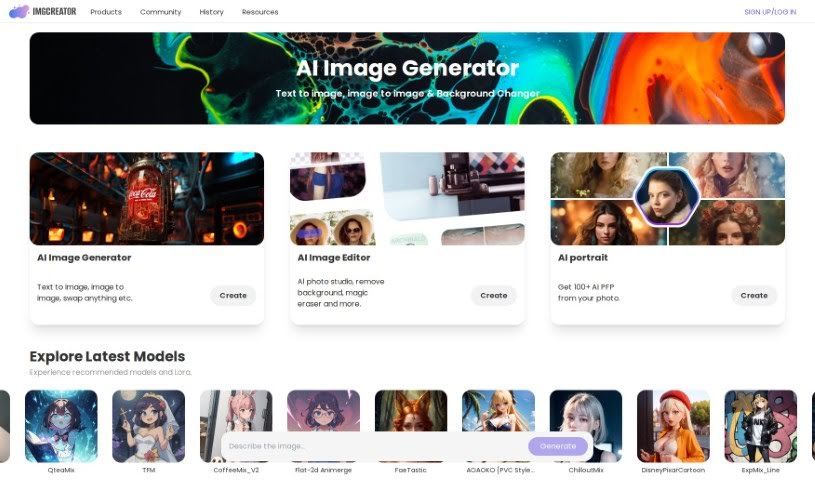
Discover what Zmo AI IMGCreator is and learn how to use it effectively in 2025. We'll explore its features and see how it stacks up against other AI image generators.
IMGCreator is a really neat AI tool that turns your text descriptions into actual images. It’s especially handy if you’re looking to create illustrations, anime styles, or concept art. What’s also cool is that you can upload an existing image and then tell IMGCreator what specific parts you want to change using text. It’s almost like having a text-controlled Photoshop! When you first sign up, you get 30 free images to play with. If you need more, you can buy them, or you can even earn extra free images by inviting friends to the platform. The whole process is pretty straightforward: you pick the AI Image Generator tool, type in what you want, select a filter, generate the image, and then download your creation. Plus, there’s a potential to make money from these AI images, either by selling them directly or using print-on-demand services like TeeSpring and RedBubble.
Russell Dongjun Lu is the person behind IMGCreator. He’s the founder of the company that developed this AI image generator. Essentially, he’s the driving force behind this innovative platform, which empowers users to create all sorts of unique and eye-catching visual content using artificial intelligence.
Using IMGCreator is pretty simple. Here’s a quick rundown:
Following these easy steps should help you create the AI images you need with IMGCreator, tailored exactly to what you’re looking for.
Discover more tools in similar categories that might interest you
Get weekly updates on the latest AI tools, trends, and insights delivered to your inbox
Join 25,000+ AI enthusiasts. No spam, unsubscribe anytime.