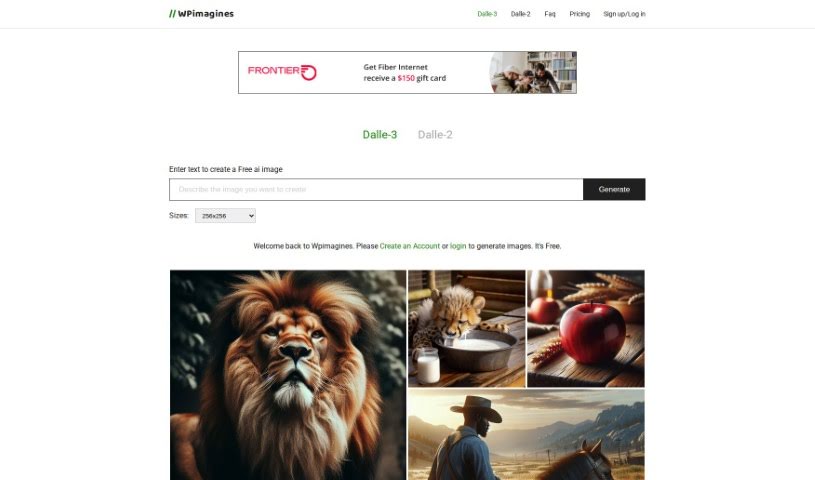
Screenshot of WPimagines AI Image Generator

WPimagines AI Image Generator

Discover WPimagines AI Image Generator in 2025! Learn its features, how to use it effectively, and how it stacks up against other AI image tools.

Screenshot

What is WPimagines AI Image Generator?

WPimagines is a handy AI Image Generator that lets you create images just by typing in descriptions. You can then view and download these images in either 512x512 or 256x256 pixel sizes. What’s neat is that it also lets you create collages from your generated images, or even remove images from those collages. Plus, you can generate two images at the same time! There’s no limit to how many images you can download, and you’ll have a full hour to grab them before the download link expires. You’ll notice all the images on the homepage were actually made with this very generator. They’re also working on some cool new features for the future, like offering more size options, letting you export images in different formats, and adding image editing tools.

This tool is built using JavaScript, MongoDB, Node.js, Express, HTML, CSS, and Figma.

Who created WPimagines AI Image Generator?

WPimagines was started by a single person who’s currently developing an app to add even more features, like those multiple sizes and editing capabilities we just mentioned. The company uses technologies such as JavaScript, MongoDB, Node.js, Express, HTML, CSS, and Figma for its operations. On their website, you can find a free text-to-image generator that lets you create and download images in various sizes. You can also see all the images you’ve generated and even put them together into collages. There’s no download limit per person, but remember, you only have one hour to download your creations before the link disappears.

What is WPimagines AI Image Generator used for?

  • Putting together collages from the images you generate.
  • Taking images out of your collages.
  • Looking at the images you’ve created.
  • Saving the images you’ve made.
  • Generating images in 512x512 and 256x256 pixel sizes, and even making two images at once.

Who is WPimagines AI Image Generator for?

  • Graphic designers
  • Marketers
  • Website developers
  • Content creators
  • Digital artists

How to use WPimagines AI Image Generator?

Ready to start creating? Here’s how to use the WPimagines AI Image Generator:

  1. First, head over to the WPimagines tool on the Web Playground website.
  2. Next, type in a description to generate your free AI image. For instance, you could try something like “a lion” or “an African-American man riding a horse through a meadow.”
  3. Once it’s done, you can view the images right there on the platform.
  4. Then, download your creations in either 512x512 or 256x256 pixel size.
  5. Don’t forget to try out the top features! You can make collages from your generated images, remove pictures from those collages, and download all the images you’ve made.
  6. Remember, there’s no download limit per person, so feel free to download as many as you like.
  7. Just a reminder, the image sizes available are 256x256 and 512x512 pixels.
  8. You’ve got 1 hour to download your image before the URL is deleted, so be sure to grab them promptly!
  9. Keep an eye out for more features coming soon, like additional sizes, an image editor, and ways to tweak your prompts.
  10. And hey, all the images you see on the homepage were actually created using this very image generator tool.

Make sure to visit the Web Playground to check out WPimagines and explore everything it can do. Creating AI-generated images is super easy with this tool!

Related AI Tools

Discover more tools in similar categories that might interest you

123RF AI Image Generator

Creative Image Generation
Learn More

Stay Updated with AI Tools

Get weekly updates on the latest AI tools, trends, and insights delivered to your inbox

Join 25,000+ AI enthusiasts. No spam, unsubscribe anytime.