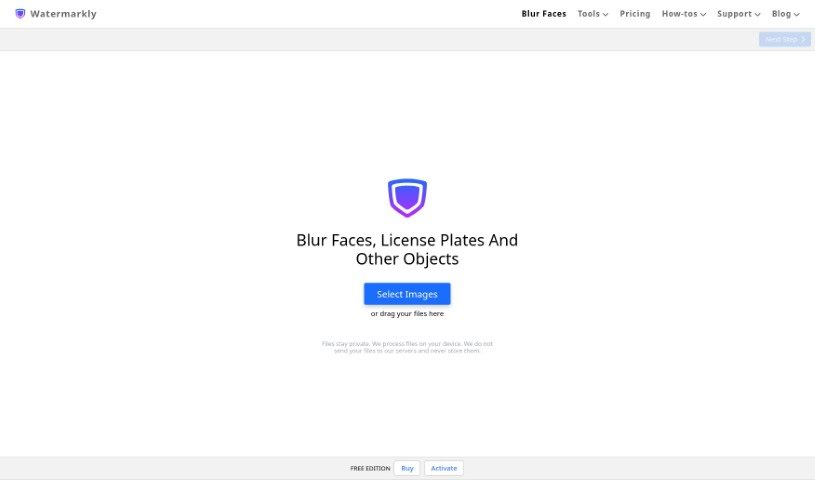
Screenshot of Watermarkly Blur Faces

Watermarkly Blur Faces

Discover what Watermarkly Blur Faces is all about and learn how to use it effectively in 2025. We'll explore its features, compare it to other photo editors, and show you exactly how it works.

Screenshot

What is Watermarkly Blur Faces?

Watermarkly Blur Faces is a handy tool designed to help you blur out faces and other objects in your pictures. It’s pretty flexible, letting you blur specific areas, adjust how big or small the blur is, and even change its shape. You can also tweak how the blurred images are saved, and the whole interface is really easy to get along with. Plus, it’s great for when you have a bunch of photos to process – you can blur them all at once. Need to blur just one face in a group shot? No problem. It also offers tools for cropping, shrinking, resizing, and adding watermarks. The blur effects have nice, smooth edges, and you have control over how intense the blur is and what shape it takes. You can even blur specific objects, not just faces. Best of all, you can use it right in your web browser on any device, so no downloads are needed.

Who created Watermarkly Blur Faces?

Watermarkly was actually started by Julia Nikitina. The company got going in 2017, and this particular tool, Blur Faces, was launched on January 31, 2023. Watermarkly is based in Warsaw, Poland. Their VAT ID is PL9512466309.

What is Watermarkly Blur Faces used for?

  • Keeping faces private in photos.
  • Protecting people’s identities when sharing stories or in journalism.
  • Safeguarding children’s identities in pictures.
  • Blurring specific faces or objects you choose.
  • Adjusting how strong the blur effect is.
  • Changing the shape of the blurred area.
  • Controlling where the blurred area is, how big it is, and its shape.
  • Processing many images at once (batch blurring).
  • Customizing how your blurred images are exported.
  • Using a simple, intuitive interface.
  • Making navigation and operation super easy.
  • Selectively blurring parts of an image, so you decide what stays clear and what gets blurred.
  • Switching the blur shape between oval and rectangular.
  • Fine-tuning the position, size, and shape of the blurred sections.
  • Ensuring blurred areas have smooth borders for a clean look.
  • Choosing specific export settings for size and file format.
  • Processing multiple images in one go.
  • Blurring just certain faces or objects in a picture.
  • Adjusting blur intensity and the shape of the blur.
  • Also cropping, compressing, resizing, and adding watermarks.
  • Blurring license plates or any other part of an image.
  • Protecting privacy and anonymity by blurring faces.

Who is Watermarkly Blur Faces for?

  • Photographers
  • Journalists
  • Image Editors
  • Content creators
  • Social media managers
  • Privacy professionals

How to use Watermarkly Blur Faces?

Using Watermarkly to blur faces in your images is pretty straightforward. Just follow these steps:

  1. Upload your photos: You can easily drag and drop your images directly into the Watermarkly Blur Faces app, or import them from your computer or cloud storage.
  2. See the results: Watermarkly automatically detects and blurs faces in all your uploaded photos. If you’re happy with how they look, just click “Download Images” to save your processed pictures.
  3. Make adjustments if needed: Want to change the blur intensity or fine-tune the blurred areas? You can use the editing tools provided.
  4. Download your images: When you’re ready, head to the export settings to pick the size and format you want for your final images.

Watermarkly gives you the flexibility to blur faces selectively, adjust the blur’s intensity, change its shape and even tilt it, and it creates nice, smooth borders for a really polished finish. It’s also great for batch processing, meaning you can blur many images all at once. Since it’s browser-based, you can use it on any device with an internet connection. Beyond blurring, it offers other editing options like cropping, compressing, resizing, and adding watermarks. Just so you know, the free version adds a Watermarkly logo to your processed images; you can remove this by upgrading.

Related AI Tools

Discover more tools in similar categories that might interest you

123RF AI Image Generator

Creative Image Generation
Learn More

Stay Updated with AI Tools

Get weekly updates on the latest AI tools, trends, and insights delivered to your inbox

Join 25,000+ AI enthusiasts. No spam, unsubscribe anytime.