Visuali: What It Is and How to Use It
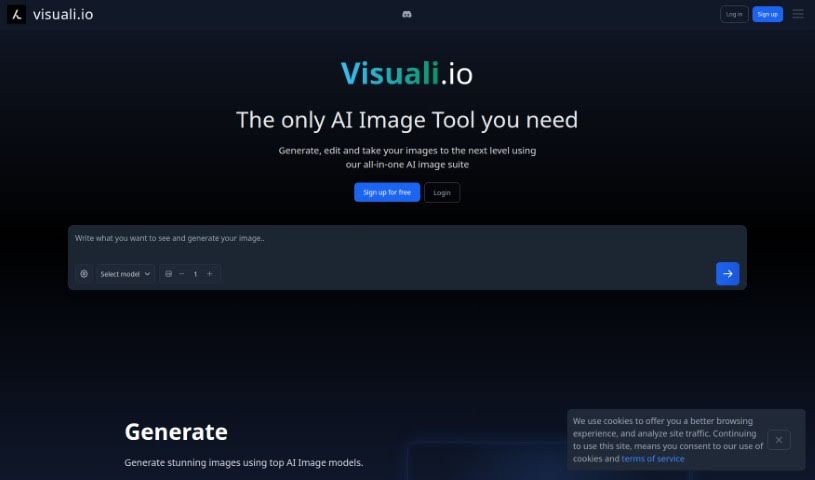
Screenshot of Visuali

Visuali

Discover Visuali, an AI platform for creating visuals from text, with layered image editing, animation, upscaling, and cloud storage for your projects.

Screenshot

What is Visuali?

Visuali is an AI-powered platform for turning text ideas into visuals. Getting started is simple: you can sign up for an account or try it out right away. Features include image editing with layers, a prompt helper, customizable styles, image animation, resolution upscaling, and variation generation. Projects and edited images are saved in the cloud, so you can access them from anywhere. It suits artists, designers, or anyone who wants to use AI for visual design work.

Who created Visuali?

Visuali was created by Everart, a company building AI-driven image creation tools for artists, designers, and other creatives. Everart’s goal is to blend traditional art techniques with artificial intelligence, enabling unique artistic expression on the platform.

What is Visuali used for?

  • Creating visuals from text: Turn text prompts into images using AI.
  • Layered editing and cloud saving: The mixed image editor lets you track layers, and projects are saved in the cloud for easy access.
  • Animation and variations: Animate images and generate different versions of your creations.
  • Upscaling: Increase image resolution by 4x, useful for high-quality printing or displays.
  • Prompt improvement: Get suggestions to refine your text prompts for better results.
  • Generative art: Create visuals by typing text prompts, with style presets and the prompt helper to fine-tune results.
  • Personal image hub: Access your image hub from any device to keep track of your images and the prompts used.

Who is Visuali for?

  • Artists
  • Designers

How to use Visuali?

  1. Sign up or start immediately: Create a free account, or type a text prompt on the website to begin right away.
  2. Explore the features: Visuali includes an AI-powered image editor, animation tools, upscaling for better resolution, and an ‘evolve’ function that generates multiple versions of an image.
  3. Edit and save projects: The AI Image Editor lets you tweak specific parts of an image without affecting the rest of the design. All projects and edited images save to the cloud.
  4. Sketch and generate: Use the drawing tools to sketch something out, then let the AI generator create variations or turn sketches into full images. Bring these AI-enhanced images back into your designs with the editor.

Related

Related AI Tools

Discover more tools in similar categories

123RF AI Image Generator

Creative Image Generation
Learn more
New tools, in your inbox.

Weekly picks of the best AI tools we've researched and added — no spam, unsubscribe anytime.

Join 25,000+ AI enthusiasts. No spam, unsubscribe anytime.