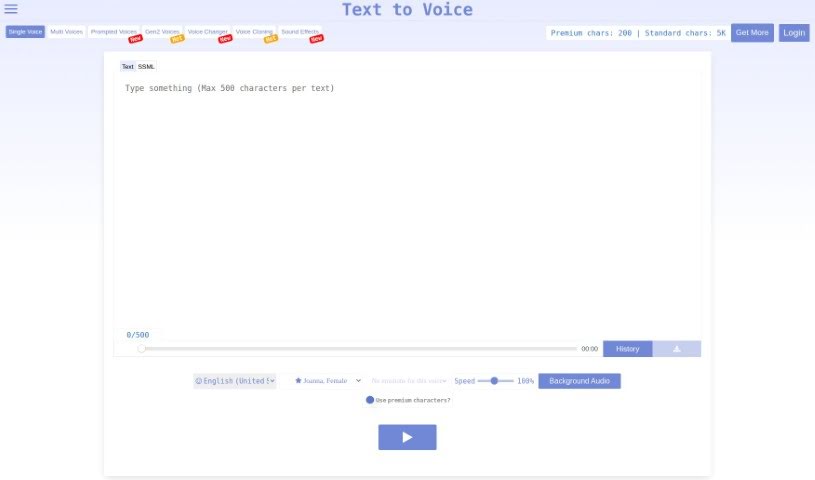
Screenshot of Texttovoice

Texttovoice

Discover what Text to Speech is and how to use it effectively in 2025. We'll explore its features, compare it to other voice generators, and show you how to get the most out of it.

Screenshot

What is Text to Speech?

Text to Speech is a handy online tool that turns your written text into spoken English using AI. It offers a nice variety of English voices, both male and female, each with different emotional tones. Plus, it’s got these new Generation 2 voices that sound incredibly lifelike, capturing all sorts of emotions based on what you’ve written. The interface is super easy to use, letting you tweak the playback speed and even add background audio. It’s a really convenient way to create natural-sounding voiceovers for your content.

Who created Text to Speech?

Text to Speech first came out on March 3, 2022. This tool lets you convert text into English speech using voices that sound really realistic and convincing. You’ve got a bunch of voice options, including male and female voices that can convey different emotions based on the text’s context. It’s designed to be user-friendly, so navigating the interface and adjusting playback settings is a breeze. Text to Speech runs on LiteSpeed Web Server, ensuring your audio quality is top-notch while keeping things secure by using random IDs to rename files on the server.

What is Text to Speech used for?

  • Turning text into spoken English with AI.
  • Creating voiceovers that sound realistic and convincing.
  • Offering a wide selection of voices, including male, female, and various emotional tones.
  • Featuring Generation 2 voices for ultra-lifelike audio that captures a broad range of emotions.
  • Making listening more engaging with unique and dynamic voice tones.
  • Providing a user-friendly interface with simple controls like play, pause, and seek for voice samples.
  • Allowing you to adjust playback speed and background audio settings.
  • Giving you the option to choose premium characters for background audio (this does require a certain number of characters).
  • It’s an efficient way to convert text into realistic English speech for engaging voiceovers.
  • It’s perfect for creating Instagram and TikTok voiceovers.
  • It works as a cross-platform text-to-speech tool for both Mac OS and Windows.
  • You can download your voiceover files for free.
  • It’s great for adding narration to videos, making them easier to understand and giving them a professional feel.
  • You can easily explain technology by adding text-to-speech narration to your videos.
  • It enhances your content with engaging voiceovers.
  • You can create voiceovers with different emotional tones.
  • It provides ultra-lifelike audio experiences with its Generation 2 voices.
  • You can adjust playback speed and background audio settings for voice samples.
  • You can choose from a wide range of English voices for your voiceovers.
  • It’s ideal for Instagram and TikTok voiceovers.
  • It’s a cross-platform text-to-speech tool for Mac OS and Windows.
  • It ensures secure generation of sound files using random IDs.
  • It offers fast text-to-speech conversion, often in less than a second.
  • You can download voiceover files for free with just one click.
  • All text-to-speech calculations are handled on the server side.
  • You can select different English voices that include emotions.
  • The Generation 2 voices offer ultra-lifelike audio experiences.
  • It’s great for professional video narration that improves understanding.
  • It’s a top choice for Instagram and TikTok voiceovers.
  • It’s a cross-platform text-to-speech tool for Mac OS and Windows users.
  • It provides highly secure text-to-voice conversion with robust file protection measures.
  • It’s a convenient and efficient way to convert text into realistic English speech.
  • It enhances content with engaging voiceovers for a better user experience.
  • The interface is easy to navigate, featuring play, pause, seek options, and playback speed adjustments.
  • You can adjust background audio settings for voice samples.
  • There’s a premium voice option for output that’s more realistic and less robotic.
  • The voice emotions feature lets you select the speech style and the narrator’s emotion.
  • It’s perfect for narrating videos to make them more understandable and professional.
  • You can create voiceovers for Instagram and TikTok videos.
  • You can generate audio from text for professional videos.
  • Narrating videos makes them more understandable and professional.
  • Explaining technology is easy by adding text-to-speech narration to videos.
  • Enhance your content with engaging voiceovers.
  • Convert text into realistic English speech.
  • It provides diverse voice options, including male and female voices.
  • It uses advanced technology for ultra-lifelike audio experiences.
  • You can adjust playback speed and background audio settings.
  • You can download generated sound files for free.

Who is Text to Speech for?

  • Video creators
  • Teachers
  • Content creators
  • Marketers
  • Video content creators
  • Professionals who create technology explanation videos
  • Educators
  • Individuals with speech impairments

How to use Text to Speech?

Using the Online Text to Speech with Emotions tool is straightforward. Just follow these simple steps:

  1. Head over to the Online Text to Speech tool website.
  2. Type or paste the text you want to convert directly into the input box provided.
  3. Select the language you want for the voice output.
  4. Pick a voice from the list of available options; you’ll find different genders and accents to choose from.
  5. Choose the speech style and emotion for the narrator. (Note: voice emotions are available for certain languages and voices).
  6. Hit the “Play” button to hear a preview of your generated voiceover.
  7. Feel free to adjust settings like playback speed and background audio if you like.
  8. If you’re aiming for an even more realistic output, select the “Use premium voice” option. (This requires premium characters).
  9. Once you’re happy with your voiceover, click the “Download” button to save the audio as an mp3 file.
  10. You can then use this downloaded audio for all sorts of things, like adding voiceovers to your videos or presentations.

The tool really shines with its realistic human voices, super-fast conversion speed, suitability for social media platforms like Instagram and TikTok, compatibility across Mac OS and Windows, strong security measures for handling files, and the sheer convenience of server-side text-to-speech processing.

This guide really breaks down the easy-to-follow steps for using the Online Text to Speech with Emotions tool effectively, helping you create fantastic voiceovers from your text.

Related AI Tools

Discover more tools in similar categories that might interest you

Stay Updated with AI Tools

Get weekly updates on the latest AI tools, trends, and insights delivered to your inbox

Join 25,000+ AI enthusiasts. No spam, unsubscribe anytime.