04-X
Text Generation Chatbots
Learn more
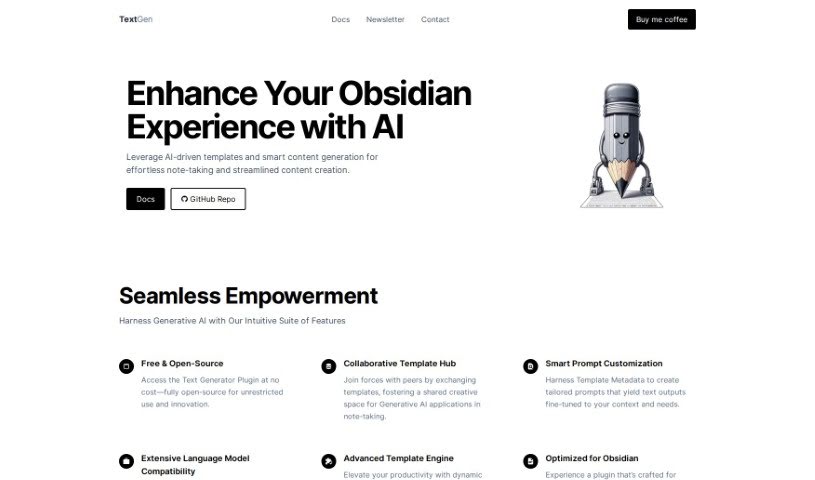
Discover what TextGen is, an open-source Obsidian plugin for AI-powered templates and content generation across multiple language models.
TextGen is a free, open-source plugin that adds AI-powered templates and smart content generation to Obsidian. It integrates directly into your note-taking workflow and includes collaborative template hubs for sharing templates with other users, prompt customization via Template Metadata, broad compatibility with different language models, and an advanced template engine for dynamic templates. It is designed to streamline note-taking and content creation within your personal knowledge base, and it works seamlessly with Obsidian.
The Text Generator Plugin was made by the YouWrite Team, as noted in the plugin’s documentation. The team built it to improve how users work with AI-driven templates and smart content generation. The plugin supports multiple language models, including gpt-4-1106-preview, gpt-3.5-instruct, Claude, Bard, and Llama, so it can connect to many different AI systems. Documentation and a GitHub repository are available on the website for further details.
TextGen suits users who need help with:
Related
Discover more tools in similar categories
Weekly picks of the best AI tools we've researched and added — no spam, unsubscribe anytime.
Join 25,000+ AI enthusiasts. No spam, unsubscribe anytime.