What is Photopea?
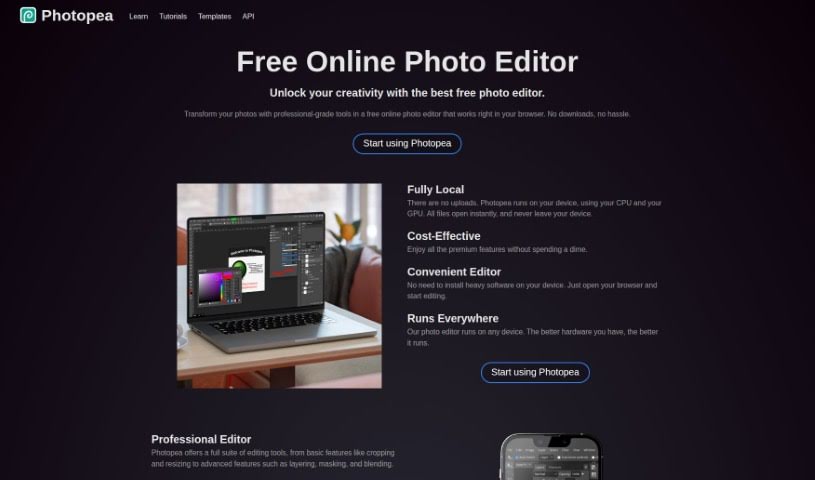
Photopea is a really capable image and graphics editor that you can use for free, right in your web browser. It’s super handy because it works with all sorts of file formats, like PSD (Photoshop files), AI (Illustrator files), PDF, SVG, and even CDR. This means you can tackle a wide range of design projects without needing to install any software on your computer. Whether you’re starting a new image from scratch or tweaking an existing one, Photopea has you covered. It offers a comprehensive set of design tools, including layers, masks, transform options, adjustments, various selection tools, drawing tools, text tools, and vector shape tools. Plus, it’s got some neat AI-powered features, like tools that automatically remove backgrounds, upscale images, or fix spots with just one click, making those edits much quicker.
Who created Photopea?
Ivan Kuckir is the talented individual behind Photopea, a free online image and graphics editor. This tool is designed to run directly in your web browser, supporting both raster and vector graphics, which makes it a really flexible choice for all sorts of design needs. Photopea packs a punch with its wide array of graphic design tools, offering features like layers, adjustments, filters, selection tools, drawing tools, and much more. On top of that, it’s been updated with newer AI-powered capabilities, such as automatic background removal and image upscaling, which really boost the editing experience. Ivan’s main goal was to create an advanced yet affordable photo editor that anyone could use without the hassle of installing software.
What is Photopea used for?
- You can create brand new images or open files you already have.
- It’s great for resizing images and touching up photos.
- Design illustrations and graphics for your projects.
- Build out elements for webpages.
- Work with layers, layer masks, free transforms, adjustments, filters, selection tools, drawing tools, type tools, and vector shape tools.
- Take advantage of AI-powered smart tools for things like automatic background removal, upscaling, and the spot healing brush.
- Make complex changes to images with just a single click.
- If you have ideas for new features, you can suggest them on Photopea’s GitHub or Facebook pages.
- Save your work in popular formats like PSD, JPG, PNG, or SVG.
- It handles both raster and vector graphics smoothly.
- Resize images easily.
- Touch up photos to make them look their best.
- Create custom illustrations and graphics.
- Design elements for webpages.
- It supports both raster and vector graphics.
- It’s a fantastic alternative to Adobe Photoshop.
- You get a complete set of graphic design tools.
- It includes AI-powered smart tools for automatic background removal, upscaling, and the spot healing brush.
- You can work directly in your web browser.
- No software installation is needed.
- There’s a Text to Image feature available.
- It’s suitable for both simple and complex design tasks.
- It offers AI-powered smart tools for background removal, upscaling, and the spot healing brush.
Who is Photopea for?
- Graphic designers
- Web designers
- Illustrators
- Photographers
How to use Photopea?
Photopea is a really versatile online image and graphics editor that works right in your web browser. Here’s a simple, step-by-step guide to get you started:
- Open Photopea: Just head over to the Photopea website (https://www.photopea.com/) to access the editor.
- Create or Open a File: You have the option to create a new image from scratch or open existing files directly from your computer by clicking on the relevant options.
- Edit Images: Dive in and use the wide range of tools Photopea offers. This includes layers, layer masks, free transforms, adjustments, filters, various selection tools, drawing tools, type tools, and vector shape tools to edit your images.
- Explore Advanced Features: Don’t miss out on the advanced features like automatic background removal, upscaling, and the spot healing brush. These use AI technology to help you make complex modifications with just a single click.
- Save Your Work: When you’re done, save your work by going to File > Save as PSD to keep it in PSD format. You can also export your work as JPG, PNG, or SVG by choosing File > Export as.
- Share Your Thoughts: If you have ideas for new features or any feedback, you can suggest them on Photopea’s GitHub or Facebook page.
- Try the Text-to-Image AI Feature: To use the text-to-image AI feature, simply go to Window > More > Text to Image.
By following these steps, you’ll be able to effectively use the powerful tools and features Photopea provides to create, edit, and enhance your images and graphics, all from the convenience of your web browser.