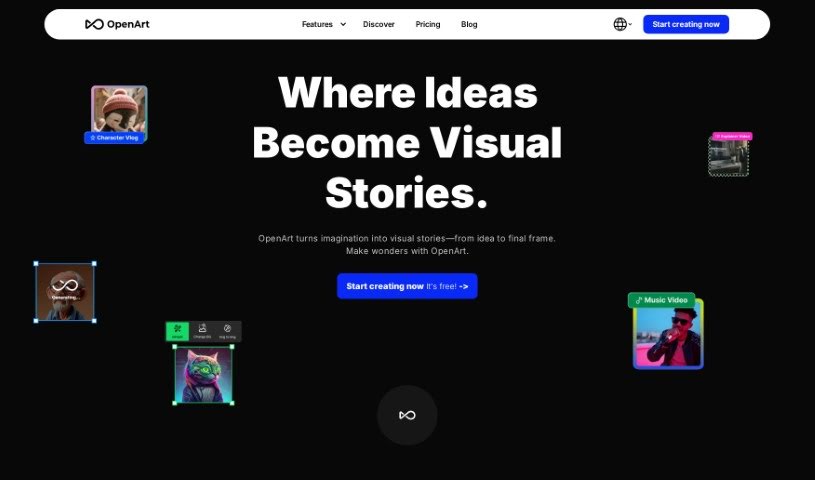
Screenshot of Openart

Openart

Discover what Openart is and how to use it effectively in 2025. We'll explore its features and see how it stacks up against other AI art generators.

Screenshot

What is Openart?

OpenArt Photo Booth is a really cool AI tool that creates unique, imaginary images. It works by letting you upload your own photos to train a personalized AI model. You can upload up to 20 pictures, and this custom AI can then generate images in all sorts of styles, improve faces and anime features in your photos, and even boost the image quality. They offer different plans, including a Free option, plus Starter, Hobbyist, and Pro packages, each giving you a different set of features and credits for generating AI art. Beyond just creating images, OpenArt also wants to be a place where you can learn and grow your skills. It lets you play around with different artistic styles and techniques without needing formal art training, and you can even get feedback and collaborate with others in their community.

Who created Openart?

OpenArt Photo Booth, a platform built for AI art lovers, was actually started by former Googlers based in San Francisco. They officially launched it on June 14, 2024, aiming to create a fresh space for AI artists and anyone interested in this kind of art. Their big goal is to make AI-generated art something everyone can access and enjoy, using advanced technologies like Stable Diffusion to bring their creations to life. With OpenArt Photo Booth, you can upload up to 20 photos to train your own AI model in about an hour. This lets you generate one-of-a-kind images in a wide range of styles and featuring different objects.

What is Openart used for?

OpenArt is super versatile! Here’s a breakdown of what you can do with it:

  • Create AI Fanart: Make fanart of your favorite characters, series, or themes from anime, movies, comics, and more, just by using prompts.
  • Experiment with Styles: Try out different artistic styles for anime characters – think classic watercolor, vibrant pop art, or even mimicking the styles of specific artists.
  • Customize Everything: You have a lot of control here. You can tweak color schemes, change backgrounds, and adjust emotions to get the look you want, especially for fan art.
  • Speed Up Art Creation: Need to generate lots of drafts quickly? OpenArt can help you create multiple versions in different styles, which you can then refine or combine.
  • Boost Your Workflow: Use advanced tools like Composition guidance, ControlNet, and Sketch to Image to make your creative process faster and smoother.
  • Refine Your Prompts: Not getting the exact image you want? You can easily adjust details, change styles, or simplify your prompts to get better results.
  • Find Inspiration: Check out the Discover page for samples, browse the Prompt Book, or visit their YouTube channel and Discord community for ideas and help.
  • Make Art Accessible: OpenArt is all about making AI art creation available to everyone, encouraging creativity and imagination.
  • Express Yourself: It’s a new way for you to show off your creativity and unique style through AI-generated art.
  • Democratize Art: They’re committed to making art creation accessible to all and providing a platform for AI artists and enthusiasts.
  • Personalized Photos: Generate custom images of people, pets, styles, and objects.
  • Upload Your Photos: Train your personal AI with up to 20 of your own photos.
  • Object and Pet Images: Create art featuring objects and pets.
  • Face and Anime Enhancements: Improve faces and anime features in your photos.
  • Hundreds of Styles: Choose from over 300 different style packages.
  • Free and Paid Options: They offer both free and pro packages.
  • AI Model Training: Use AI to train models based on your photos.
  • Custom Prompts: Support for custom prompts to guide image generation.
  • High Resolution: Get high-resolution quality for your created avatars and posters.
  • Image Upscaling: Improve resolution for clearer images.

Essentially, OpenArt helps you create AI fanart using prompts for characters from anime, movies, or comics. You can explore different artistic styles like watercolor or pop art, or even mimic specific artists. If the generated images aren’t quite right, you can refine them by tweaking prompts, using editing tools, or checking out OpenArt’s resources. It really speeds up the art creation process, especially with tools like Composition guidance and ControlNet. Plus, you can keep your images sharp and clear with their upscaling feature. You can even train your own AI models with up to 20 photos and generate up to 400 photos for free using custom prompts. They also have features to enhance faces and anime looks in photos. If you’re really into it, you can train multiple AI models at once and access pro packages that offer advanced training, downloadable checkpoint files, more generation credits, and the ability to train models simultaneously.

Who is Openart for?

OpenArt is a fantastic tool for a wide range of creative individuals and professionals:

  • Artists
  • Digital marketers
  • Animators
  • Video game designers
  • Hobbyists
  • Dedicated creators
  • Businesses
  • Graphic designers
  • Animation professionals
  • AI enthusiasts
  • Amateur artists
  • Professional artists
  • Digital Marketing Professionals
  • Animation designers
  • AI art enthusiasts
  • Artistic Creators
  • Pros

How to use Openart?

Using the OpenArt Photo Booth is pretty straightforward. Here’s how you can get started:

  1. Upload Your Photos: First, upload up to 20 of your own photos. This is how you’ll train a personal AI model that’s unique to you.
  2. Pick Your Styles and Subjects: You’ve got over 300 styles to choose from – think hell art, utopian looks, portraits, and many more. You can also select what you want to generate, like people, pets, objects, or specific art styles.
  3. Use Custom Prompts: Guide the AI by using custom prompts. You can get really specific with what you want, which helps the AI generate images that are exactly to your liking.
  4. Let the Model Train: OpenArt Photo Booth will then train your model using the photos you uploaded. The AI learns from these images to create personalized photos just for you.
  5. Enhance Your Images: Make your generated images even better with the built-in face and anime enhancement features.
  6. Upscale for Quality: OpenArt also boosts image resolution using upscaling technology. This means you get high-resolution profile avatars, anime posters, and wallpapers.
  7. Choose a Plan: You can pick between monthly or annual plans. The annual plan usually offers better value, while the monthly plan gives you more flexibility.
  8. Explore Advanced Options: If you’re looking for more power, check out the pro packages. These let you train multiple models at once, offer advanced training configurations, and more.
  9. Refine Your Results: If the images aren’t quite what you envisioned, don’t worry! You can refine your prompts, use the editing tools, and explore OpenArt’s resources for inspiration and guidance.
  10. Manage Your Models: Keep track of all your trained models, and you can even download model checkpoint files. It’s all about enjoying personalized photo generation with OpenArt Photo Booth.

By following these steps, you’ll be able to effectively use OpenArt Photo Booth to create personalized, high-quality images and artworks that match your vision.

Related AI Tools

Discover more tools in similar categories that might interest you

123RF AI Image Generator

Creative Image Generation
Learn More

Stay Updated with AI Tools

Get weekly updates on the latest AI tools, trends, and insights delivered to your inbox

Join 25,000+ AI enthusiasts. No spam, unsubscribe anytime.