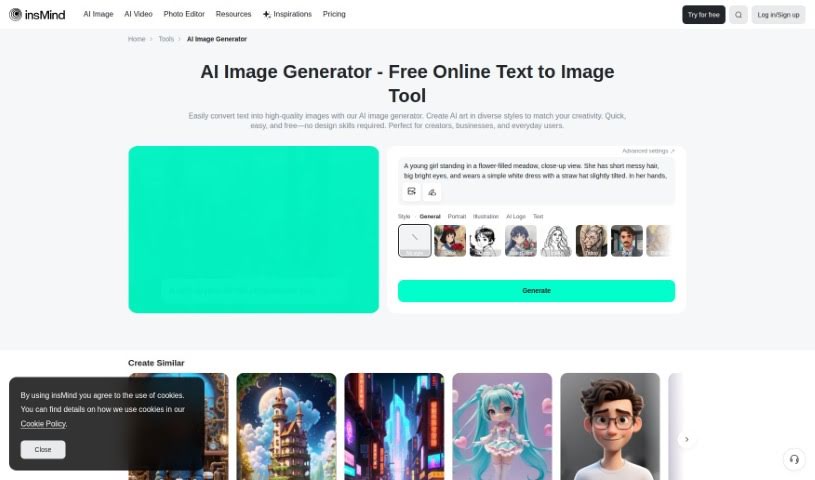
Screenshot of insMind AI Image Generator

insMind AI Image Generator

Discover what insMind AI Image Generator is and learn how to use it effectively in 2025. We'll cover its features and see how it stacks up against other AI image generators.

Screenshot

What is insMind AI Image Generator?

InsMind’s AI Image Generator is a really neat tool that lets you turn your text descriptions into actual images, and you can do it for free! It’s perfect for anyone who wants to bring their creative visions to life without needing fancy design skills – think casual users, artists, social media folks, or graphic designers. You’ve got a whole range of artistic styles to play with, from super realistic photos to abstract pieces and even cartoon illustrations. This means there are tons of creative avenues you can explore. Plus, the team behind it is always working on improving the AI models, so you can expect high-quality results that keep getting better. It’s a super versatile and easy-to-use option for creating all sorts of visual content.

Who created insMind AI Image Generator?

insMind is the company behind this AI Image Generator. What really makes them stand out is how user-friendly their interface is, the high quality of the images it produces, and their dedication to constantly improving the AI models. This focus ensures you get the best possible results. With their AI image generator, you can create images from text for free using the basic plan. If you need higher resolution images or want access to more styles and features, they also offer premium plans.

How to use insMind AI Image Generator?

Using the AI Image Generator is pretty straightforward. Here’s a quick rundown:

  1. Head over to insMind: First, go to the insMind website. You can find the AI Image Generator under the “Free Tools” section. Alternatively, you can hit the “Try for free” button and then pick the AI Image Generator from your workspace.
  2. Describe your image: In the text box provided, type in what you want your image to look like – your prompt. You can also choose a specific style from the options available to really customize the final image.
  3. Let the AI work: Just click the “Start” button. The AI will then get to work, generating an image based on your description and the style you selected.
  4. Save your creation: Once the AI has finished creating your image, take a look at it. If you’re happy with how it turned out, click the download button to save it to your computer. And that’s it! You’re ready to use your new image for whatever projects you have in mind.

A couple of extra tips: When you’re writing your prompt, try to be as detailed as possible. The more specific you are, the better the AI can understand what you’re looking for and create the image you envision. Also, it’s always a good idea to check the terms of use for AI-generated images, especially if you plan to use them for commercial purposes.

Related AI Tools

Discover more tools in similar categories that might interest you

123RF AI Image Generator

Creative Image Generation
Learn More

Stay Updated with AI Tools

Get weekly updates on the latest AI tools, trends, and insights delivered to your inbox

Join 25,000+ AI enthusiasts. No spam, unsubscribe anytime.