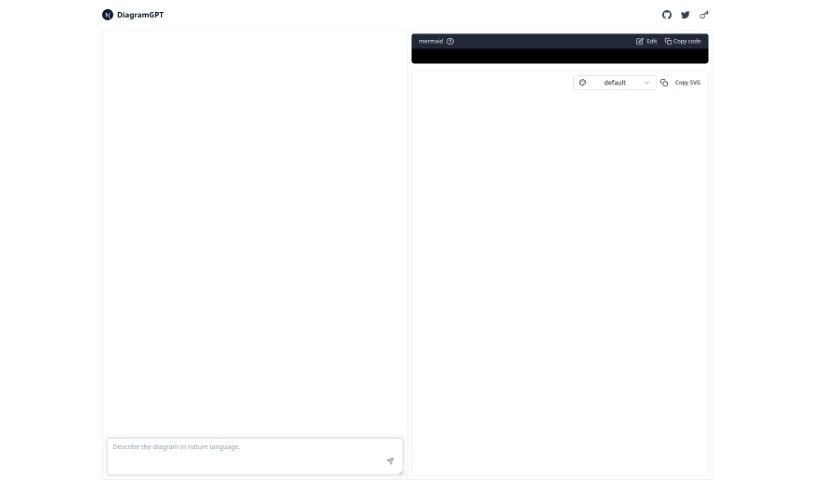
What is Diagramgpt?
DiagramGPT is a really smart AI tool that helps you create all sorts of diagrams just by typing what you need. Think flowcharts, sequence diagrams, class diagrams, user journey maps, Gantt charts, and even C4C diagrams – it handles them all! It’s designed to be super user-friendly, and you can easily share your creations or collaborate with others thanks to its integrations with GitHub and Twitter. Plus, you can tweak and customize your diagrams using the handy Mermaid Editor.
Who created Diagramgpt?
Fraser Xu is the creator behind DiagramGPT. He launched it on June 18, 2024. This advanced AI tool lets you build various diagrams simply by describing them in natural language. It connects with platforms like GitHub and Twitter, making sharing and teamwork a breeze. It’s a great asset for developers, designers, project managers, and anyone who needs to visualize information quickly and efficiently.
What is Diagramgpt used for?
DiagramGPT is incredibly versatile! You can use it for:
- Keeping track of progress
- Planning schedules
- Mapping out processes
- Organizing project plans
- Designing systems
- Visually explaining complex project steps
- UX/UI design, like creating and customizing user journey maps or sequence diagrams
- Analyzing data visually
- Clearly explaining complicated data
- Understanding and translating user inputs
- It’s a big help for developers and designers.
- Project managers find it really beneficial.
- It turns your natural language descriptions into visual formats.
- It’s great for visual data analysis.
- It’s useful for system design.
- It’s perfect for process mapping.
- You can edit diagrams dynamically as your needs change.
- It makes articulating complex data much easier.
- It creates accurate visual representations of systems or processes.
- The interface is simple and intuitive for editing diagrams.
- It’s also great for UX/UI design, helping you create and customize user journey maps or sequence diagrams.
Who is Diagramgpt for?
DiagramGPT is ideal for:
- Developers
- Designers
- Project managers
- Any professional who needs a fast and efficient way to create many different kinds of diagrams.
How to use Diagramgpt?
Using DiagramGPT is pretty straightforward. Just follow these steps:
- Get Started: First, head over to the Diagramgpt platform in your web browser.
- Start a New Diagram:
- On the platform, look for the option to create a new diagram and select it.
- Then, choose the specific type of diagram you need, whether it’s a flowchart, mind map, or something else.
- Add Your Elements:
- Begin by adding the main pieces or nodes that will make up your diagram.
- Connect these elements using lines or arrows to show how they relate to each other.
- Make It Your Own:
- You can customize how your diagram elements look by changing their colors, shapes, and sizes.
- Use the various formatting options available to make your diagram visually appealing and easy to read.
- Flesh Out the Details:
- Add text to each element to give more context and information.
- Include labels and descriptions so your diagram is clear and informative.
- Collaborate (if you want):
- If the platform supports collaboration, you can invite others to help edit or just view the diagram.
- This allows you to work together in real-time to build a really complete diagram.
- Save and Export:
- Once you’re happy with your diagram, make sure to save your work so you can come back to it later.
- You can then export the diagram in formats you prefer, like an image or PDF, to share it or use it elsewhere.
- Check and Refine:
- Take a moment to review your diagram to ensure everything is accurate and makes sense.
- Make any edits or add anything you think will make it clearer.
- Final Touches:
- Double-check that all elements are in the right place and labeled correctly.
- Save the final version, and then you’re ready to use it for presentations, reports, or whatever you need!
By following these steps, you’ll be able to use Diagramgpt effectively to create detailed, visually appealing diagrams for all sorts of purposes.