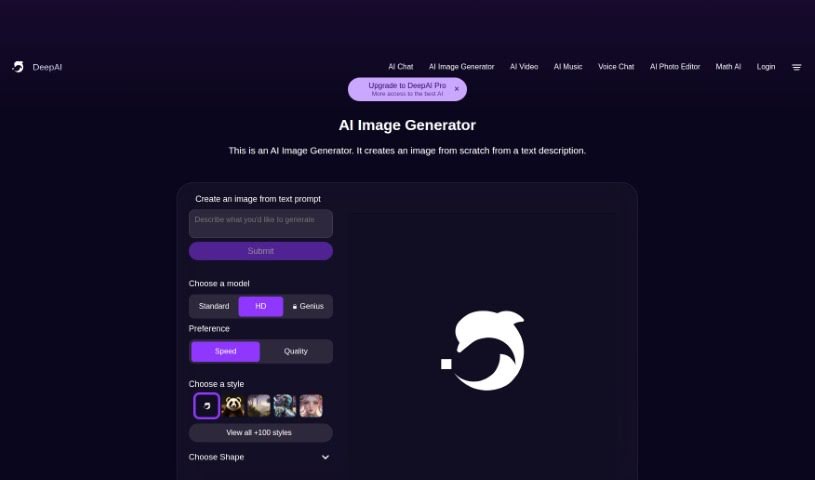
Screenshot of Deep AI AI Text to Image

Deep AI AI Text to Image

Discover what DeepAI's Text-to-Image tool is and how to use it effectively in 2025. We'll cover its features and compare it to other AI image generators.

Screenshot

What is DeepAI Text-to-Image?

AI Text-to-Image technology is a really neat way to create images just by describing them. It is a digital artist that brings your words to life. It uses smart algorithms to turn your text prompts into actual pictures. You just type in what you imagine, and the AI Image Generator whips up a unique visual for you. Plus, you get to play around with different settings – you can pick from various models and choose options like speed, quality, or specific styles like classic art, anime, photography, cinematic looks, hyperrealism, or graphic design. This flexibility means you can really fine-tune the image generation to match exactly what you’re going for, making it a fantastic tool for anyone wanting to turn text into cool visuals quickly.

Who created DeepAI Text-to-Image?

The team behind this AI Text-to-Image tool is DeepAI Organization. They’ve developed an AI Image Generator specifically designed to create images from text descriptions. Their focus is on using machine learning to handle all sorts of image generation tasks, including building images from the ground up based on what you write.

How to use DeepAI Text-to-Image?

Using an AI Text-to-Image tool is pretty straightforward. Here’s a simple guide:

  1. Get Started: First, head over to the AI Text-to-Image tool’s interface. It’s usually easy to find.
  2. Describe Your Image: Look for a text box, often labeled something like “Create an image from text prompt.” This is where you’ll type out your description of the image you want to create.
  3. Pick Your Model: Next, you’ll choose the kind of model you want the AI to use. You might see options like Standard, HD, or a more advanced ‘Genius’ mode, each offering different capabilities and artistic styles.
  4. Set Your Preferences: Depending on the model you chose, you might get to pick preferences. For Standard and HD models, this could be about Speed or Quality. If you’re using the Genius mode, you can often select specific styles like Classic, Anime, Photography, Cinematic, Hyper Real, or Graphic Design.
  5. Generate It!: Once you’ve entered your text prompt and selected your model and preferences, just hit the “Generate” button. The AI will then get to work creating your image.
  6. Explore More Options: After the image is made, you might find extra tools. You could be able to enhance the image, remove its background, even animate it, or zoom out. It’s worth checking these out to see what else you can do.
  7. Save or Share: When you’re happy with the result, you can download it using the download button. Some tools also let you share your creation right from the platform.
  8. Check Out Other Generators: The interface might also point you towards other AI image generators the organization offers, like tools for creating Cute Creatures, Fantasy Worlds, or Cyberpunk scenes.
  9. Consider Premium: Keep in mind that some of the coolest features or specific models might be reserved for premium members. If you plan to use the tool a lot, becoming a DeepAI PRO member could give you full access.
  10. Enjoy Your Creation: Finally, download or share your AI-generated image and use it however you like!

Following these steps should help you make the most of AI Text-to-Image tools to bring your textual ideas into visual form.

Related AI Tools

Discover more tools in similar categories that might interest you

123RF AI Image Generator

Creative Image Generation
Learn More

Stay Updated with AI Tools

Get weekly updates on the latest AI tools, trends, and insights delivered to your inbox

Join 25,000+ AI enthusiasts. No spam, unsubscribe anytime.