15-Minute plan AI
Professionals Entrepreneurs
Learn more
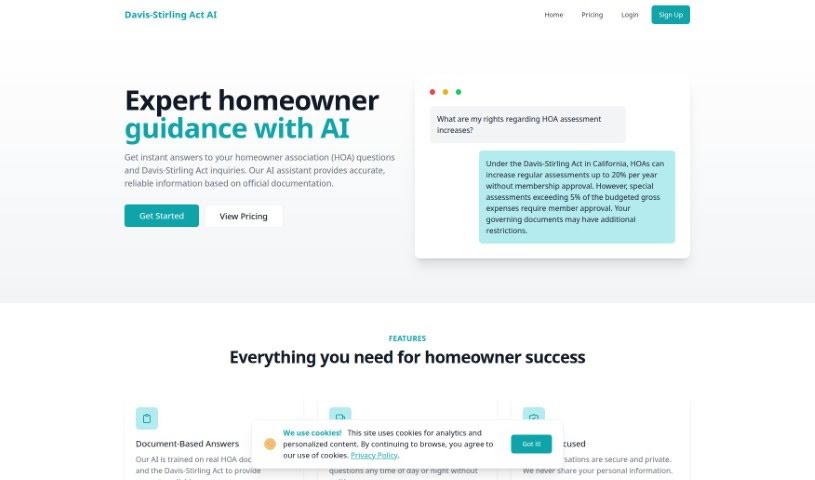
Discover what Davis Stirling is, why the AI application is currently offline, and how to follow its progress via the reTHINK HOA blog.
The Davis-Stirling AI application is temporarily offline due to copyright and trademark claims that need to be resolved. During this time, the team is moving the application to a new platform and using the opportunity to make improvements. To stay informed about their progress, you can subscribe to the reTHINK HOA blog.
The available information does not mention who founded Davis Stirling.
The application is currently unavailable while it transitions to a new platform. In the meantime, you can follow developments by subscribing to the reTHINK HOA blog, which covers the improvements being made and the team’s commitment to fairness and innovation for the community.
Once the platform is back online, detailed usage guides will follow. For now, here are some general navigation tips that will likely apply:
Ctrl + D.Ctrl + ↑/↓ to jump to the top or bottom of a page.Ctrl + ←/→.↑↓←→) to move between entries.Enter to open it in a new tab.Shift + ↑/↓ to expand or collapse lists./ to focus on the search bar, and Esc to remove focus.A-Z to jump through the alphabet.+ to submit an entry.Related
Discover more tools in similar categories
Weekly picks of the best AI tools we've researched and added — no spam, unsubscribe anytime.
Join 25,000+ AI enthusiasts. No spam, unsubscribe anytime.