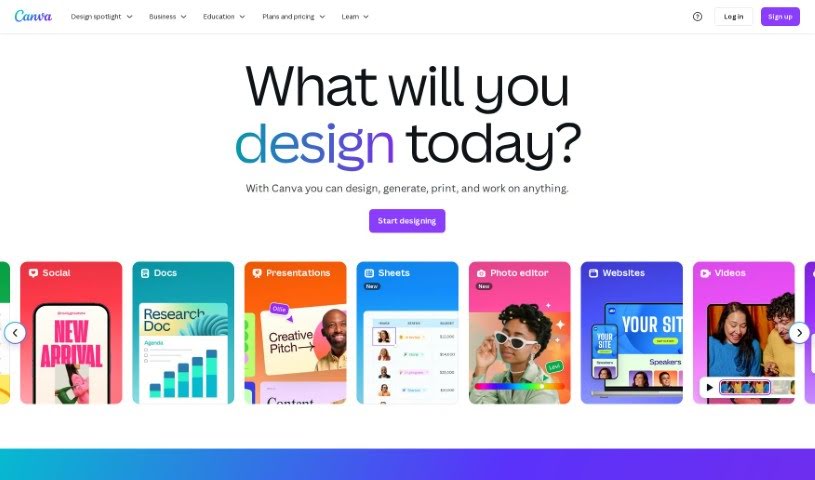
Discover what Canva is and how to use its powerful features in 2025. We'll cover everything from creating social media posts to designing logos, plus how it stacks up against other photo editors.

Canva is a super user-friendly graphic design tool that lets just about anyone create amazing visuals without a fuss. It’s packed with tons of templates, images, and design elements to help you bring your ideas to life.
Because its drag-and-drop interface is so easy to use, it’s perfect for beginners, but it also has plenty of powerful features for those who are a bit more experienced. This popular tool even saw 1.10 billion website visits in March 2025!
Let’s dive into how you can use Canva to really let your creativity shine, even if you’ve never designed anything before.
Canva is a fantastic online graphic design platform that makes it simple for anyone to create professional-looking visuals, no matter their design background.
It offers a huge library of templates, tools, and design elements, making it super versatile for all sorts of design needs. Think social media graphics, blog images, presentations, posters, and even website designs.
Canva was actually started by Melanie Perkins, Cliff Obrecht, and Cameron Adams.
People of all levels, from absolute beginners to seasoned graphic designers, use Canva to create graphic designs and content. It’s a web-based platform (and it has a mobile app too!) that lets you whip up all sorts of graphic elements without needing advanced design skills.
Here are some of the most common ways people use Canva:
Canva is really designed for a wide variety of people:
You can use Canva right in your web browser or download its dedicated desktop app for Windows or Mac. Here’s how to get started with Canva on your computer:
To get started on your phone, just follow these simple steps: Go to the Google Play Store if you’re on Android or the App Store if you’re using an iPhone. Search for Canva and tap Install.
Canva comes with powerful AI tools that make editing images quick and effortless. Here’s how to use some of its most useful features to enhance your visuals with ease:
An AI Image Generator is a tool that uses artificial intelligence to create images based on text descriptions you provide.

Canva’s design editor is built to be simple and flexible, making it easy for anyone to create professional designs without needing prior graphic design experience.
Here’s a look at the main features inside the editor and how they work:
Templates offer a fantastic starting point for your design. When you begin a new project, you’ll find thousands of pre-made templates designed for different purposes, like social media posts, business cards, posters, and presentations.
Each template comes with ready-made layouts, text, visuals, and other great features that you can easily tweak to match your brand, message, or personal style. Templates are a real time-saver and provide inspiration, especially when you’re not sure where to begin.

The sidebar menu is located on the left side of the editor and contains all the essential tools you’ll need to build your design. This includes sections for Templates, Elements, Uploads, Text, Photos, Videos, Audio, and Backgrounds.
Clicking on any of these will open a panel where you can browse and drag items directly onto your canvas. The menu stays visible as you work, so you can easily switch between tools without losing your place.
The Elements tab is where you can add visual building blocks to your design. This includes shapes, lines, icons, illustrations, stickers, charts, and even frames and grids for arranging images.
You can search for specific elements or browse through different categories. Most elements can be resized, rotated, recolored, or layered, giving you complete control over how they look and where they appear.
The Text section lets you add words and style them exactly how you want. You can choose from preset text boxes like headings, subheadings, and body text, or explore creative text styles that combine fonts and effects.
Once you place text on your design, you can easily change the font type, size, color, alignment, and spacing. Canva also offers cool effects like shadows, outlines, and curved text to make your text really pop.

The Uploads tab is where you can bring in your own images, videos, or audio files. You can upload directly from your device or connect to platforms like Google Drive, Dropbox, or Facebook.
Once uploaded, your files are saved to your account and can be used in any design. This is super handy if you want to add your own branding, personal photos, or voice-overs.
The canvas is the large central space where your design comes to life. You can drag items onto the canvas, move them around, resize them, or layer them on top of each other.
it is a blank page where you arrange all your elements. Canva also helps you align everything perfectly by showing guides and snap lines as you move things around.
The top toolbar, located above the canvas, displays different editing tools depending on what you’ve selected. If you click on text, you’ll see options for fonts, size, color, and spacing.
If you click on an image, you’ll get controls for cropping, flipping, applying filters, and adjusting transparency. This toolbar also includes options to undo, redo, duplicate, or lock elements to keep them in place while you design.
With Canva’s photo editor, you can easily modify and enhance images. You can adjust brightness, contrast, colors, crop, resize, add filters, remove blemishes, and much more. Editing photos in Canva is quick and really beginner-friendly.
Here’s how you can do it from start to finish:
An AI Avatar Generator is a tool that uses artificial intelligence to create digital representations of people.

A Background Remover is a tool that automatically deletes the background of an image, leaving just the main subject (like a person or object).
To remove the background from any image, start by accessing the AI background remover and logging into your Canva account.
Upload your image and select BG Remover from the left side panel. Feel free to explore the other features in the Magic Studio. Just a heads-up, you need a paid Canva account to use this feature.
You can select a brush to erase or restore parts of the image. You can also change the brush size for easier editing.
Then, you can duplicate the page, add elements, add text, and use other tools from the left side panel. When you’re done, click the Share button in the upper right corner and download your image.

The AI Headshot Generator uses artificial intelligence to create professional, high-quality portraits from simple photos.
Access the AI Headshot Generator by logging into your Canva account. To use this specific feature, you’ll need to subscribe to ProfilePhoto Pro, which is separate from Canva Pro.
Upload your image and answer the question “How do you identify?”. You can select from the options: Female, Male, or Non-binary/Other.
Then, choose whether to preserve facial expression or not, and click Generate.
If you’re happy with the headshot, click Download at the top right corner.

Canva’s Magic Eraser lets you remove any object from a picture in just seconds. Simply go to Magic Eraser and log in to your account.

A Presentation Maker is a digital tool or software that helps users create visually appealing slide presentations.

Presentations are used for all sorts of things, like business updates, sales proposals, lectures, training sessions, internal communications, and more. If you’re tired of boring bar graph templates, here’s a step-by-step guide to creating fabulous presentations on Canva:
A Resume Builder is an online tool or software that helps you create a professional resume quickly and easily.


The Canva Art Generator is an AI-powered tool that lets users create unique images from text prompts. It’s also an AI text-to-image tool that generates images from written descriptions using artificial intelligence.


An AI Photo Enhancer is a tool that uses artificial intelligence to automatically improve the quality of images.

An interior design tool is a digital platform or software that helps users plan, visualize, and design interior spaces. Canva’s AI Interior Design tool can help you visualize room makeovers.
Canva offers intuitive tools that make it easy for you to animate text, layer effects, and add professional transitions without the steep learning curve of traditional video editing software. Let’s explore more below:
You don’t need to download a separate video app or editing program; Canva can handle all your video creation needs. Check out the process below:

Canva offers powerful tools for writing and content creation, making it easy to craft professional documents with AI Magic Write, Canva Docs, and its PDF Editor.
Canva Magic Write is an AI writing tool that helps you generate and refine text for documents, presentations, social media posts, story generation, and much more.


You can use Canva to create posts, stories, reels, covers, ads, videos, and pins for various social media platforms, including Facebook, Instagram, TikTok, LinkedIn, YouTube, and Pinterest.
Launch the Canva app on your phone or visit canva.com on your desktop. Log in or sign up if you haven’t already.
From the homepage, type the type of post you want to create—like “Instagram Post,” “Facebook Post,” or “LinkedIn Graphic”—into the search box. Canva will show you perfectly sized basic templates for that platform.
Browse the available templates and choose one that fits your style or message. You can also start with a blank canvas if you prefer complete customization.
Tap or click on the text to edit your message. You can change the font, size, and color. Replace background images by tapping them and choosing from Canva’s library or uploading your own photos. Move and resize elements as needed using drag-and-drop.
Enhance your post by adding icons, shapes, illustrations, or filters. Canva offers both free and premium tools. You can find them by selecting the “Elements” tab in the sidebar or menu.
Once everything looks good, use the preview option to see how your post will appear when published. This helps ensure your layout is balanced and the text is clear.
Click the Download icon to save the design to your device. Choose the file type you prefer (PNG is recommended for social media). You can also share it directly to your social media accounts from within Canva.

Canva can also help you create website and landing page designs. You can choose from existing templates if you’re not sure how to design one yourself. Just change the colors and text using the photo tool, and your website is ready to go!
Follow these steps to create your website on Canva:
If you already have an account, log in. If not, you can create a free account using your email, Google, or Facebook. Canva also offers a Pro version with advanced features, but the free version is perfectly fine for basic websites.
Once logged in, use the search bar at the top of the Canva homepage to type in “Website.” Canva will display a variety of website templates and collaborative tools. These templates are categorized by purpose, such as portfolios, resumes, events, or personal websites.
After finding a suitable template, click on it to open the editor. You can then start customizing the layout. Replace placeholder text with your own content and update fonts to match your brand or personal style.
You can also upload your own images or choose from Canva’s built-in photo library. Backgrounds, colors, texts, and icons can all be adjusted to fit your aesthetic preferences.
If your website needs multiple sections, like an About page or a Contact page, you can add new pages within the same design. You can also add sections to the Homepage, About, and Contact pages.
Canva allows you to link buttons or text to specific pages or sections of your site, making it easy to guide visitors through your content.
Before publishing, use Canva’s preview function to see how your website will look on both desktop and mobile screens. This helps ensure that everything looks and functions as intended across different devices.
When you’re satisfied with your design, click the Publish button at the top right of the editor.
You can publish the website using a free Canva domain or connect your own domain if you have a Pro subscription. After selecting your options, confirm and publish your site.

Designing a logo with Canva is a quick and user-friendly process, even if you don’t have any prior graphic design experience. Let’s find out how you can create a logo on Canva:
Before you jump into designing, take a moment to figure out what your logo should represent. Brainstorm ideas with a colleague and define your brand’s tone—should it be bold and modern, elegant and minimal, or playful and creative?
Log in to your account or create one. Use the search feature to find “Logo” templates, which will open up a collection of ready-made designs. You can pick from these templates or upload any picture from your desktop or mobile phone.
After selecting a template or a blank canvas, start editing the core graphic design elements like text, icons, layout, and color. You can even swap out illustrations, insert organic shapes, or explore thousands of icons that match your theme.
To make your logo stand out, try to avoid overused and generic layouts. Instead, be creative by mixing shapes in new ways or trying different fonts together. If you already have brand colors or a specific style, use them so everything matches cohesively.
When your logo looks just right, click the Share button in the top right corner. You’ll get an option to download it. If you want to share the logo link with your team, go to Access level and select Anyone with the link.
For most uses, saving it as a high-quality PNG file is a great choice. If you want to use the logo on different background colors, you can download one with a transparent background, but you’ll need Canva Pro for that feature.

Canva makes it incredibly easy to create a wide variety of posters and flyers for both personal and professional use. Let’s look at how you can create a poster or flyer on Canva:
First, go to canva.com and sign in. If you don’t have an account yet, you can create one for free using your email, Google, or Facebook.
In the search bar at the top of the homepage, type “Poster” or “Flyer” depending on what you want to make. Canva will show you a wide range of templates in different styles and for different purposes. Choose one that fits your message.
Once you’ve picked a template, it will open in the editor. You can now change the text, fonts, images, and colors. Click on any part of the design to edit it. You can upload your own photos or use free ones from Canva’s library.
Make sure the flyer or poster includes all the important information, like the event date, time, place, and contact info. Try to keep the layout clean and easy to read. Use big, bold headings, and don’t add too much text.
When you’re happy with your design, click the Share button in the top right corner and find the Download option. You can save your poster or flyer as a PDF for printing or as a PNG or JPG if you’re sharing it online.

| Pros | Cons |
| An intuitive and user-friendly interface. | Limited customization options for advanced users. |
| A vast collection of professional templates. | Shared templates can sometimes look generic. |
| Easily customize designs. | |
| Allows real-time sharing and feedback. | |
| Can be used for social media, presentations, posters, and websites. | |
| The free version offers many useful features. |
Canva offers a wide variety of fonts to enhance your designs. To add text, click on the Text tab in the left sidebar.
You can choose from preset styles like headings, subheadings, or body text, or search for specific fonts. For more editing options, click the three dots on the right side of the text toolbar.
To invite collaborators to provide feedback on your designs, click Share in the top right corner.
Enter their email addresses, include a message or notes, and set their access level (full edit, can comment, or can view).
Below the Copy link button, you’ll find additional sharing options, such as presenting, recording, downloading, sharing to social media, or using Canva Print. Click More to reveal even more sharing possibilities.
Canva is really easy to learn, even if you’re a complete beginner. Its drag-and-drop tools, simple layout, cool effects tools, and ready-made templates make designing quick and stress-free.
Most people can start creating in just a few minutes. Even advanced tools like video editing and background removal are straightforward to use. With a little practice, you’ll get the hang of it in no time.
​
Discover more tools in similar categories that might interest you
Get weekly updates on the latest AI tools, trends, and insights delivered to your inbox
Join 25,000+ AI enthusiasts. No spam, unsubscribe anytime.