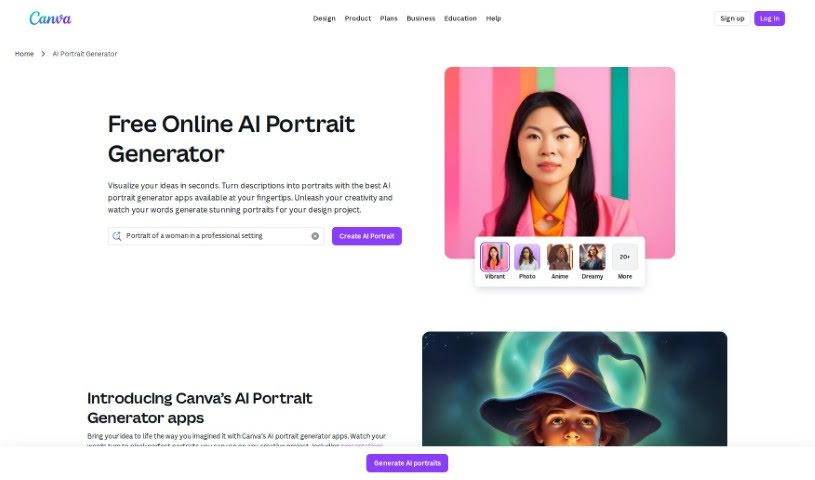
Screenshot of Canva AI Portrait Remover

Canva AI Portrait Remover

Discover Canva's AI Portrait Remover in 2025! Learn what it does, how to use it step-by-step, its key features, and how it stacks up against other AI portrait generators.

Screenshot

What is Canva AI Portrait Remover?

Canva AI Portrait Remover is a handy feature from Canva, that super popular graphic design platform. Basically, it lets you automatically remove the background from any portrait. It uses smart AI to accurately spot and cut out the person from their background, giving you a clean, isolated image. This means you can easily make your designs look more professional and customize portraits for all sorts of projects without spending ages on manual editing. It really simplifies getting that perfect, cut-out portrait, saving you time and effort so you can create more engaging content.

Who created Canva AI Portrait Remover?

This clever tool was developed by Canva itself. You know, the Australian graphic design company that started back in 2012? Melanie Perkins, Cliff Obrecht, and Cameron Adams are the brilliant minds behind it. Melanie Perkins is the CEO, and she’s really steered the company towards making design accessible and easy for everyone. Canva has grown into a go-to platform for both individuals and businesses wanting to create all sorts of design projects without a steep learning curve.

Who is Canva AI Portrait Remover for?

This tool is a lifesaver for anyone who works with images and needs to isolate subjects. Think:

  • Graphic Designers: Perfect for creating clean graphics, posters, or social media assets.
  • Social Media Managers: Quickly whip up eye-catching visuals for posts and ads.
  • Marketing Specialists: Need professional product shots or campaign imagery?
  • Photographers: Easily remove backgrounds for studio portraits or e-commerce listings.
  • Web Designers: Create clean layouts with isolated subject images.
  • Content Creators: Make your blog posts, videos, or presentations pop.
  • Illustrators: Integrate portraits seamlessly into your artwork.
  • E-commerce Specialists: Get professional product photos without complex setups.
  • Event Planners: Design invitations or promotional materials with clean portraits.
  • Real Estate Agents: Create professional property listings or agent profiles.

How to use Canva AI Portrait Remover?

Using the Canva AI Portrait Remover is pretty straightforward. Just follow these simple steps:

  1. Upload Your Image: First things first, get your image onto Canva. Upload the picture that has the portrait you want to work with. Make sure it’s clear and the subject is well-defined – this really helps the AI do its best work.
  2. Find the Tool: Once your image is uploaded, look for the “AI Portrait Remover” tool. You’ll usually find it in the editing or retouching section of Canva. Just give it a click to get started.
  3. Select the Portrait: Now, you’ll use the tool to tell it which portrait you want to remove. The AI is pretty smart and will help you highlight and isolate the specific person in the image.
  4. Let the AI Work: After you’ve selected the portrait, hit the button to remove it. The AI will then work its magic, seamlessly erasing the portrait from the background. The goal is a clean, natural-looking result.
  5. Tweak if Needed: Sometimes, especially with tricky images or lots of detail, you might want to make a few small adjustments. Canva usually gives you options to fine-tune the edit so it looks just right.
  6. Save Your Masterpiece: Happy with how it looks? Go ahead and save your changes. Canva lets you download your edited image in different formats, which is super handy for whatever you need it for.
  7. Final Check and Share: Before you share it, give the edited image a quick look to make sure the portrait is gone and everything looks good. Then, you’re all set to use it on your platform or for your project!

Following these steps should make it really easy to use Canva’s AI Portrait Remover to get those clean, isolated portraits you need.

Related AI Tools

Discover more tools in similar categories that might interest you

123RF AI Image Generator

Creative Image Generation
Learn More

Stay Updated with AI Tools

Get weekly updates on the latest AI tools, trends, and insights delivered to your inbox

Join 25,000+ AI enthusiasts. No spam, unsubscribe anytime.