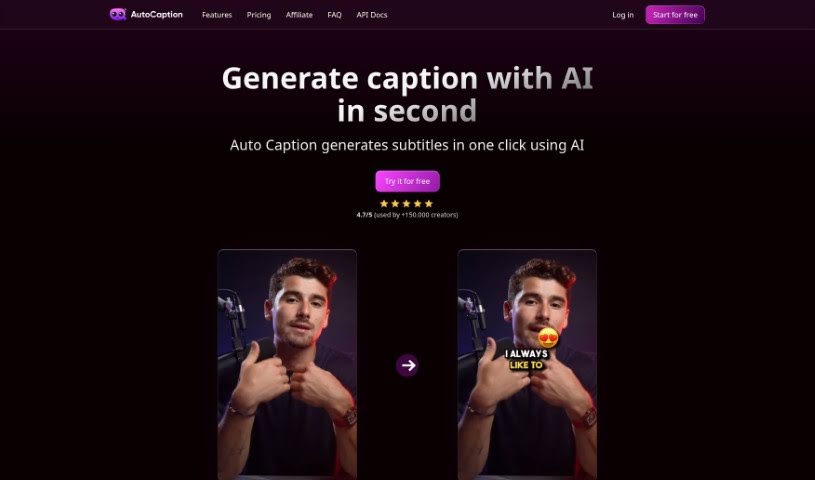
Screenshot of AutoCaption

AutoCaption

Discover AutoCaption, an AI caption generator that automatically transcribes and adds animated emojis to your videos for platforms like Instagram, TikTok, and YouTube in 2025. We'll cover its features, how to use it, and compare it with other content creation tools.

Screenshot

What is AutoCaption?

AutoCaption is a smart AI tool that automatically transcribes your videos and adds fun, animated emojis. It’s perfect for platforms like Instagram, TikTok, and YouTube. This technology really helps speed up the captioning process, saving you a ton of time you’d otherwise spend editing manually. You can easily create captions, and then tweak them just how you like – edit subtitles, add animations, change fonts, colors, and so much more. AutoCaption works with over 56 languages, renders videos quickly, and is set up for vertical content, giving you crisp FULL HD (1080x1920) at 60 frames per second. Plus, they offer different pricing plans for everyone, from individuals to big teams, and even have an affiliate program if you want to share it with others. You can also get help through email or on Twitter.

Who created AutoCaption?

AutoCaption was launched on August 7, 2023, by a founder who prefers to remain anonymous. It’s an AI caption generator that automatically transcribes videos and adds animated emojis for popular platforms like Instagram, TikTok, and YouTube. The company offers several pricing options to suit various needs, whether you’re using it personally, publishing a lot of content, or working professionally with a team. The tool supports over 56 languages and includes features like easy caption customization, pre-made templates, and fast rendering technology.

What is AutoCaption used for?

  • Automatic Transcription: Get captions for your videos on Instagram, TikTok, and YouTube without the manual work.
  • Caption Customization: Easily edit subtitles, add animations, and change fonts and colors to make your captions pop.
  • Animated Emojis: Add animated emojis to your videos, with options to customize their size, position, and how they animate.
  • Multilingual Support: Generate captions in over 56 different languages.
  • Templates: Use ready-made templates or create your own to save your preferred caption styles.
  • Fast Rendering: Get your videos processed and ready to go incredibly quickly.
  • Vertical Video Optimization: It’s designed for vertical content, delivering Full HD (1080x1920) resolution at 60 FPS.
  • Flexible Pricing: Multiple plans are available to fit personal use, mass publishing, or professional team needs.
  • Helpful Resources: There’s a FAQ section for detailed answers and customer support via email and Twitter.
  • Save Editing Time: Use Artificial Intelligence to cut down hours of manual editing.
  • Personalized Templates: Save your custom settings for future use.
  • One-Click Emojis: Add emojis with just one click, and customize them.
  • Referral Rewards: Earn through their affiliate program.
  • Customer Support: Get help via email or on Twitter.

Who is AutoCaption for?

  • Content creators
  • Social media influencers
  • Freelancers
  • Small businesses
  • Small business owners
  • Professionals and teams

How to use AutoCaption?

AutoCaption is an AI caption generator perfect for platforms like Instagram, TikTok, and YouTube. Here’s a simple, step-by-step guide to using it effectively:

  1. Sign Up: First, create your account on the AutoCaption platform.
  2. Pick a Plan: Choose the plan that best suits you – maybe the Starter plan for personal use, Expert for content creators, or Pro if you’re a professional.
  3. Upload Your Video: Simply upload your video file to the AutoCaption tool.
  4. Generate Captions: Hit the “Generate Captions” button to start the automatic transcription.
  5. Customize Your Captions: Once the captions are generated, you can edit them. Adjust subtitles, add animations, change fonts, colors, and whatever else you need.
  6. Add Emojis: It’s easy to insert animated emojis with a single click. You can also customize their size, position, and animations.
  7. Select Language: AutoCaption supports over 56 languages, so you have plenty of choices for your captions.
  8. Use Templates: You can use the ready-made templates or create your own personalized ones to save your custom settings for later.
  9. Optimize for Vertical Video: AutoCaption is already optimized for vertical content, offering 1080x1920 (FULL HD) resolution and a 60 FPS frame rate.
  10. Pricing and Support: Check out the different pricing plans to find the best fit for how you’ll use it. If you need any help, you can reach out to their support team via email or Twitter.
  11. Affiliate Program: Don’t forget to check out the affiliate program if you want to earn rewards by referring others.
  12. Cancellation: You can cancel your subscription anytime without any extra fees if you decide to.

By following these steps, you can easily use AutoCaption to create great captions, saving you time and making your video content stand out on social media.

Related AI Tools

Discover more tools in similar categories that might interest you

Stay Updated with AI Tools

Get weekly updates on the latest AI tools, trends, and insights delivered to your inbox

Join 25,000+ AI enthusiasts. No spam, unsubscribe anytime.