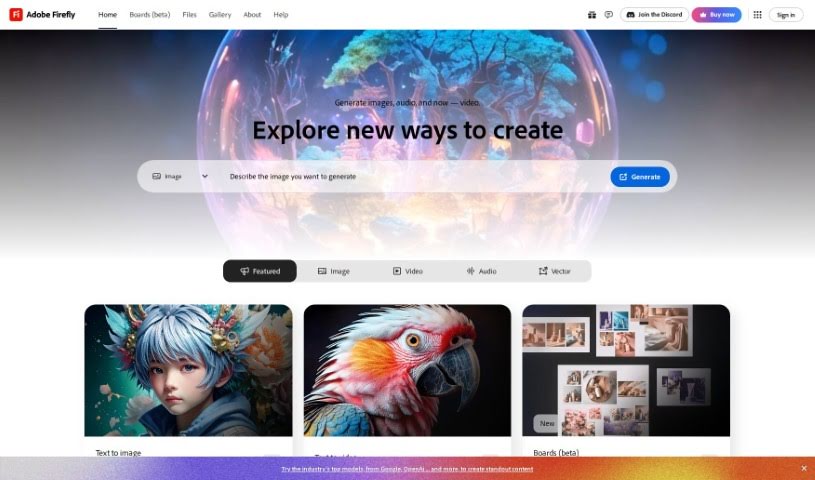
Screenshot of Adobe Firefly

Adobe Firefly

Discover what Adobe Firefly is and how to use it effectively in 2025. We'll explore its features and see how it stacks up against other Image Generators.

Screenshot

What is Adobe Firefly?

Adobe Firefly is a creative AI engine that’s built right into Adobe Photoshop. It is a powerful assistant that lets you do amazing things with simple text commands. For example, its Generative Fill feature (currently in beta) can add, extend, or remove parts of your images just by you typing what you want. It’s designed to really boost your imagination and help you create perfect-looking designs much faster. Firefly is part of Adobe’s new family of creative AI tools, all focused on making your creative process smoother, helping you come up with ideas, build things, and communicate them more effectively.

Who created Adobe Firefly?

Adobe Firefly is a creative generative AI engine that Adobe introduced as part of Photoshop. It lets users create and change image content simply by using text prompts. Adobe’s founder, who started the company over 40 years ago with a focus on image and text effects, continues to drive its development, building on decades of technological progress.

What is Adobe Firefly used for?

  • Creating and editing images
  • Generating unique text effects
  • Making creative workflows much better
  • Sparking new ideas
  • Innovating in content creation
  • Helping users bring their visions to life
  • Achieving pixel-perfect edits
  • Improving video editing
  • Supporting the creation of image and text effects
  • Unlocking new creative possibilities

How to use Adobe Firefly?

Here’s how you can start using Adobe Firefly within Adobe Photoshop:

  1. Getting Started: First off, Adobe Firefly is included as part of Adobe Photoshop. So, make sure you have Photoshop installed on your computer to access it.
  2. The Generative Fill Tool: One of Firefly’s standout features is the Generative Fill tool (it’s in beta right now). This powerful AI tool is fantastic for creative projects. Just select it, and then you can add, expand, or remove content from your images by typing a simple text prompt describing what you need.
  3. Applying Effects Quickly: You can use Firefly to quickly transform your images. Just play around with the generative AI capabilities, try out different effects, and make adjustments to really boost your creativity.
  4. Saving Your Work: Once you’re happy with your creation, you can download your images. Just look for the download button or the copy button, usually found in the top right corner of the image preview.
  5. Where It Works: Firefly is available on the web and works well in desktop browsers like Chrome, Safari, and Edge. Keep in mind, though, that it’s not yet supported on tablets or mobile devices.
  6. Cool Features to Explore: Check out some of Firefly’s top features, like getting instant creative building blocks, making video editing simpler, creating distinctive content, and even exploring futuristic 3D capabilities.
  7. Got Questions?: If you’re wondering about things like when the Adobe Firefly beta is available, how to download it, which platforms are supported, or just want a general overview of what Adobe Firefly’s generative AI models can do, the FAQs section is a great place to look.
  8. Pricing Info: For details on pricing and any subscription options for using Adobe Firefly in Photoshop, it’s best to check Adobe’s official website.

By following these steps, you can really make the most of Adobe Firefly inside Adobe Photoshop. It’s a great way to improve your creative projects and make your design process much smoother.

Related AI Tools

Discover more tools in similar categories that might interest you

123RF AI Image Generator

Creative Image Generation
Learn More

Stay Updated with AI Tools

Get weekly updates on the latest AI tools, trends, and insights delivered to your inbox

Join 25,000+ AI enthusiasts. No spam, unsubscribe anytime.